


Note
This script is a work in progress, currently designed to work with the Project Zomboid workshop. It will later be compatible with any game's workshop.
Steam Uploader Menu is a Python script that provides a simple, navigable menu for uploading and updating mods on the Steam Workshop. It acts as a user-friendly wrapper around the Steam Uploader CLI, so you don’t need to remember or type complex commands.
- 🚀 Upload / update mods directly to Steam Workshop
- 📂 Content upload – push your mod files easily
- 📝 Description update – pick a
.txt | .bbcodefile with a file dialog - 🏷️ Title, tags, and visibility settings – update with menu prompts
- 🖼️ Preview image support – select an image
.jpg | .png | .gifwith a file dialog - ⚡ Multiple options flow – update several fields at once in a single run
- 🛠️ Mod management – add, update or remove mods from the mod list in
mods.txt - 💾 Persistent settings – remembers your last used values in
settings.txt
- You choose what to upload / update through a simple text menu.
- File selections (description, preview image) are made via the file explorer.
- It builds the correct CLI command with the chosen options and runs it automatically.
- Results and logs are shown directly in the console.
- Python 3.13+
- Steam Uploader executable (CLI tool)
- Windows, Linux, or macOS console
- Clone this project or download the last release here.
- Make sure these files are present in the script folder:
steamuploader.py→ main scriptsettings.txt→ stores default paths & last used values (auto-created if missing)commands.txt→ command templates with placeholders like{CONTENT},{DESC},{TITLE},{VISIBILITY},{TAGS},{PREVIEW}mods.txt→ stores your mods list in the format ModName=WorkshopID
Note
Steam needs to be open (even in the background) for the CLI tool to work.
python steamuploader.py-
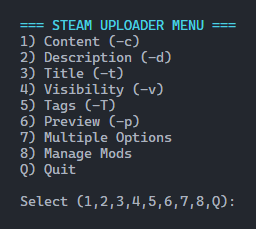
You’ll see a text-based menu with numbered options:
-
For Description and Preview uploads, a file explorer dialog will pop up so you can select the file instead of typing the path.
- Add your Mod and Workshop ID via Manage Mods.
- Pick Description → select a
.txt | .bbcodefile. - Confirm and the script will run the correct upload command.
- Done ✅
-
settings.txtStores last used values such as base paths, default description file, last chosen preview path, etc. → This file is created automatically on first run and updated whenever you make changes. -
mods.txtContains the list of mods you manage with the script. Each line follows the format:ModName=WorkshopIDYou can add/remove mods either manually or via the Manage Mods menu.
-
commands.txtDefines the CLI templates used for uploads/updates. Placeholders such as{CONTENT},{DESC},{TITLE},{VISIBILITY},{TAGS}, and{PREVIEW}are replaced by the script when building commands.
- Preview images must be 1 MB or smaller.
- Only
.txt | .bbcodefiles are supported for descriptions. - Only
.jpg | .png | .giffiles are supported for preview images.
- Script can’t find files
- → Check the paths stored in settings.txt. The script updates this automatically, but you can edit it manually if needed.
- Upload fails immediately
- → Verify that the Workshop ID is correct in mods.txt.
- On first run, paths are missing
- → The script will create settings.txt and default paths automatically. Simply run it again and select files when prompted.
Thanks to @SirDoggyJvla for creating Steam Uploader 🤘