

Never Lose Your Coding Context


🌐 Website • Features • Installation • Usage • Configuration • Contributing
What Was I Doing? is your silent productivity assistant.
Developers are constantly interrupted. Don't waste mental energy trying to remember your train of thought after a context switch. This extension seamlessly tracks your work context in the background and helps you resume exactly where you left off.
Whether you:
- Get pulled into an unexpected meeting
- Switch to another application
- Take a coffee break
- Close your laptop for the weekend
...the moment you return, a helpful popup instantly reminds you what file you were in, what function you were editing, and the exact next step you were supposed to take based on your TODO comments.
100% Private, 100% Local. We never send your code or data anywhere.
Get up and running in seconds:
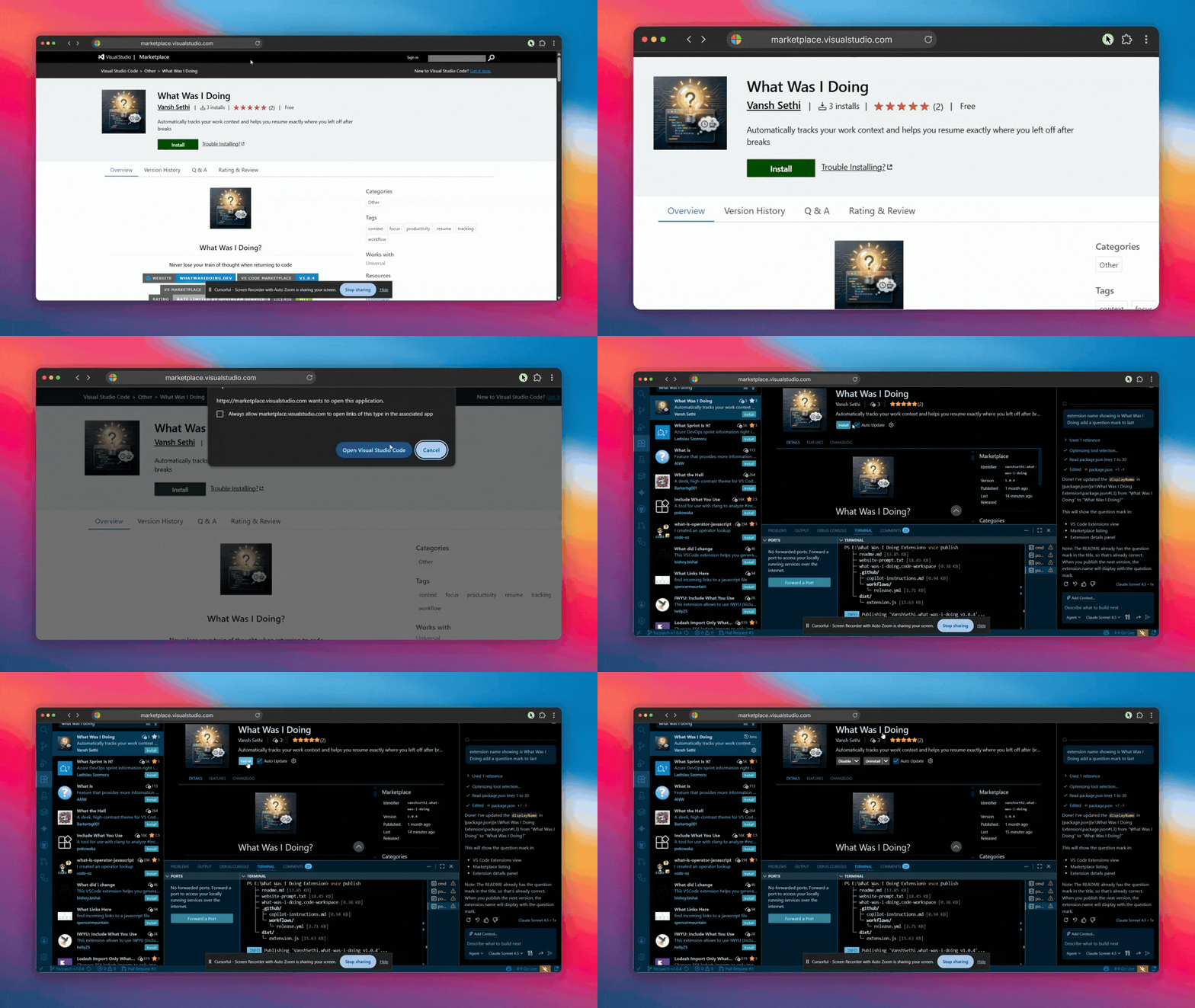
Install from VS Code Marketplace and the extension automatically starts tracking your work context
Never lose track of when you last worked on something. See exactly what you were doing 50 minutes ago, or even yesterday:
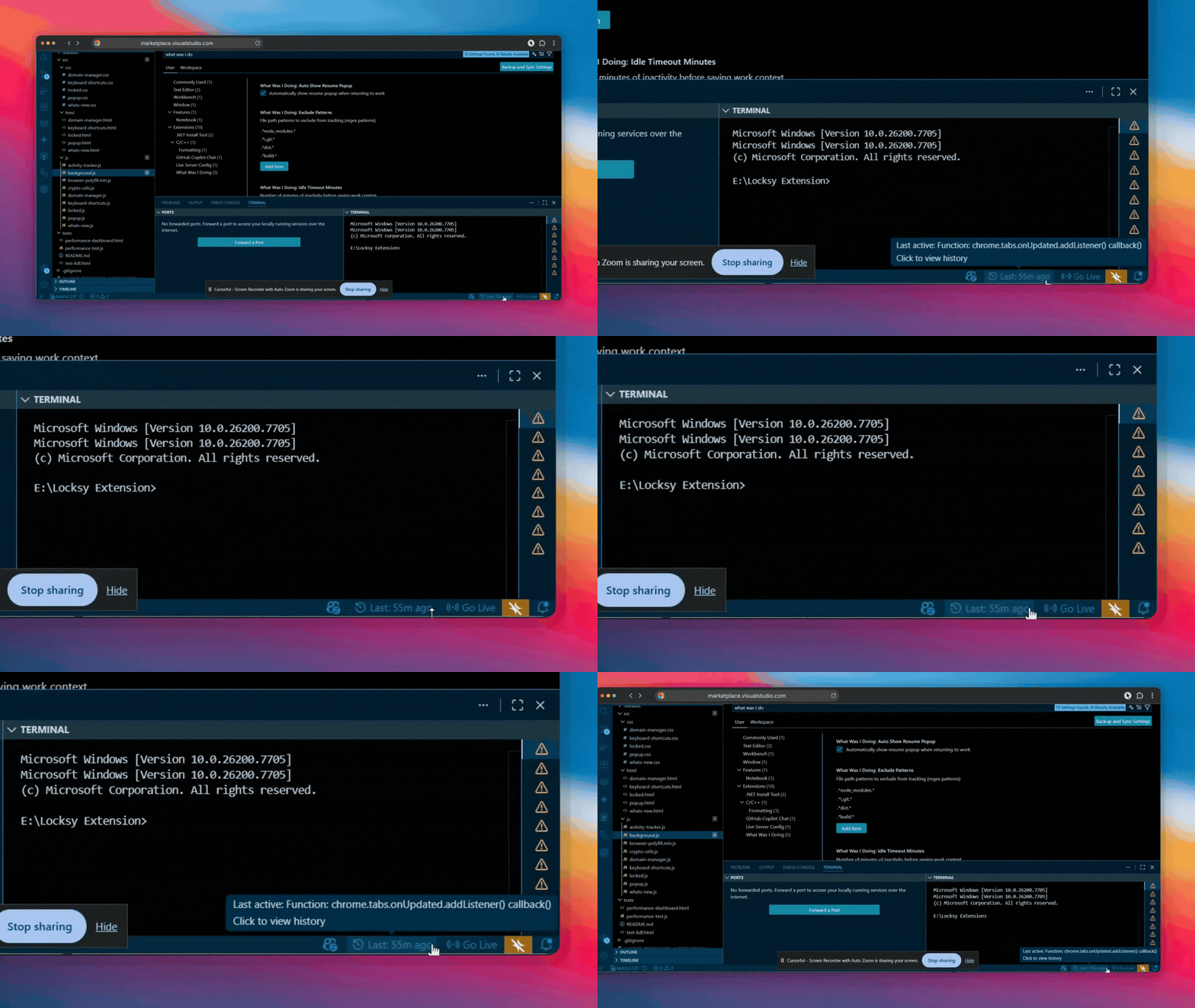
View your complete work history with timestamps — "What was I working on 50 min ago?" is answered instantly
Access all your previous work sessions and jump back to any context with a single click:
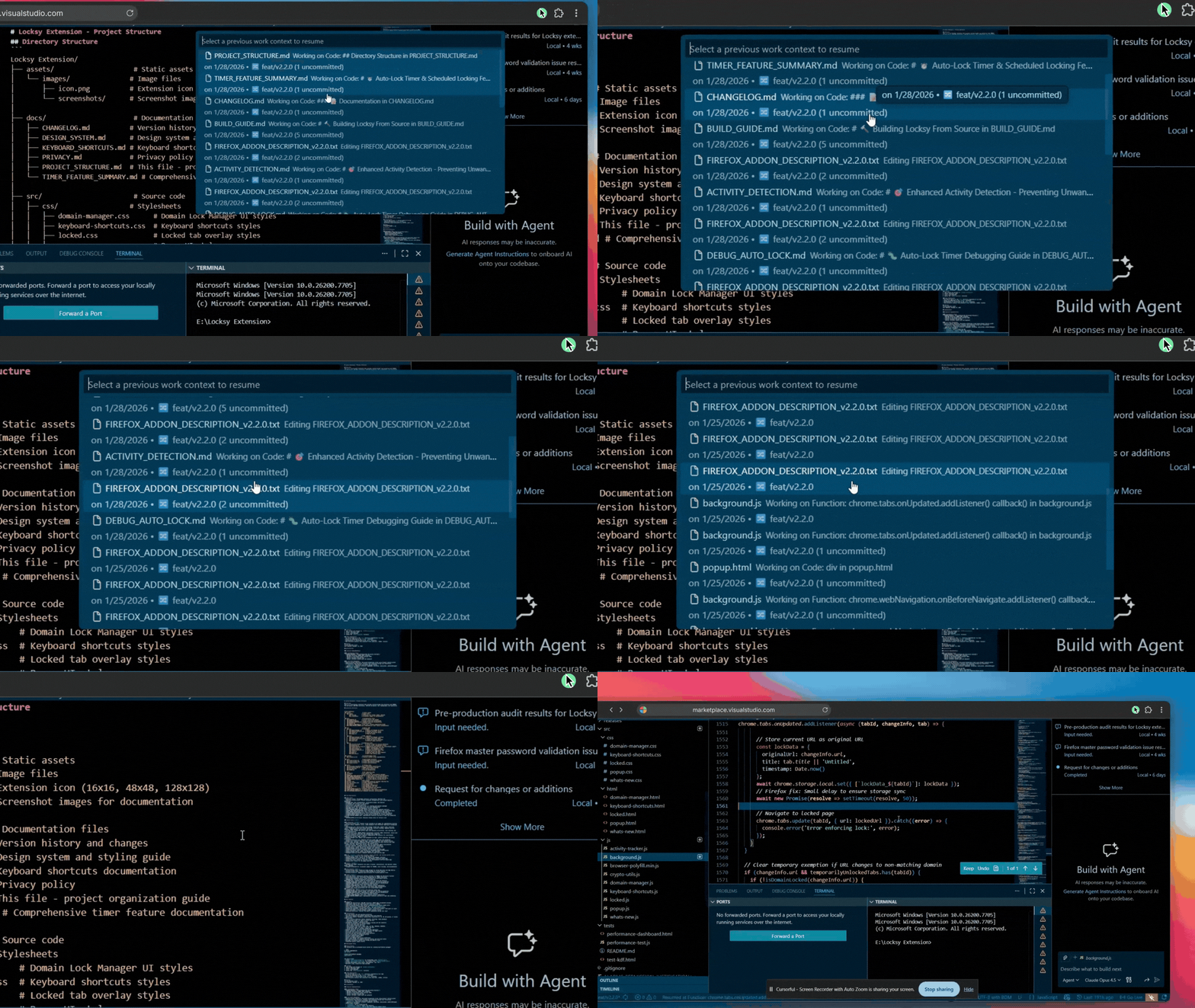
Browse through all your saved work contexts and click any session to instantly resume from that exact point
Quick access to all extension features directly from the Command Palette:
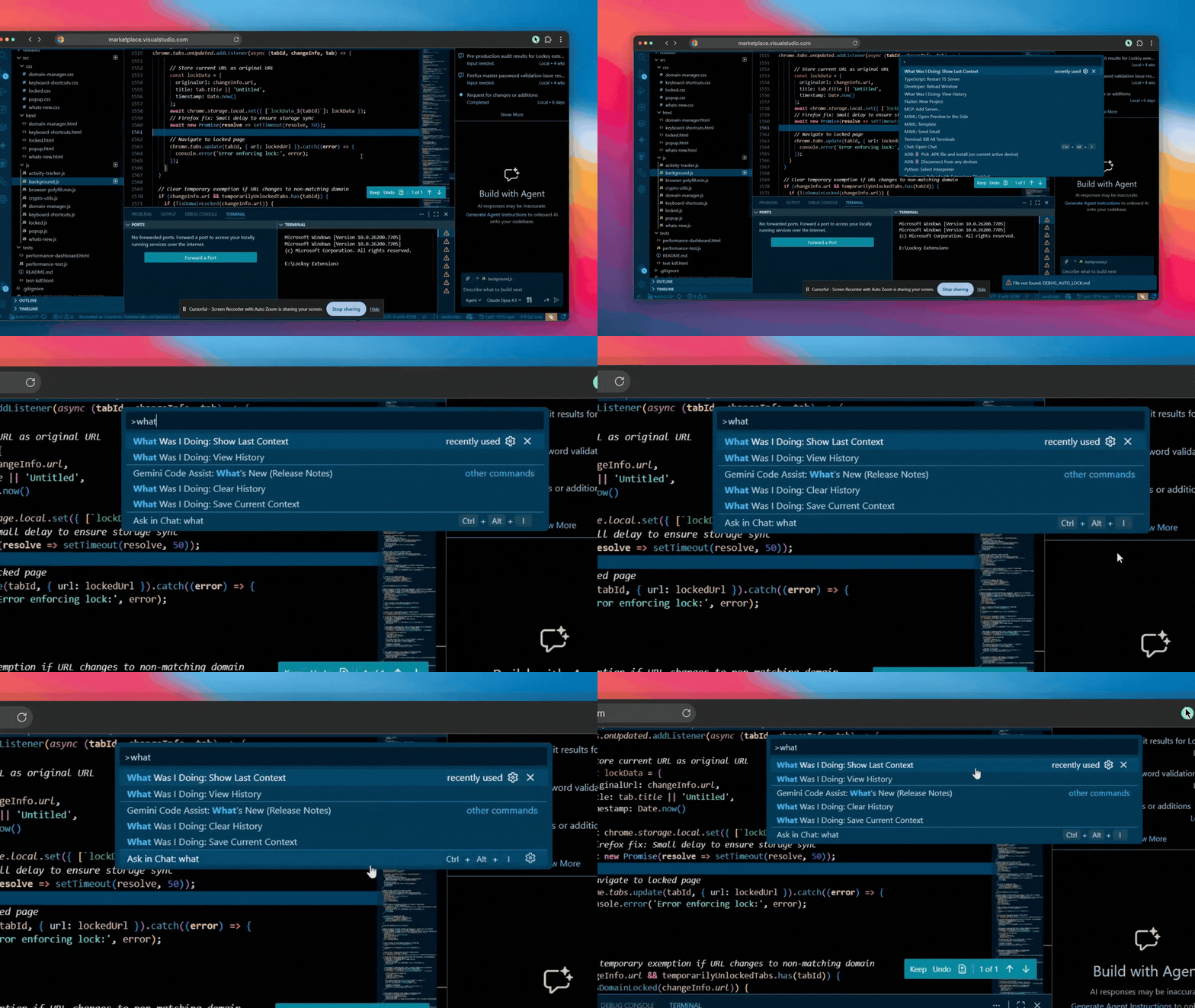
Search "What Was I Doing" in the Command Palette to see all available commands and features at your fingertips
Configure the extension to match your preferences — adjust popup behavior, idle timeout, history size, file exclusions, and more:
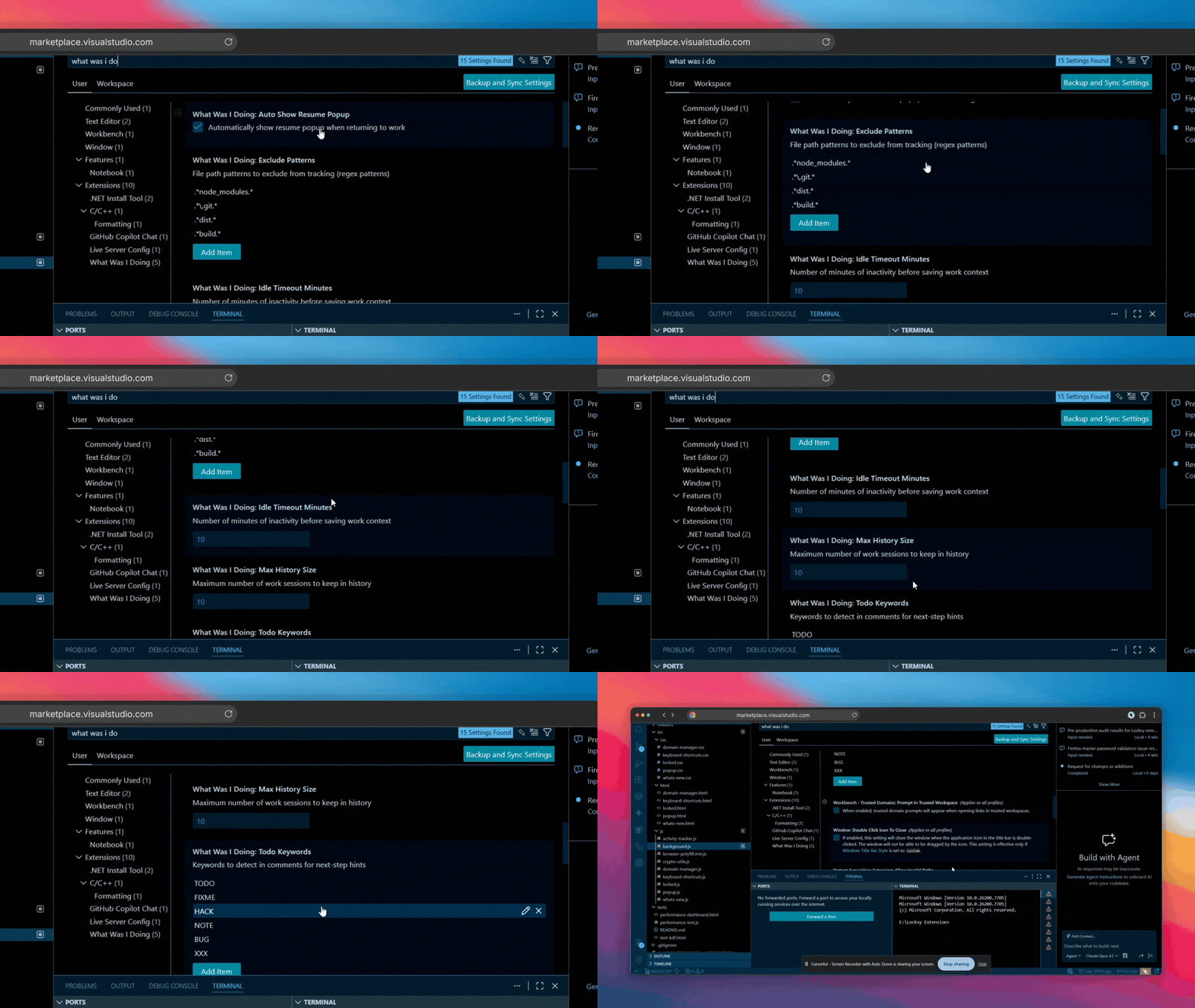
Fine-tune settings like popup display, idle timeout minutes, max history size, exclude patterns, and other options to fit your workflow perfectly
|
Seamlessly monitors your coding activity without any manual intervention.
|
Get back to work instantly with helpful context.
|
|
Never lose track of your recent work.
|
Customize the extension to fit your workflow.
|

- Open VS Code
- Press
Ctrl+Shift+X(Windows/Linux) orCmd+Shift+X(Mac) - Search for "What Was I Doing"
- Click Install
code --install-extension VanshSethi.what-was-i-doing→ Install from VS Code Marketplace
- Install the extension (see Installation)
- Start coding - The extension automatically tracks your activity
- Take a break - Step away for coffee, meetings, or lunch
- Return - See a helpful popup showing where you left off!
Open the Command Palette with Ctrl+Shift+P (Windows/Linux) or Cmd+Shift+P (Mac):
| Command | Description | Icon |
|---|---|---|
What Was I Doing: Show Last Context |
View your most recent work context | 🕒 |
What Was I Doing: View History |
Browse all saved work sessions | 📋 |
What Was I Doing: Save Current Context |
Manually save your current position | 💾 |
What Was I Doing: Clear History |
Reset all saved contexts | 🗑️ |
Look for the clock icon (🕒) in your status bar:
- Shows time since last activity (e.g., "2m ago", "1h ago")
- Click it to quickly view your work history
- Hover for tooltip with last active function/file
The extension automatically generates helpful notes about what you were working on:
Examples:
💡 Fixing auth bug in login.ts, need to check JWT expiry in Method: validateToken()
💡 Working on Method: fetchUserData() in api.ts
💡 Editing database.ts
These notes are generated from:
- TODO/FIXME comments near your cursor
- Function/method names you were editing
- The file you were working in
The notes appear in:
- 🔔 Resume popup when you return
- 📋 History quick pick menu
- 🕒 Status bar tooltips
The extension automatically captures Git context when saving your work:
Captured Information:
- 🌿 Branch name (e.g.,
feature/auth-fix) - 💬 Last commit message
- 📝 Number of uncommitted files
Example Display:
🔀 Branch: feature/auth-fix • Uncommitted files: 3
💬 Last commit: feat: add JWT token validation
This helps you quickly understand:
- What feature/fix you were working on
- If you have uncommitted changes
- The last stable point in your work
Access settings via File > Preferences > Settings or Ctrl+, (Windows/Linux) / Cmd+, (Mac), then search for "What Was I Doing".
📋 All Configuration Options
Minutes of inactivity before context is automatically saved.
- Type:
number - Default:
10 - Range: 1-120
{
  "whatWasIDoing.idleTimeoutMinutes": 15
}Maximum number of work sessions to keep in history.
- Type:
number - Default:
30 - Range: 1-50
{
  "whatWasIDoing.maxHistorySize": 30
}Automatically show resume popup when returning to work.
- Type:
boolean - Default:
true
{
  "whatWasIDoing.autoShowResumePopup": false
}File path regex patterns to exclude from tracking.
- Type:
array of strings - Default:
[".*node_modules.*", ".*\\.git.*", ".*dist.*", ".*build.*"]
{
  "whatWasIDoing.excludePatterns": [
    ".*node_modules.*",
    ".*\\.git.*",
    ".*test.*",
    ".*\\.cache.*"
  ]
}Keywords to detect in comments for next-step hints.
- Type:
array of strings - Default:
["TODO", "FIXME", "HACK", "NOTE", "BUG", "XXX"]
{
  "whatWasIDoing.todoKeywords": [
    "TODO",
    "FIXME",
    "WIP",
    "REVIEW"
  ]
}Perfect for developers who...
| Scenario | How It Helps |
|---|---|
| ☕ Coffee Breaks | Return from a 15-minute break and instantly recall what you were coding |
| 🔀 Context Switching | Jump between multiple projects without losing your place |
| 🌙 End of Day | Close VS Code at 5pm, reopen at 9am, pick up exactly where you left off |
| 📞 Unexpected Meetings | Get pulled into a meeting? Resume your work seamlessly afterward |
| 🐛 Debugging Sessions | Navigate through different files and functions while maintaining context |
| 📚 Code Reviews | Switch between reviewing PRs and your own work effortlessly |
| 🎯 Focus Sessions | Take breaks between Pomodoro sessions without losing momentum |
|
✅ 100% Local Storage |
All data stored locally in VS Code's workspace state |
|
✅ No External Servers |
Zero network requests - your code stays private |
|
✅ User Control |
Clear history anytime with one command |
|
✅ Open Source |
Fully auditable code on GitHub |
Does this extension slow down VS Code?
No! The extension uses efficient event listeners and only activates after VS Code finishes starting up. It has minimal performance impact.
Will it track files in node_modules or .git?
No. Common directories like node_modules, .git, dist, and build are excluded by default. You can customize exclusions in settings.
Can I use this across multiple workspaces?
Yes! Each workspace maintains its own separate history, so contexts don't mix between projects.
What happens if I don't want the auto-popup?
You can disable it in settings with "whatWasIDoing.autoShowResumePopup": false. You can still view history manually via the command palette or status bar.
Does it work with all programming languages?
Yes! Activity tracking works with all languages. Function name detection works best with JavaScript/TypeScript, Python, Java, C++, and other common languages.
git clone https://github.com/vansh-121/what-was-i-doing
cd what-was-i-doing
npm install
npm run compilePress F5 in VS Code to launch Extension Development Host.
| Requirement | Version |
|---|---|
| VS Code | ≥ 1.106.0 |
| OS | Windows, macOS, Linux |
| Issue | Workaround |
|---|---|
| Symbol detection may not work for all languages | Works best with JS/TS, Python, Java, C++ |
| Very large files (>1MB) may have slower extraction | Excluded by default in most cases |
| Function detection in complex nested structures | Still captures file and line number |
Found a bug? Report it here 🐛
See CHANGELOG.md for detailed release notes.
- ✨ NEW: Added a beautiful interactive Walkthrough to guide new users on first install.
- 🚀 IMPROVED: Refined marketplace copy and onboarding experience.
- 🔔 NEW: Automatic first-run popup to open the walkthrough immediately.
- 🐛 FIXED: Custom TODO keywords now properly respected in note generation
- 🐛 FIXED: TODO comment changes now correctly trigger new context saves
- 💡 Automatic context notes generation
- 🔀 Git awareness (branch, commit, uncommitted files)
- 📝 Intelligent notes from TODO comments, function names, and file context
- 🎯 Enhanced resume experience with prominent note display
- ⏰ Smart idle detection
- 🎯 Instant resume popup
- 📋 Work session history
- 🚫 Duplicate context prevention
Contributions, issues, and feature requests are welcome!
# Clone the repository
git clone https://github.com/vansh-121/what-was-i-doing.git
cd what-was-i-doing

# Install dependencies
npm install

# Compile TypeScript
npm run compile

# Run in development mode
# Press F5 in VS Code to launch Extension Development HostThis project is licensed under the MIT License - see the LICENSE file for details.


If you find this extension helpful, please consider:
⭐ Starring the repo on GitHub
⭐ Rating it on the VS Code Marketplace
🐦 Sharing it with your developer friends
Made with ❤️ by Vansh Sethi
Website • VS Code Marketplace • GitHub Repository • Report Issues