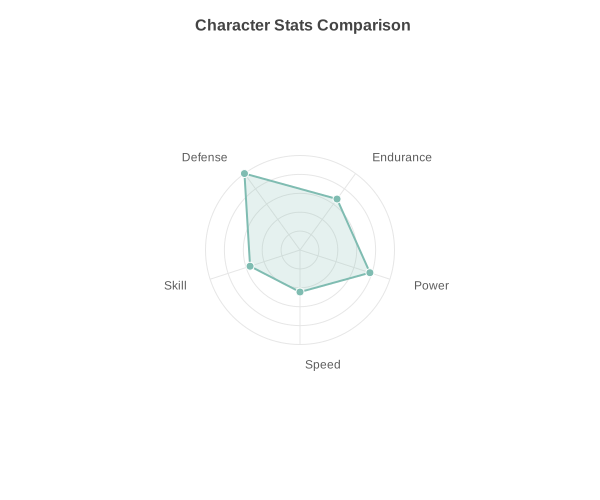
Charted is a zero dependency SVG chart generator that aims to provide a simple interface for generating beautiful and customisable graphs. This project is inspired by chart libraries like mermaid.js.
All chart types support negative values with a proper zero baseline, multi-series data, and theming via a simple dict. Output is a single SVG string — write it to a file or inline it in HTML.
- Zero runtime dependencies — pure Python, no numpy/pandas required
- 6 chart types — Bar, Column, Line, Scatter, Pie, Radar
- Multi-series support — stacked, side-by-side, grouped layouts
- Negative values handled — proper zero baseline calculations
- Theme system — 3 built-in themes + custom dict overrides
- Data loading — CSV/JSON parsers built-in
- Markdown export — generate embed-ready markdown snippets
- CLI included — create charts without writing Python code
- Jupyter ready — charts render inline automatically
- Base Chart class — unified API for dynamic chart type selection
- Column (multi-series, stacked, side-by-side)
- Bar (single-series, multi-series, stacked, side-by-side)
- Line (single-series, multi-series, XY mode)
- Scatter (single-series, multi-series)
- Pie (doughnut mode, exploded slices)
- Radar (multi-axis comparison, multi-series)
charted can be used from the command line to generate charts without writing Python code:
# Generate a single chart from CSV/JSON
python -m charted create bar output.svg --data data.csv

# Specify chart type and data file
python -m charted create column chart.svg -d sales.csv

# Batch generate charts from a directory
python -m charted batch input_data/ output_svg/

# Override chart type inference
python -m charted batch input_data/ output_svg/ -t lineCSV:
Quarter,Revenue,Expenses
Q1,120,80
Q2,180,95
Q3,210,110
JSON:
{
  "labels": ["Q1", "Q2", "Q3"],
  "data": [[120, 180, 210], [80, 95, 110]],
  "series_names": ["Revenue", "Expenses"]
}charted works seamlessly in Jupyter notebooks — charts render inline automatically:
from charted.charts import BarChart

# Just create a chart, it displays inline
chart = BarChart(
    title="Sales by Quarter",
    data=[120, 180, 210, 150],
    labels=["Q1", "Q2", "Q3", "Q4"]
)
Charts are automatically compatible with markdown documentation — just embed the generated SVG:
Load data directly from CSV/JSON files without pandas:
from charted import load_csv, load_json, BarChart

# Load from CSV
x, y, labels = load_csv("sales.csv", x_col="Quarter", y_col="Revenue")
chart = BarChart(data=y, labels=x, title=labels[0])
chart.save("sales.svg")

# Load from JSON
x, y, labels = load_json("data.json")
chart = ColumnChart(data=y, labels=x)
chart.save("chart.svg")
Supported JSON formats: simple arrays, arrays of objects, or objects with data/labels keys.
Generate embed-ready markdown for documentation:
from charted import BarChart
chart = BarChart(data=[120, 180, 210], labels=["Q1", "Q2", "Q3"], title="Sales")
# Save and get markdown with file path
chart.save("docs/sales.svg")
md = chart.to_markdown(path="docs/sales.svg")
# Output: 
# Get markdown with inline data URL
md = chart.to_markdown() # Inline SVG as data URLPerfect for embedding charts in README files, documentation, or markdown-based wikis.
Use the unified Chart class for dynamic chart type selection:
from charted import Chart

# Create any chart type with the same interface
chart = Chart(
    data=[120, 180, 210],
    labels=["Q1", "Q2", "Q3"],
    title="Sales",
    chart_type="bar"  # or "column", "line", "scatter", "pie"
)
chart.save("chart.svg")

# Access all chart methods
svg = chart.to_svg()
md = chart.to_markdown()
html = chart._repr_html_()Full CLI help is available via:
python -m charted --help
python -m charted create --help
python -m charted batch --help
See Configuration for comprehensive documentation on all configuration options including:
- Basic settings — fonts, dimensions, color palette
- Chart-specific defaults — bar_gap, column_gap, pie label settings
- Chart-specific themes — per-chart-type theme overrides
- CLI integration — how config works with command-line usage
pip install chartedI've tried to avoid using tkinter in this library as it can be fiddly to install depending on your OS. However, it's still partially used if you're looking to expand Charted. Instead of using tkinter to calculate text dimensions on the fly, font definitions are created in fonts/definitions/.
New font definitions can be created by using:
uv run python charted/commands/create_font_definition.py Helveticafrom charted.charts import ColumnChart
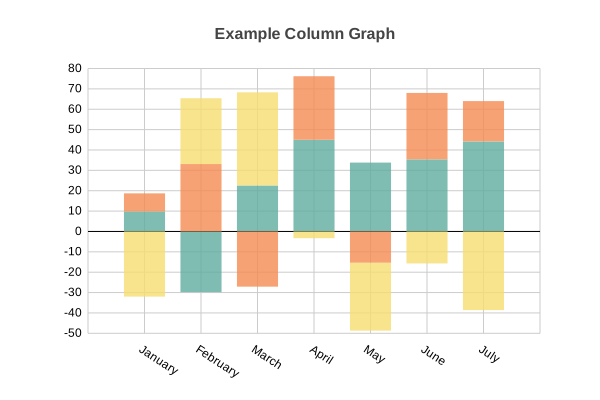
graph = ColumnChart(
title="Year-over-Year Growth Rate (%) by Segment",
data=[
[12, -8, 22, 18, -5, 30], # Revenue
[-3, -15, 5, -2, -20, 8], # Costs
[9, -23, 17, 16, -25, 38], # Net
],
labels=["Q1", "Q2", "Q3", "Q4", "Q5", "Q6"],
width=700,
height=500,
theme={
"padding": {
"v_padding": 0.12,
"h_padding": 0.10,
}
},
)
import math
from charted.charts import LineChart

n = 20
graph = LineChart(
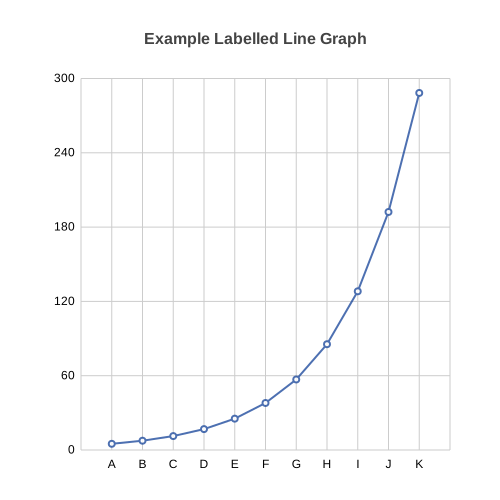
    title="Signal Analysis: Raw vs Filtered vs Baseline",
    data=[
        [math.sin(i * 0.5) * 30 + (i % 7 - 3) * 5 for i in range(n)],  # Raw
        [math.sin(i * 0.5) * 25 for i in range(n)],                      # Filtered
        [math.sin(i * 0.5) * 10 - 5 for i in range(n)],                  # Baseline
    ],
    labels=[str(i) for i in range(n)],
    width=700,
    height=400,
)
from charted.charts import LineChart

# Show every 3rd x-axis label to avoid crowding
graph = LineChart(
    title="Temperature Trend (with controlled x-axis labels)",
    data=[[22, 24, 23, 25, 27, 26, 28, 30, 29, 31, 33, 32]],
    labels=["Jan", "Feb", "Mar", "Apr", "May", "Jun", "Jul", "Aug", "Sep", "Oct", "Nov", "Dec"],
    axis_tick_interval=3,  # Show every 3rd label
    width=700,
    height=400,
)

# Or use percentage-based interval (show 25% of labels)
graph = LineChart(
    title="Temperature Trend (25% labels)",
    data=[[22, 24, 23, 25, 27, 26, 28, 30, 29, 31, 33, 32]],
    labels=["Jan", "Feb", "Mar", "Apr", "May", "Jun", "Jul", "Aug", "Sep", "Oct", "Nov", "Dec"],
    axis_tick_interval="25%",  # Show 25% of labels
    width=700,
    height=400,
)

# Or use float proportion (show 1/4 of labels)
graph = LineChart(
    title="Temperature Trend (0.25 proportion)",
    data=[[22, 24, 23, 25, 27, 26, 28, 30, 29, 31, 33, 32]],
    labels=["Jan", "Feb", "Mar", "Apr", "May", "Jun", "Jul", "Aug", "Sep", "Oct", "Nov", "Dec"],
    axis_tick_interval=0.25,  # Show 25% of labels
    width=700,
    height=400,
)
The axis_tick_interval parameter controls how many x-axis labels are displayed:
int— Show every Nth label (e.g.,3shows every 3rd label)strwith%— Show percentage of labels (e.g.,"25%"shows 25% of labels)float< 1 — Show proportion of labels (e.g.,0.25shows 25% of labels)
Visual examples of axis_tick_interval:
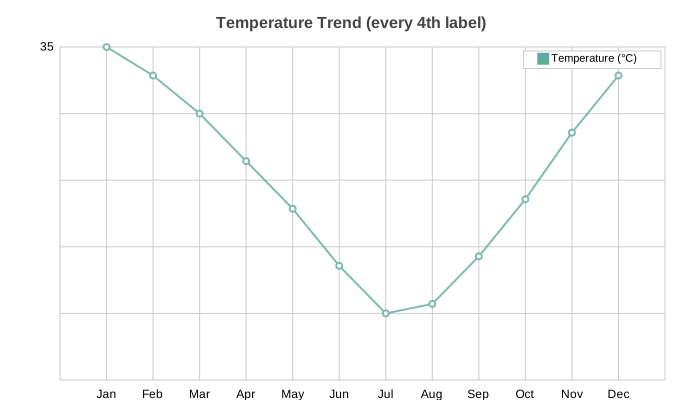 Every 3rd label
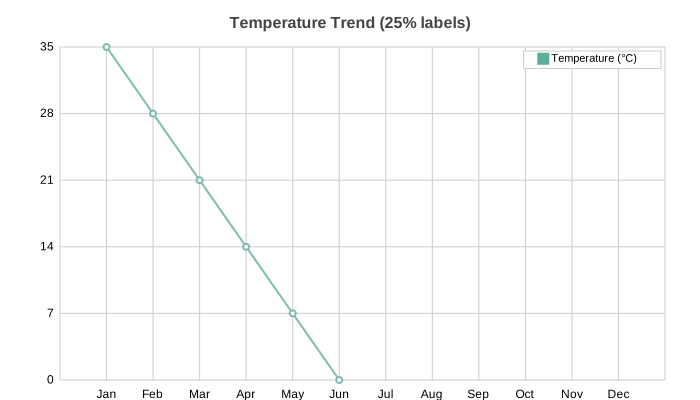 25% of labels (string syntax)
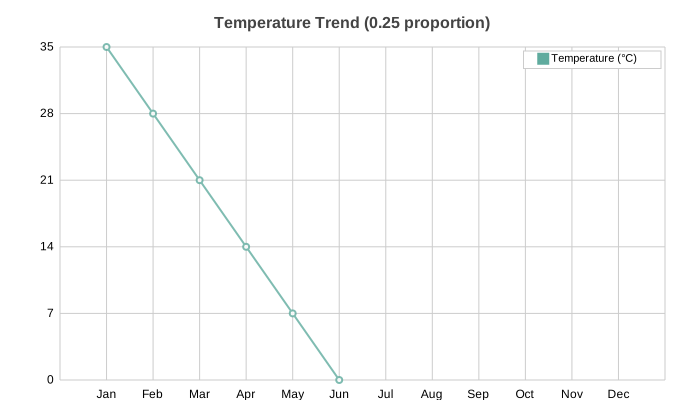 25% of labels (float proportion)
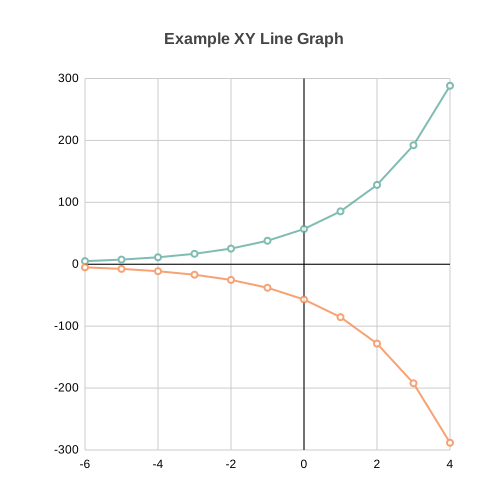
from charted.charts import LineChart

years = list(range(1990, 2010))
anomalies = [-15, -5, 10, 20, 5, 25, 15, 30, 10, 20, 40, 25, 45, 30, 50, 35, 60, 55, 45, 70]

graph = LineChart(
    title="Temperature Anomaly vs Baseline (1990-2009)",
    data=[anomalies, [0] * len(years)],
    x_data=years,
    labels=[str(y) for y in years],
    width=700,
    height=400,
)
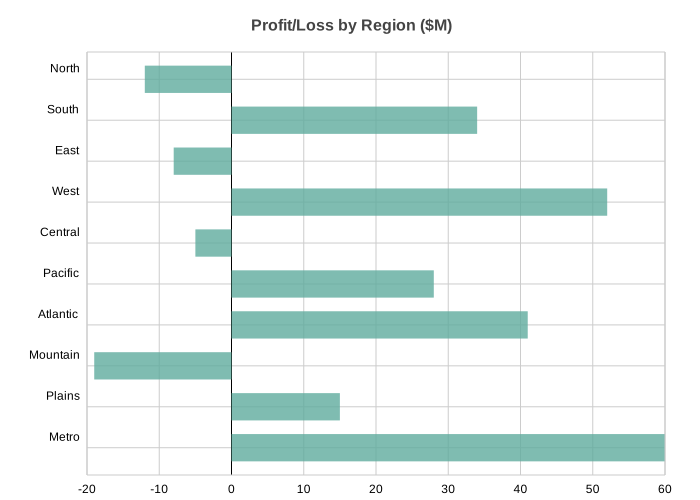
from charted.charts import BarChart

graph = BarChart(
    title="Profit/Loss by Region ($M)",
    data=[-12, 34, -8, 52, -5, 28, 41, -19, 15, 60],
    labels=["North", "South", "East", "West", "Central", "Pacific", "Atlantic", "Mountain", "Plains", "Metro"],
    width=700,
    height=500,
)
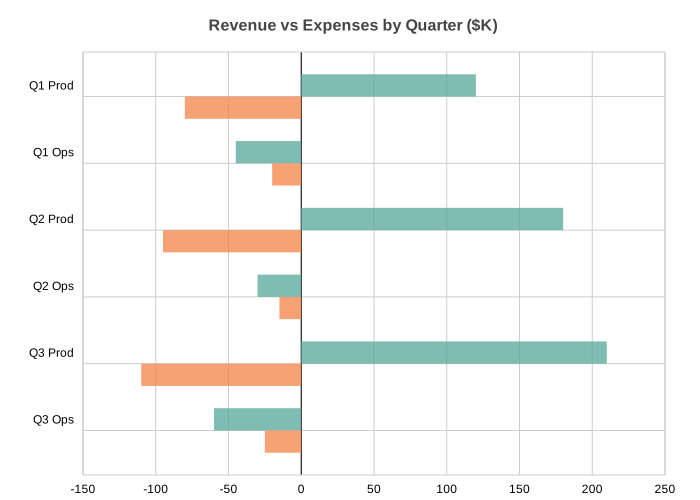
from charted.charts import BarChart

graph = BarChart(
    title="Revenue vs Expenses by Quarter ($K)",
    data=[
        [120, -45, 180, -30, 210, -60],   # Revenue
        [-80, -20, -95, -15, -110, -25],  # Expenses
    ],
    labels=["Q1 Prod", "Q1 Ops", "Q2 Prod", "Q2 Ops", "Q3 Prod", "Q3 Ops"],
    width=700,
    height=500,
)
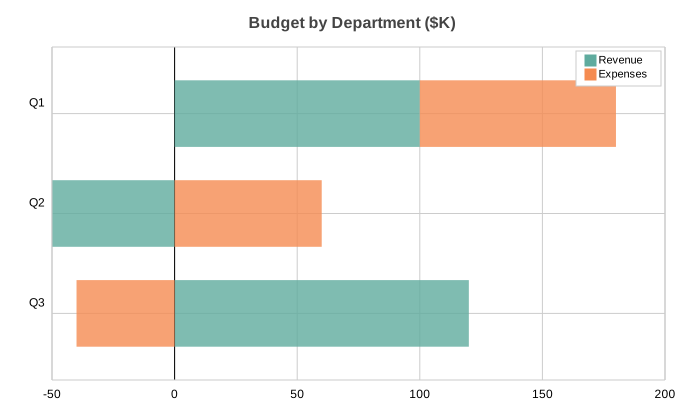
from charted.charts import BarChart

graph = BarChart(
    title="Budget by Department ($K)",
    data=[
        [100, -50, 120],    # Revenue
        [80, 60, -40],      # Expenses
    ],
    labels=["Q1", "Q2", "Q3"],
    series_names=["Revenue", "Expenses"],
    x_stacked=True,
    width=700,
    height=400,
)
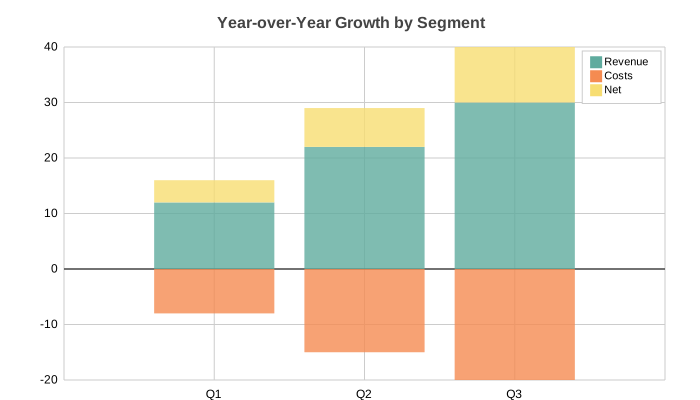
from charted.charts import ColumnChart

graph = ColumnChart(
    title="Year-over-Year Growth by Segment",
    data=[
        [12, 22, 30],      # Revenue
        [-8, -15, -20],    # Costs
        [4, 7, 10],        # Net
    ],
    labels=["Q1", "Q2", "Q3"],
    series_names=["Revenue", "Costs", "Net"],
    width=700,
    height=400,
)
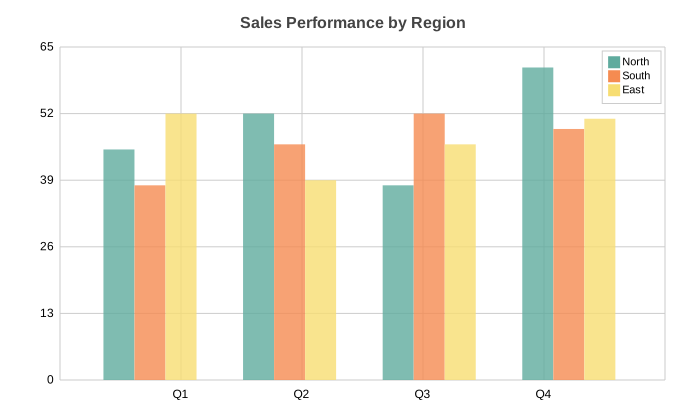
from charted.charts import ColumnChart

graph = ColumnChart(
    title="Sales Performance by Region",
    data=[
        [45, 52, 38, 61],   # North
        [38, 46, 52, 49],   # South
        [52, 39, 46, 51],   # East
    ],
    labels=["Q1", "Q2", "Q3", "Q4"],
    series_names=["North", "South", "East"],
    width=700,
    height=400,
)
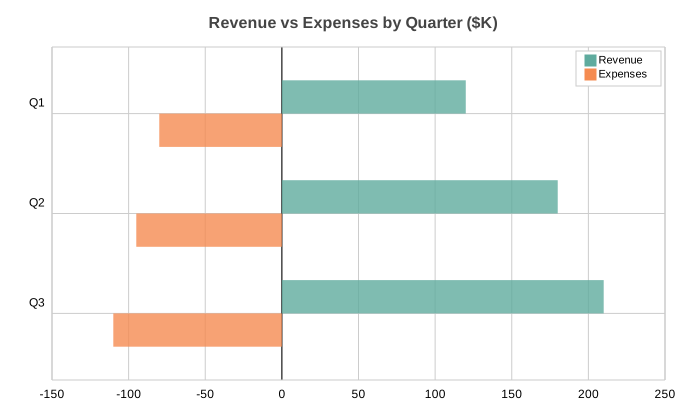
from charted.charts import BarChart

graph = BarChart(
    title="Revenue vs Expenses by Quarter ($K)",
    data=[
        [120, 180, 210],    # Revenue
        [-80, -95, -110],   # Expenses
    ],
    labels=["Q1", "Q2", "Q3"],
    series_names=["Revenue", "Expenses"],
    width=700,
    height=400,
)
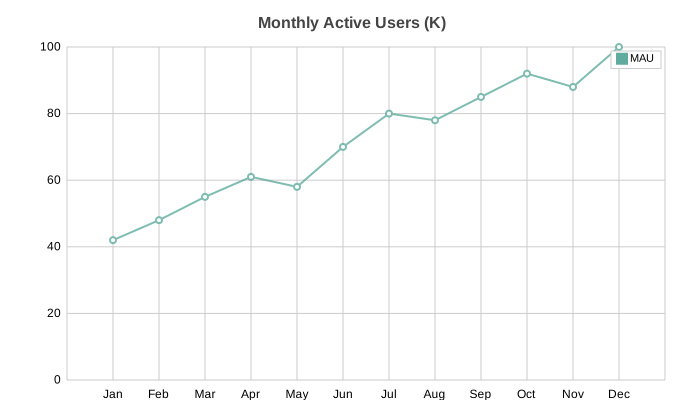
from charted.charts import LineChart

graph = LineChart(
    title="Monthly Active Users (K)",
    data=[[42, 48, 55, 61, 58, 70, 80, 78, 85, 92, 88, 100]],
    labels=["Jan", "Feb", "Mar", "Apr", "May", "Jun", "Jul", "Aug", "Sep", "Oct", "Nov", "Dec"],
    series_names=["MAU"],
    width=700,
    height=400,
)
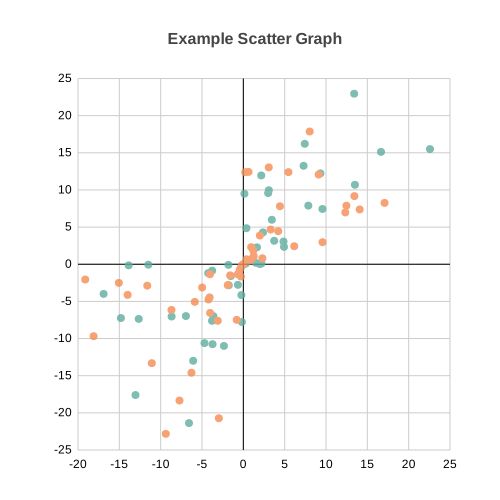
from charted.charts import ScatterChart

graph = ScatterChart(
    title="Correlation Analysis",
    x_data=[[0, 10, 20, 30, 40, 50], [5, 15, 25, 35, 45, 55]],
    y_data=[[10, 20, 30, 40, 50, 60], [15, 25, 35, 50, 60, 70]],
    series_names=["Group A", "Group B"],
    width=700,
    height=400,
)
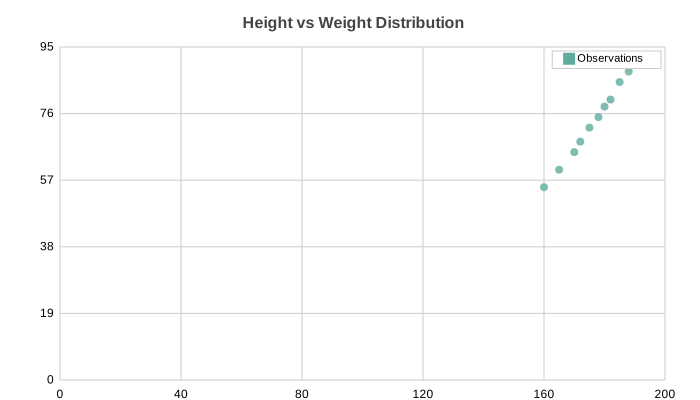
from charted.charts import ScatterChart

graph = ScatterChart(
    title="Height vs Weight Distribution",
    x_data=[160, 165, 170, 172, 175, 178, 180, 182, 185, 188, 190],
    y_data=[55, 60, 65, 68, 72, 75, 78, 80, 85, 88, 92],
)
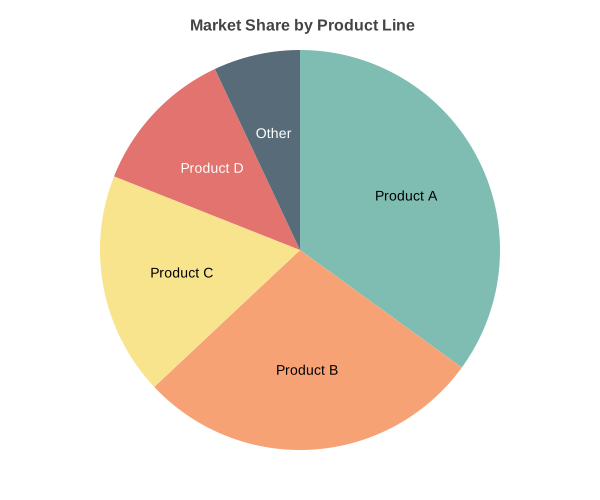
from charted.charts import PieChart

graph = PieChart(
    title="Market Share by Product Line",
    data=[35, 28, 18, 12, 7],
    labels=["Product A", "Product B", "Product C", "Product D", "Other"],
    width=600,
    height=500,
)
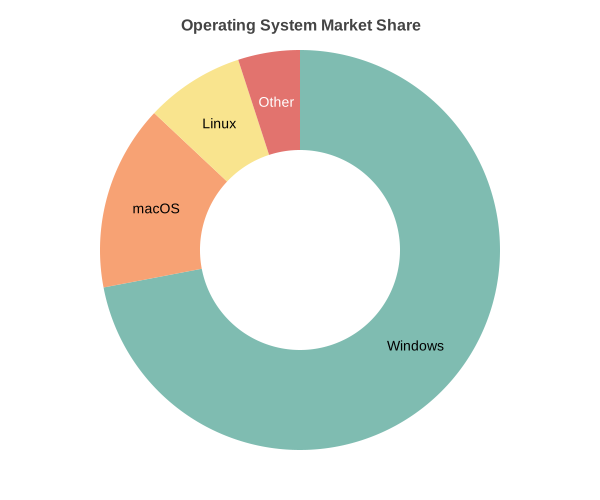
from charted.charts import PieChart

graph = PieChart(
    title="Operating System Market Share",
    data=[45, 28, 15, 12],
    labels=["Windows", "macOS", "Linux", "Other"],
    inner_radius=0.5,  # Creates doughnut hole (0.0-1.0 ratio)
    width=600,
    height=500,
)
from charted.charts import RadarChart

graph = RadarChart(
    title="Player Skill Comparison",
    data=[
        [85, 90, 75, 88, 92],  # Player A
        [70, 85, 90, 75, 80],  # Player B
    ],
    labels=["Speed", "Strength", "Defense", "Technique", "Stamina"],
    width=600,
    height=500,
)