Installation (for developers)
git clone https://github.com/glass-notes/glass-notes-app.gitOpen in Android Studio
Run the application to your Google Glass
Visit GitHub's Token Settings: https://github.com/settings/tokens
Create a token with the repo :: Full control of private repositories option ticked
Generate an access token
Visit https://jsoneditoronline.org/ and add the following JSON code:
{
"savePeriodMs" : 5000 ,
"preferredDataStoreName" : " GitHubAPISyncLocalDiskGlassNotesDataStore" "githubAccessToken" : " GITHUB_ACCESS_TOKEN" "githubRepoOwnerAndPath" : " owner/repo"
Replace the access token with the one you generated above
Visit https://www.the-qrcode-generator.com/ and paste in the modified JSON from above
In the Glass Notes application, select the Load settings → and scan the QR code from step 9
Enjoy the application!
Navigate down by swiping forward on the Glass touch pad or pressing d on the connected keyboard.
Navigate up by swiping back on the Glass touch pad or pressing a on the connected keyboard.
Select an underlined item by tapping on the Glass touch page or pressing Enter on the connected keyboard.
Load settings from the QR (specified in Installation ) by tapping on Load settings → or pressing ctrl and q (for QR) on your keyboard.
Delete a selected note by pressing ctrl and delete/backspace on your keyboard.
Double-tap a selected note to enter a read-only presentation mode for its contents
Scan a QR code (you may have to come close to the QR code screen)
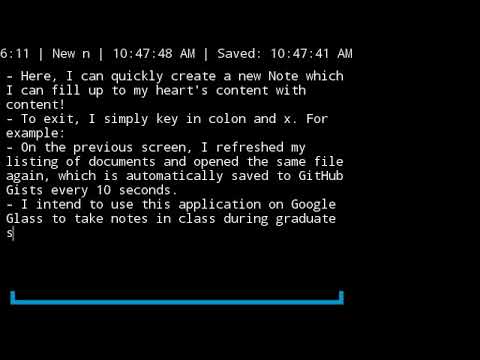
Type any key to enter text into the text editor.
Press ctrl and s to manually save the document to the specified data store.
Press ctrl and x to save and exit from the text editor.