






Qt-Material is a modern stylesheet library for PySide6 and PyQt6, inspired by Material Design.
It provides:
- Dark and light themes
- Custom accent colors and fonts
- Runtime theme switching
- Export to
.qss+.rccfor use in C++ or standalone apps - Density scaling for accessibility
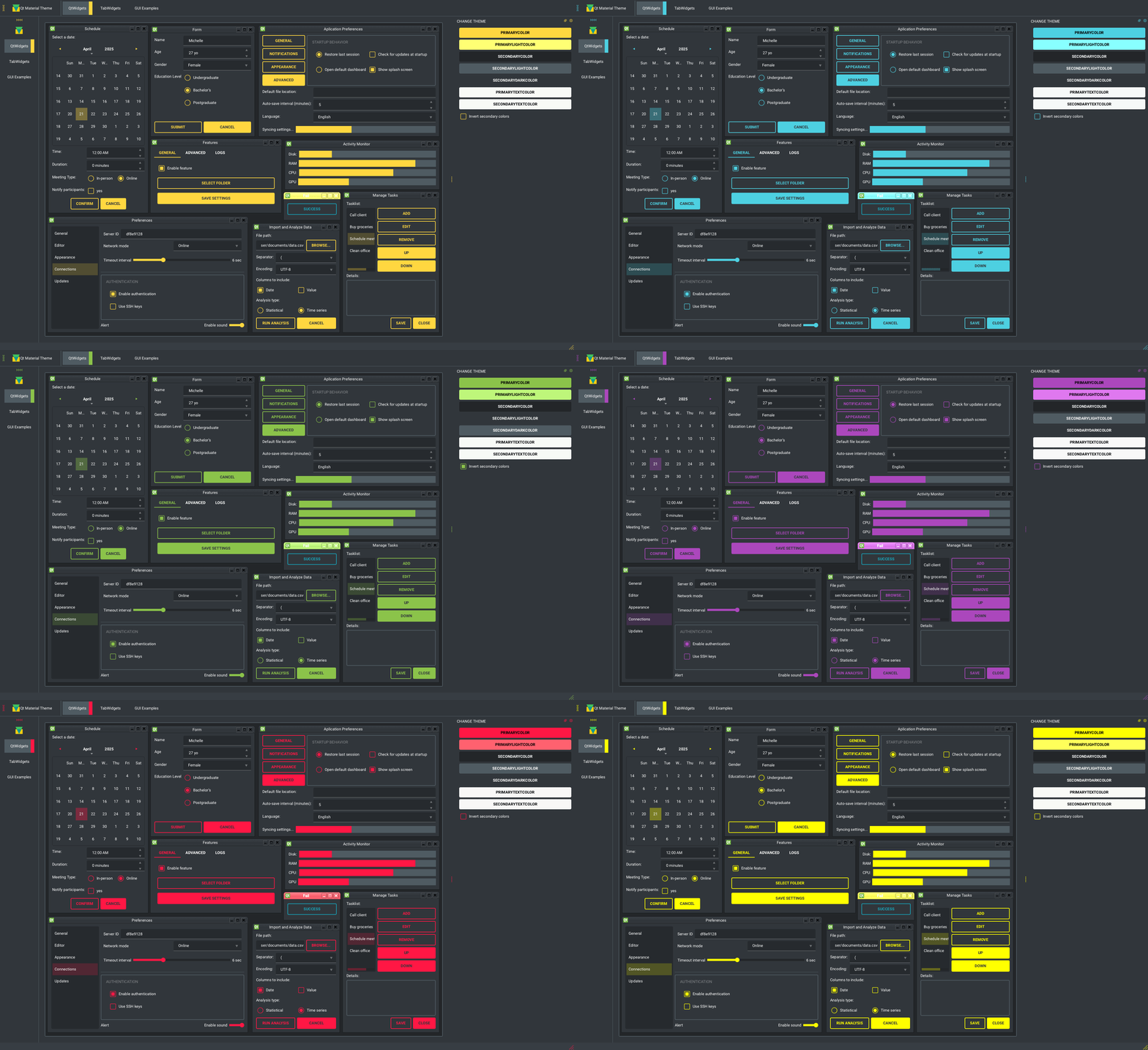
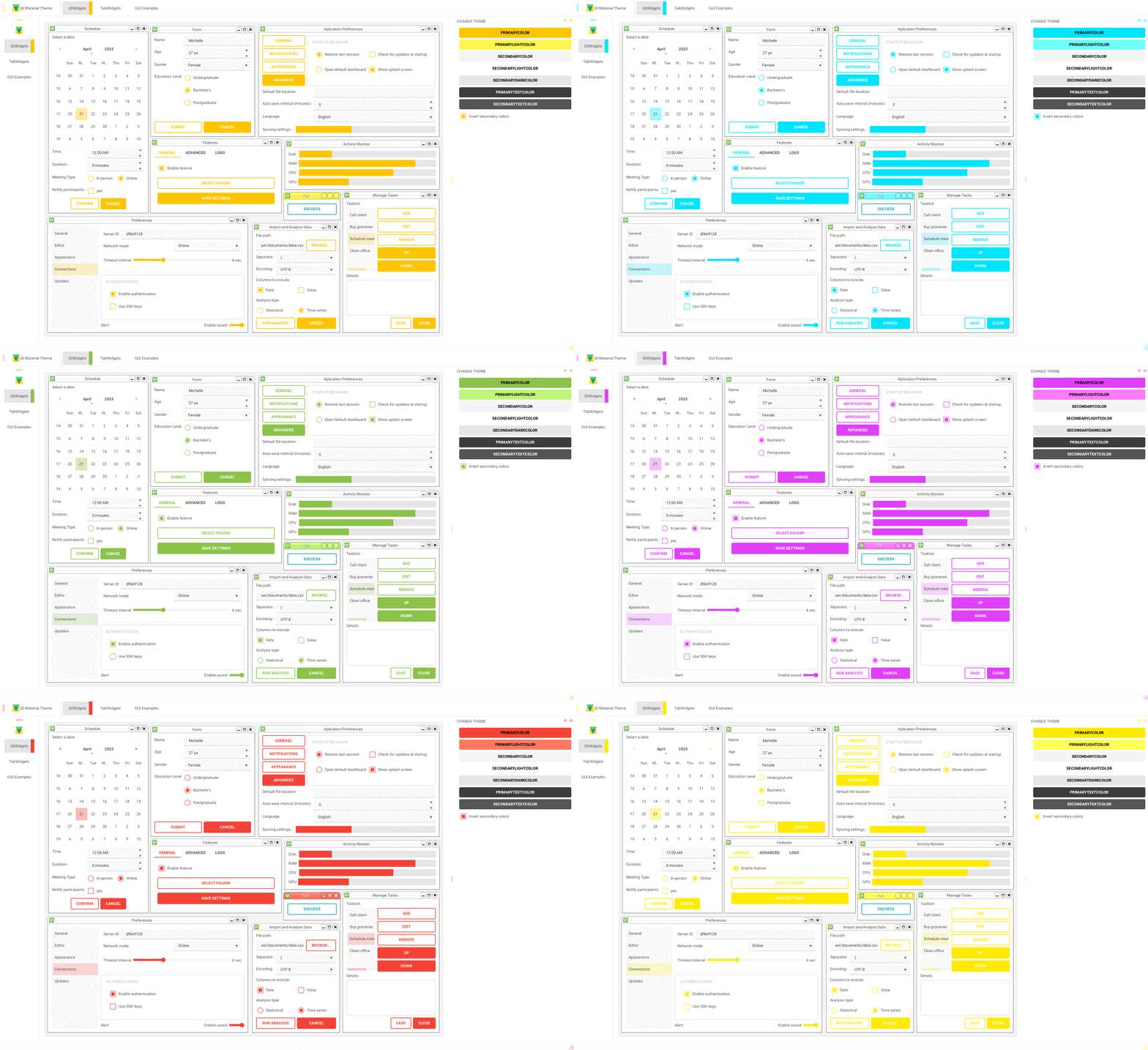
Qt-Material includes a variety of built-in themes, both in dark and light modes.
Dark themes:
Light themes:
pip install -U qt-materialOr from source:
git clone https://github.com/dunderlab/qt-material.git
cd qt-material
pip install .Comprehensive usage guides, examples, and API reference are available online:
To apply a Material Design-inspired stylesheet to your Qt application, simply use apply_stylesheet() from the qt_material module.
import sys
from PySide6 import QtWidgets
from qt_material import apply_stylesheet

# Create application instance and main window
app = QtWidgets.QApplication(sys.argv)
window = QtWidgets.QMainWindow()

# Apply a built-in theme
apply_stylesheet(app, theme='dark_teal.xml')

# Show the window and execute
window.show()
app.exec()Just replace the import line:
from PyQt5 import QtWidgets
# or
from PyQt6 import QtWidgetsTo view all available built-in themes, use the list_themes() function:
from qt_material import list_themes

print(list_themes())
Example output:
['dark_amber.xml',
 'dark_blue.xml',
 'dark_cyan.xml',
 'dark_lightgreen.xml',
 'dark_pink.xml',
 'dark_purple.xml',
 'dark_red.xml',
 'dark_teal.xml',
 'dark_yellow.xml',
 'light_amber.xml',
 'light_blue.xml',
 'light_cyan.xml',
 'light_cyan_500.xml',
 'light_lightgreen.xml',
 'light_pink.xml',
 'light_purple.xml',
 'light_red.xml',
 'light_teal.xml',
 'light_yellow.xml']
To apply any of these themes, pass the filename to apply_stylesheet():
apply_stylesheet(app, theme='light_purple.xml')When using a light theme, it's recommended to enable invert_secondary=True to ensure text and contrast are properly rendered for bright backgrounds.
from qt_material import apply_stylesheet

apply_stylesheet(app, theme='light_red.xml', invert_secondary=True)
This helps maintain proper visibility and icon behavior in light mode.
The following environment variables are related to the current theme used. These variables are for consultation purposes only.
| Environment Variable | Description | Example |
|---|---|---|
| QTMATERIAL_PRIMARYCOLOR | Primary color | #2979ff |
| QTMATERIAL_PRIMARYLIGHTCOLOR | A bright version of the primary color | #75a7ff |
| QTMATERIAL_SECONDARYCOLOR | Secondary color | #f5f5f5 |
| QTMATERIAL_SECONDARYLIGHTCOLOR | A bright version of the secondary color | #ffffff |
| QTMATERIAL_SECONDARYDARKCOLOR | A dark version of the secondary color | #e6e6e6 |
| QTMATERIAL_PRIMARYTEXTCOLOR | Color for text over primary background | #000000 |
| QTMATERIAL_SECONDARYTEXTCOLOR | Color for text over secondary background | #000000 |
| QTMATERIAL_THEME | Name of theme used | light_blue.xml |
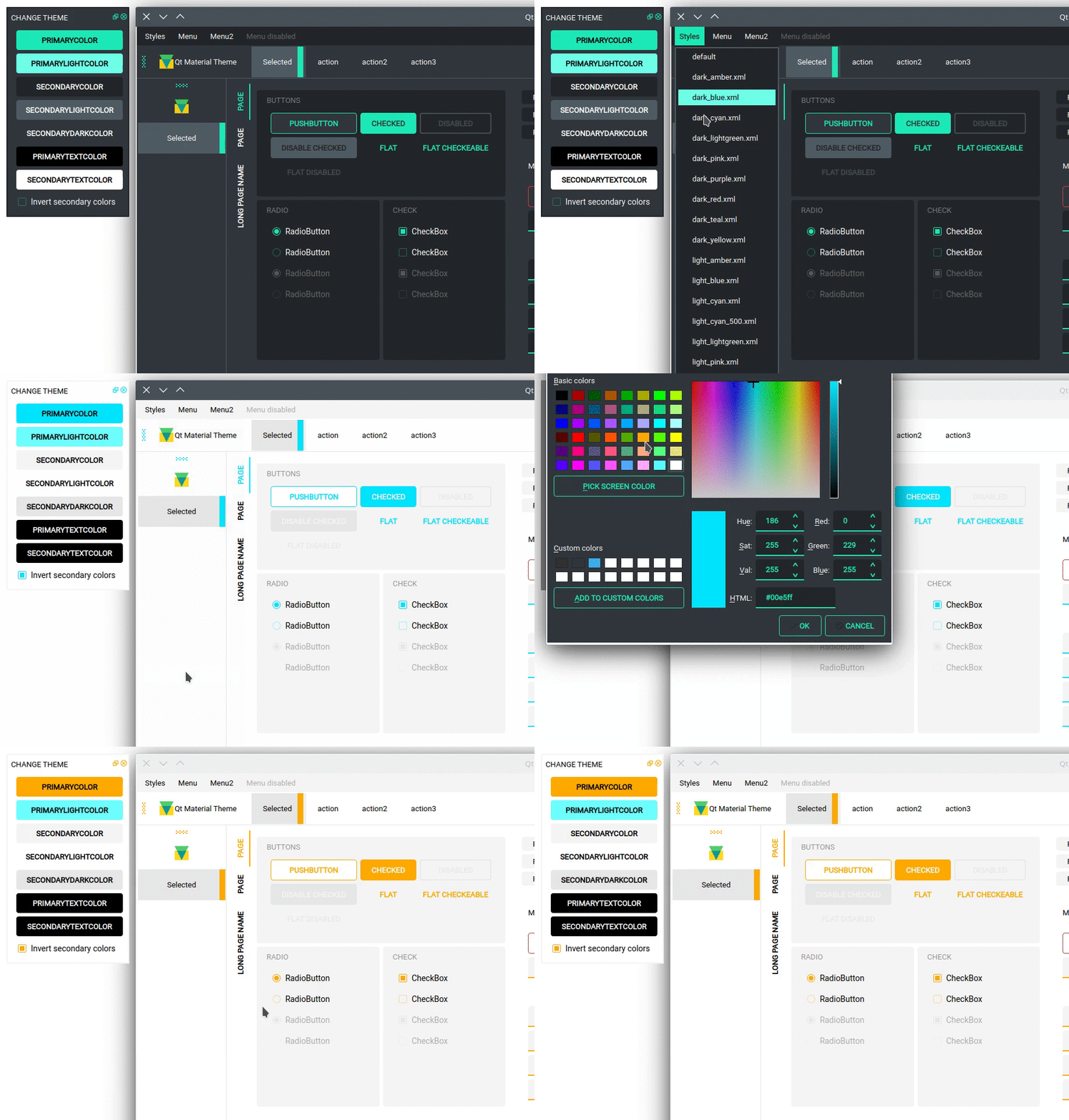
A window with almost all widgets (see the previous screenshots) is available to test all themes and create new ones.
git clone https://github.com/UN-GCPDS/qt-material.git
cd qt-material
python setup.py install
cd examples/full_features
python main.py --pyside6
This will launch a live preview application where you can:
- Browse all available themes
- Switch stylesheets at runtime
- Customize fonts and colors
- Export your personalized theme
QMenu may render differently depending on the Qt backend (PySide6, PyQt6), platform, or even the style engine (e.g. Fusion). This can affect spacing, height, and padding.
To improve appearance or fix spacing issues, you can manually define QMenu settings using the extra argument:
extra = {
    'QMenu': {
        'height': 50,
        'padding': '10px 20px 10px 20px'  # top, right, bottom, left
    }
}
This customization is independent of the density_scale setting and can be used to ensure consistent appearance across platforms.