3. How To Use OpenCourse
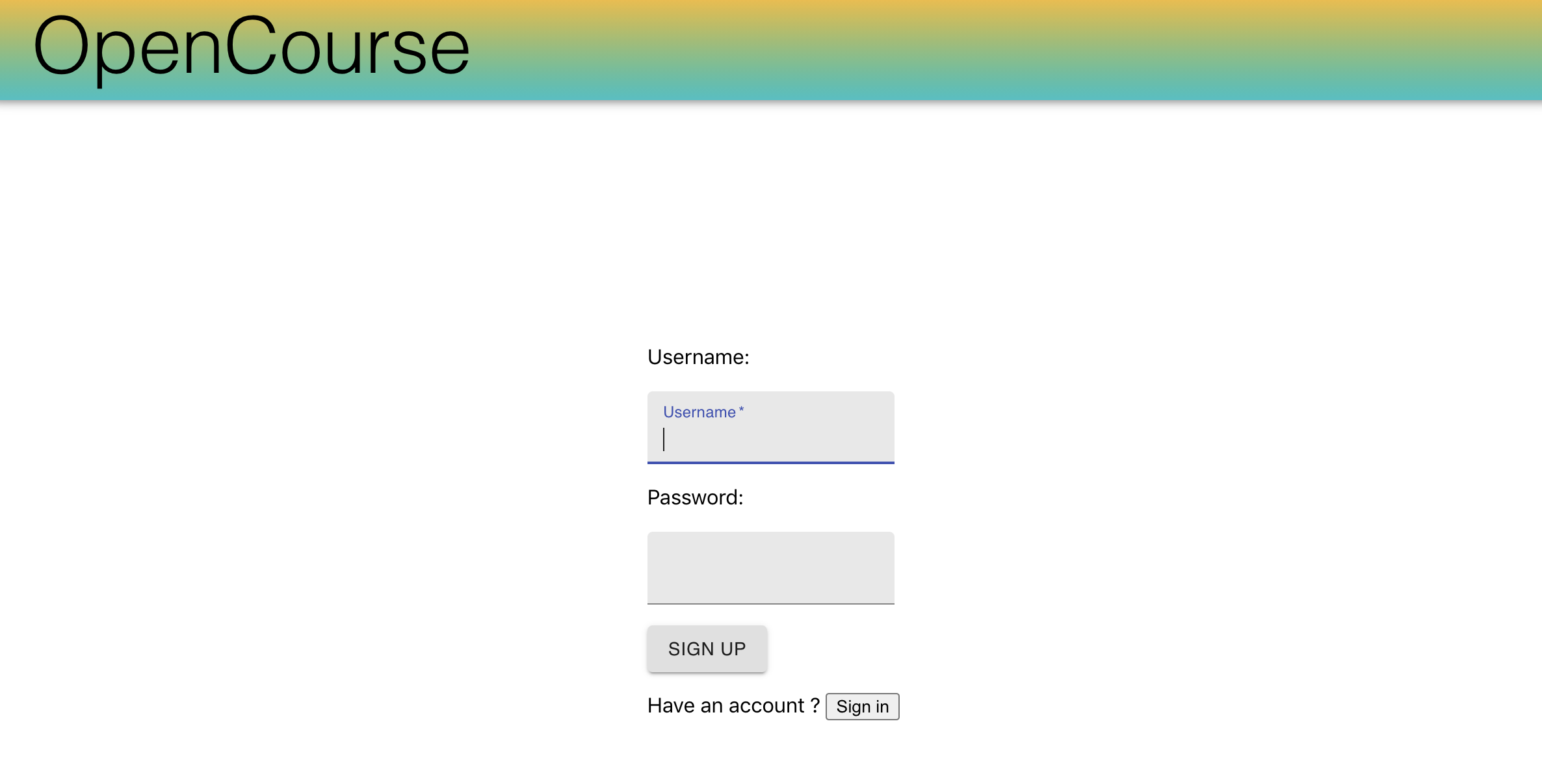
Once OpenCourse is running you are met with a login page similar to the one below. Since this is your first time, you must sign up using a new account by inputting a username and password and then clicking the sign up button. Next time you choose to use the app you can login instead using the credentials you just input.
The image below displays the home page
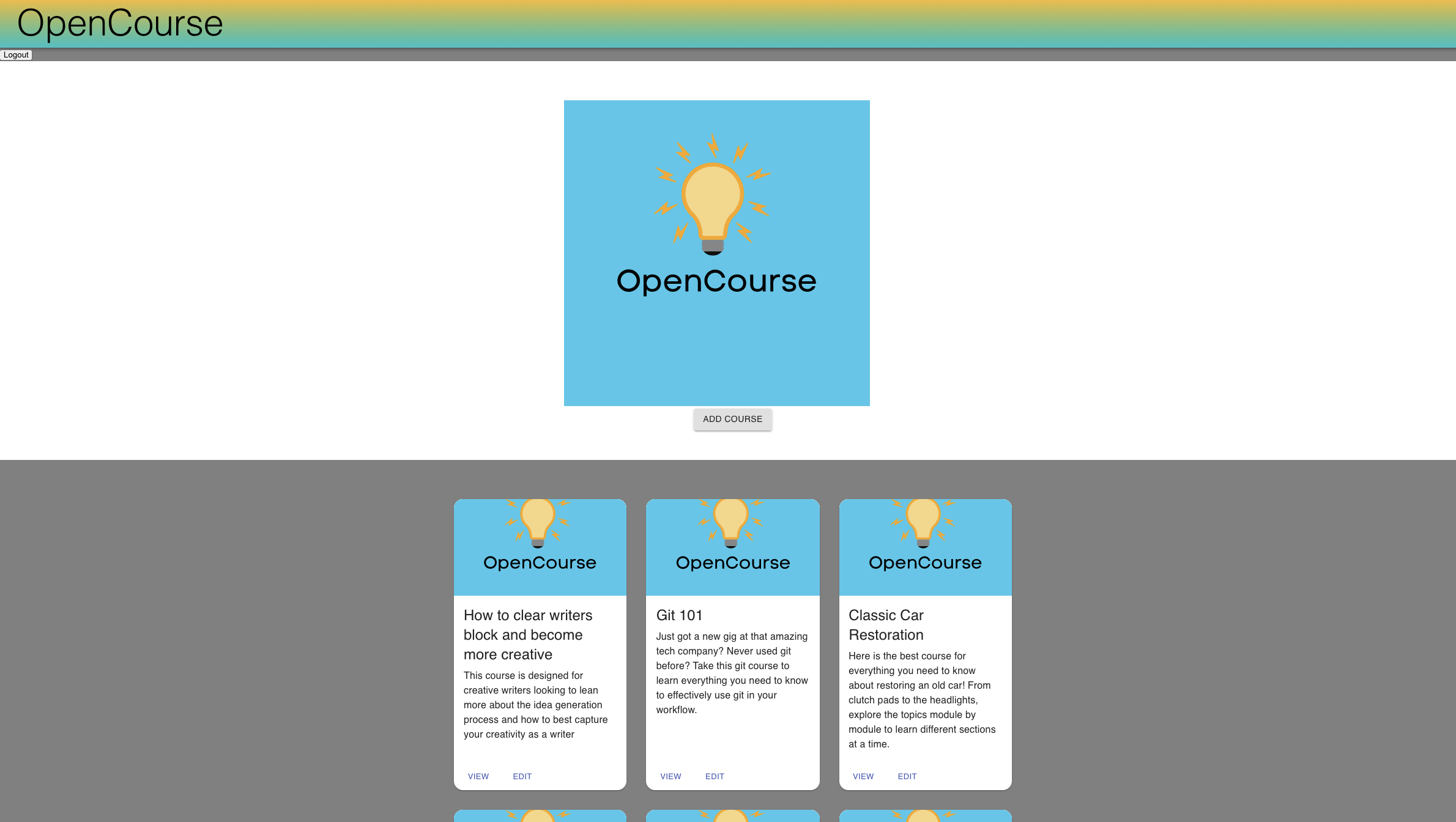
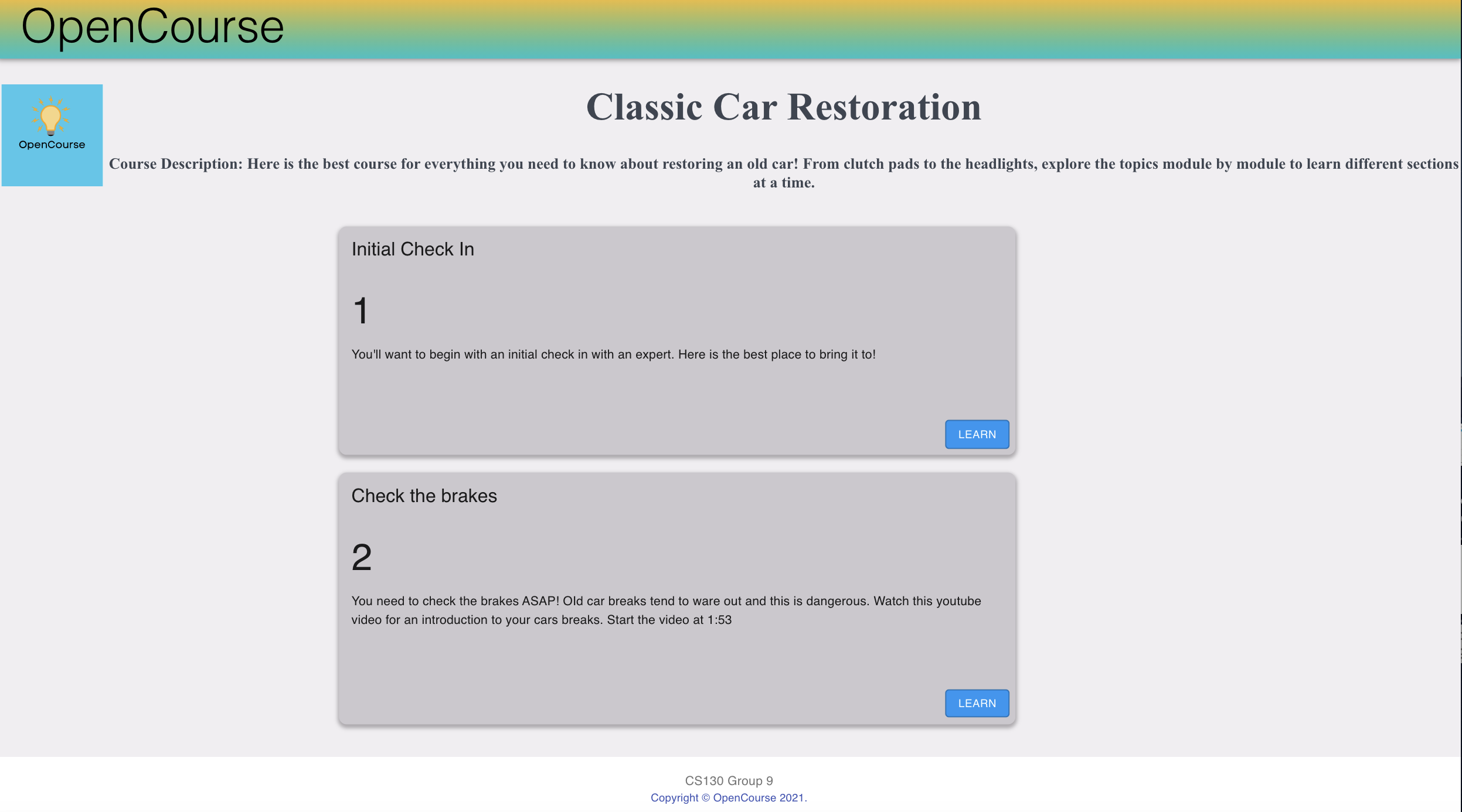
- To view an already existing course, simply click on the View button for the desired course and you will then be redirected to the course page in question.
- From here, you will see a list in card view of the various topics for the specified course. Each topic is its own card and has a name and its description as to what that section is about. You can scroll through the various topics and, if interested in any, simply press the blue 'Learn' button on the respective card. You will now be redirected in a new tab to the website and can begin to study. To go back and select a different course, simply press the browser's back button or on the OpenCourse logo at the top left to return the home page.
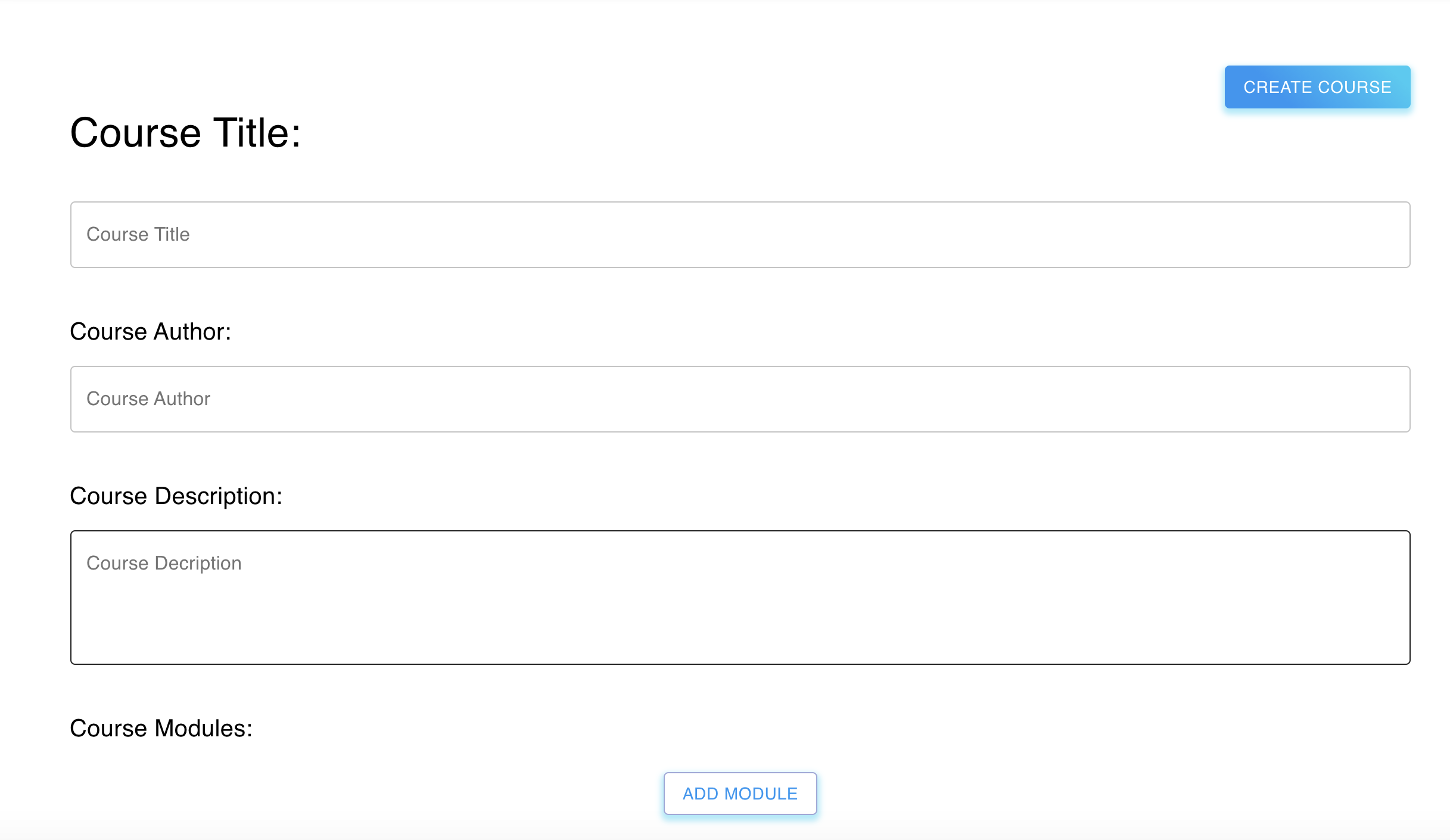
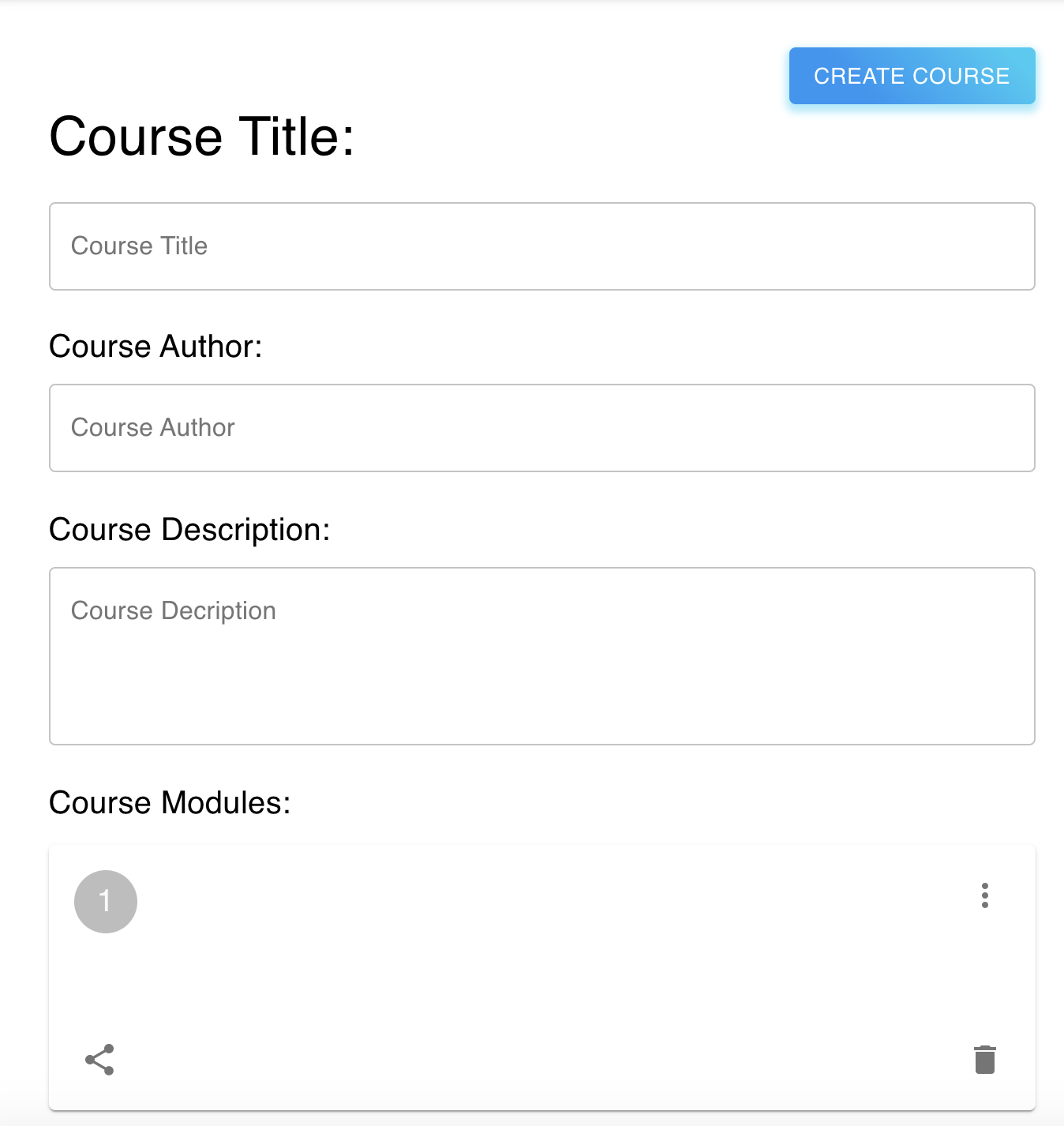
- To add a new course, simply press on the button 'Add Course', near the middle of the homepage, where you will be prompted by a new page to input a title of your course, the author of the course, and a short description. Once those fields are completed you can press the add module button which will display an empty card. Press on the three dots to the right of the module card to make a module. When finished, click out of the window and press the blue Create Course button at the top right of the screen. Now you should be able to see your newly created course on the homepage list of courses.
The image below shows the empty module card that is created.
-
To edit an already existing course, simply click on the Edit button on the desired course's card and you will then be directed to the edit page where you can enter a title, author, or description to edit. Additionally, you can edit the various modules within each course by clicking on the same 3 dots icon from above. When you are finished editing, press the blue button save changes at the top right to save your changes. Now you should be able to see your newly edited course on the homepage list of courses.
-
When you are finished using the application, simply press the logout button on the top left of the home page or just close the web window.