



Español 🇪🇸 | 中文 🇨🇳 | Deutsch 🇩🇪 | Français 🇫🇷 | 日本語 🇯🇵 | 한국어 🇰🇷 | Português 🇧🇷 | Русский 🇷🇺 | Tiếng Việt 🇻🇳 | हिन्दी 🇮🇳 | العربية 🇸🇦...
Launch and manage every AI coding CLI from one VS Code panel.
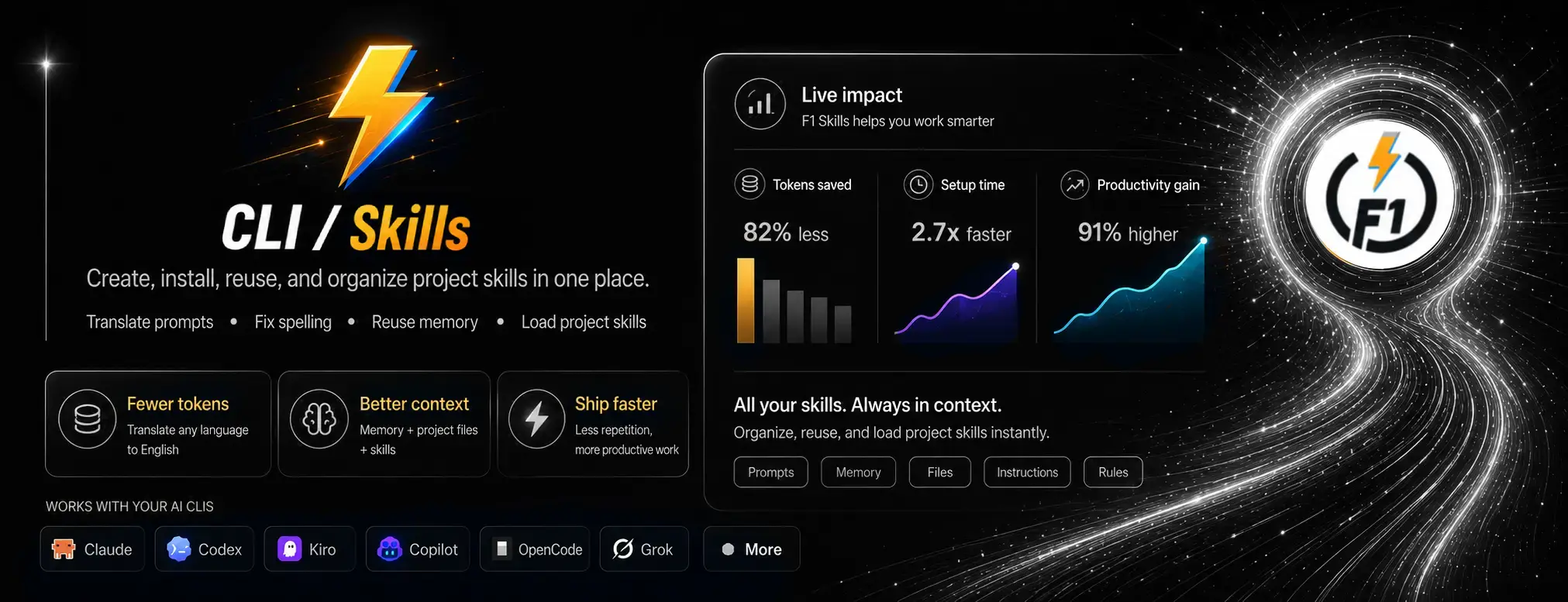
F1 turns VS Code into a hub for AI coding agents. Open Claude Code, Codex, Copilot, Cursor, Kiro, Kilo Code, OpenCode, Grok, Antigravity — or any custom CLI — in embedded terminals, switch between them instantly, write better prompts, and keep your project's context cheap to load for every agent.
| Command | 🍎 macOS | 🟦 Windows | 🐧 Linux | Supported |
|---|---|---|---|---|
| Focus the CLI | F1 |
F1 |
F1 |
ㅤㅤ✅ |
| Focus the Skills | ⌘ + 3 |
Ctrl + 3 |
Ctrl + 3 |
ㅤㅤ✅ |
| Maximize / Minimize Panel | ⌘ + ` |
Ctrl + ` |
Ctrl + ` |
ㅤㅤ✅ |
| - | - | - | - | |
| Side Panel (R/L) | ⌘ + CapsLock |
Ctrl + CapsLock |
Ctrl + CapsLock |
ㅤㅤ✅ |
- Run multiple AI coding CLIs side by side in embedded xterm.js terminals.
- Fuzzy-search launcher to pick an agent; press F1 to jump straight to the panel.
- Built-in tools alongside every session:
- Prompt — rich editor with
@-file mentions, image paste, skill chips, live spell‑marking, and source→English translation before sending. - Translator — translate any terminal selection inline.
- Use — per‑CLI usage / status view.
- Keymaps — keyboard‑shortcut reference.
- Prompt — rich editor with
- Voice — read replies aloud, plus an optional "ding" when an agent finishes while your attention is elsewhere.
- Install skills from the marketplace — All‑time, Trending (24h), 🔥 Flame, and Official sources.
- Create skills with guided generators for
AGENTS.md,CLAUDE.md, andDESIGN.md, plus fast templates by category. - Manage local and saved skills per workspace.
- Generate a committed
.f1/project‑context map so any CLI starts with cheap, shared context. - Per‑project toggle; instruction files (
AGENTS.md/CLAUDE.md) stay pointed at the context.
- Install F1 from the VS Code Marketplace.
- Press
F1to open the CLI Hub panel. - Pick an agent from the launcher (or Custom CLI to run your own command).
- Open My Skills from the activity bar (
Ctrl+3) to install or create skills.
The first launch of an agent installs its CLI if it isn't already on your
PATH.
Launch Quick Open depending on your operating system:
Linux
Ctrl+PmacOS
⌘PWindows
Ctrl+P

Paste the following command and press Enter:
ext install bastndev.f1- Open Extensions (
Ctrl+Shift+X/⌘+Shift+X) - Search "F1" (publisher:
bastndev) - Click Install
 |
|---|
| Gohit X |
| Creator & Maintainer |
- 🐦 X : For questions and discussions.
- 🌱 IG :
new– Project previews & life updates. - 🔴 YouTube : Code, Software and development insights.
Thank you to everyone who supports this project! Your contributions make updates and new extensions possible.


| Extension | Name/> | Description |
|---|---|---|
 |
Lynx Theme Pro | A professional extension with six available themes: Dark, Light, Night, Ghibli, Coffee, and Kiro—with integrated icons. Each theme is optimized to offer a more pleasant visual experience. |
 |
Lynx Keymap Pro | Standardizes keyboard shortcuts across all code editors, giving you instant access to any functionality with a single key combination—boosting your workflow and dev experience. Now includes shortcuts for 75% keyboards |
 |
ATM | An all-in-one toolkit 👻 that supercharges your workflow with essential features like Error Lens, Git Blame, Env Protection, and code screenshots across major editors. |
Enjoy 🎉 — (F1) is now installed!
If you find any bugs or have feedback, feel free to open an issue.