Text editors
Next to the shell, a good text editor is the most important program used in bioinformatics. There are a wide range of text editors available and they can broadly be divided in two groups depending on their interface. GUI editors (Graphical User Interface) have the advantage of drop down menus and point and click interactions but can be difficult to work with on remote servers where they can get sluggish due to network limitations. CLI editors (Command Line Interface) on the other hand don't have this problem and also has the advantage of being available on compute nodes of computer clusters, where you will be spending a lot of your time if you envision a career in bioinformatics.
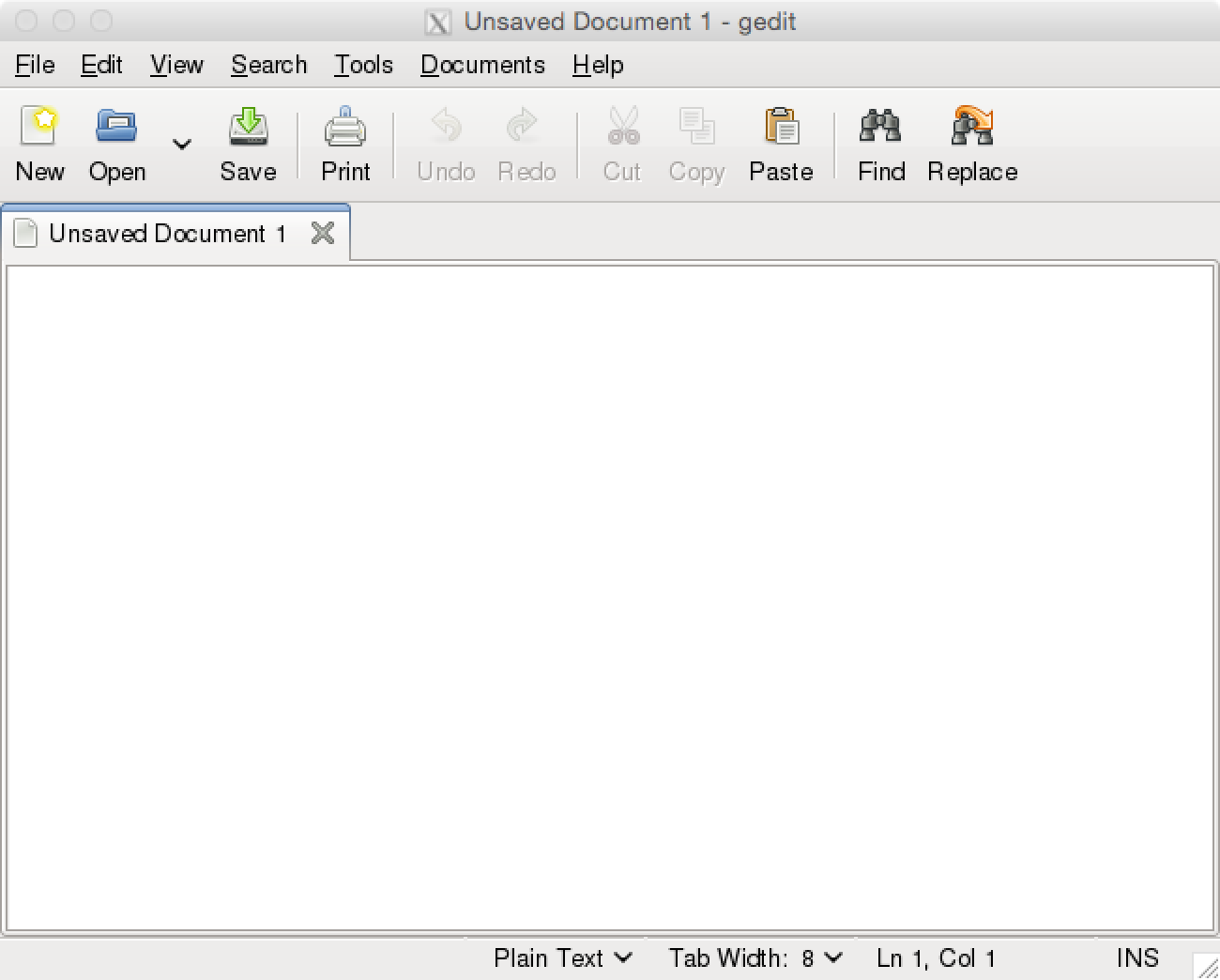
One popular GUI editor that is available on many different operating systems is gedit that is part of the Gnome desktop environment. This editor is a good first GUI editor to learn. You can test this editor by typing the following in your shell:
[mtop@albiorix ~]$ gedit &
[1] 29678
[mtop@albiorix ~]$
And this is what you'll see.
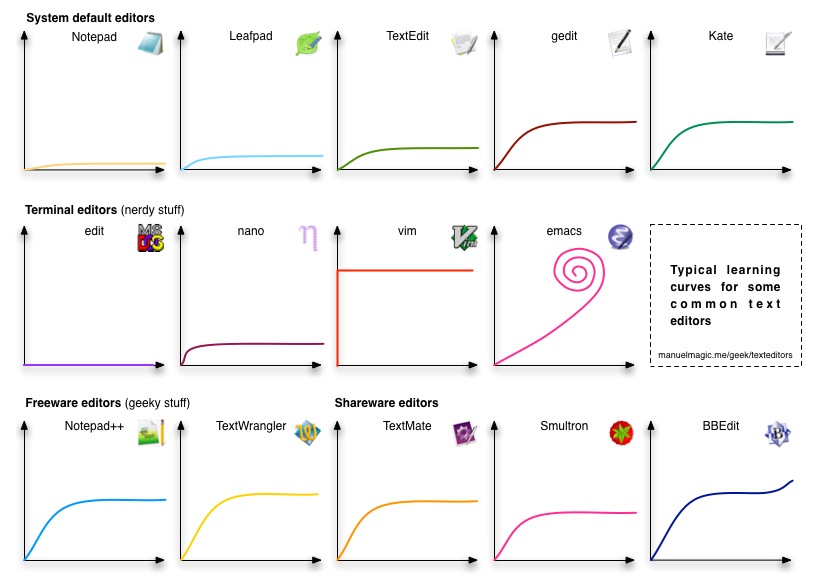
This is the GUI version of the powerful text editor VIM (VI Improved) that has a large dedicated user community. This means that there are an enormous amount of extensions available and the program is actively developed with new versions released regularly. As shown above, the learning curve may seem steep to begin with but learning the absolute basics to get started is not that difficult.
[mtop@albiorix ~]$ gvim &
[1] 22901
[mtop@albiorix ~]$ 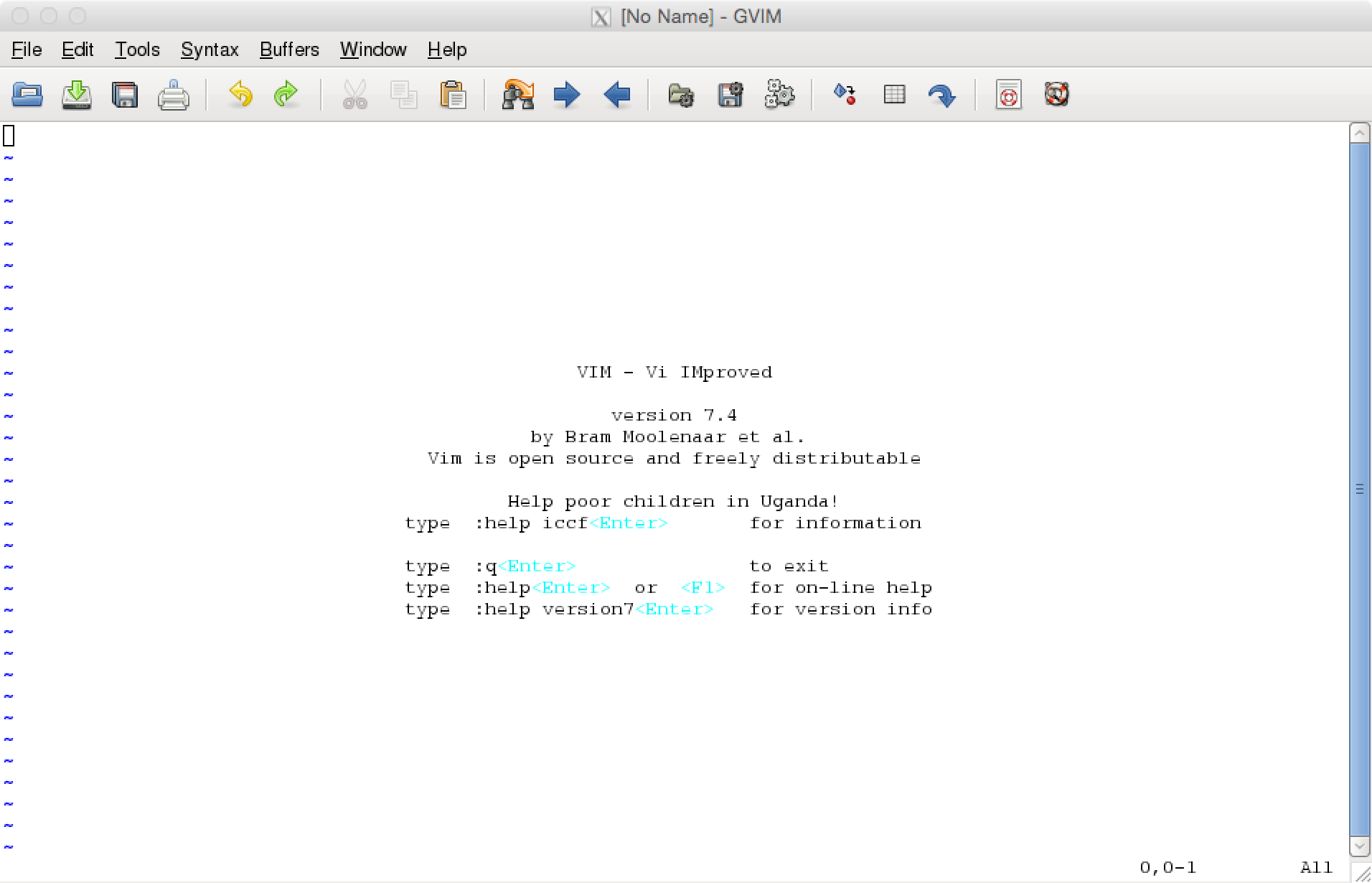
Even if you prefer to work in a GIU editor for the most of your work, you will sometimes find yourself in a situation where you have to use a CLI text editor. The reason can for example be that the computer you are working on does not allow graphical programs to run or that your network connection is not fast enough. Hence, learning at least one CLI editor will be essential for your work.
This editor is almost always available on Unix-like systems and is therefore a good first text editor to learn. If you don't already have a favorit text editor that you use then I recommend that you use nano for the exercises in this course.
You start the program by typing nano and optionally giving it the name of the file you want to create (or an existing file that you want to edit) like this:
[mtop@albiorix ~]$ nano test_file.txtThis will bring up the nano interface like this:
  GNU nano 2.0.9                        File: test_file.txt


                                                   [ New File ]
^G Get Help       ^O WriteOut       ^R Read File      ^Y Prev Page      ^K Cut Text       ^C Cur Pos
^X Exit           ^J Justify        ^W Where Is       ^V Next Page      ^U UnCut Text     ^T To Spell
You can start adding content to your new file by typing in text in the blank area. At the bottom you'll see the different instructions you can give nano. The different shortcuts all start with the character "^" which represents the "Ctrl" key on your keybord. Hence, to save your changes to the file you press "Ctrl" and the "o" key (Ctrl+o), to save and exit press "Ctrl+x" and so on. You'll then be asked if you whant to "Save modified buffer" (meaning "Save the content of the file") and then which file to save to. Play around with nano for a while to get comfortable with the program before you move on.
This is a very powerful editor that has an active user community. Learning to use the more advanced features of VIM is out of the scope of this course, and we will only show the absolute necessary commands here. If you are comfortable using any of the other editors (e.g. nano) and want to get on with the rest of the exercises then it is OK to skip this part.
To start VIM:
[mtop@albiorix ~]$ vim test_file.txtThe editor start in "normal mode" and to start editing the file you have to enter "insert mode" by pressing the key "i". You can move around in the file using the arrow keys and find a place to add some text. To go back to "normal mode" you press the "Esc" key. It's always safe to use the "Esc" key if you are unsure of which mode you are in. To save and quit, press "ZZ". In normal mode you can also press the "u" key to undo changes. Learning these four commands (i, Esc, ZZ and u) is all you need to get started using VIM. To learn more you can use the command vimtutor that is a tutorial installed with the program. Finding an online tutorial is also recommended if you want to learn more.