Screenshots
Testlum allows capturing screenshots during UI test execution to visually track each test step and simplify debugging.
You can configure screenshot capturing via the ui.xml file:
<takeScreenshots enabled="true"/>- When enabled, screenshots are automatically captured after each UI action.
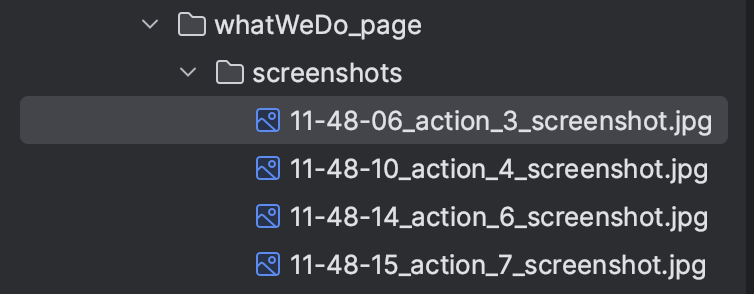
- Screenshots are saved into a
screenshotsfolder in the same folder wherescenario.xmlis placed. - They are also visible inside generated reports for easy step-by-step tracking.
- Capturing screenshots without opening the browser window (headless execution).
- Capturing screenshots even inside Docker containers.
- Automatic generation in the scenario's folder structure.
- Capturing screenshots on exceptions to visually detect errors.
Testlum enhances debugging by capturing the exact step where an error occurs.
The <screenshotsLogging> feature ensures that exceptions are visually traceable, especially across different browser configurations.
Screenshot masking is a feature used in UI testing to exclude specific areas of a screenshot from visual comparison. Masked areas are ignored during image comparison, allowing tests to focus only on meaningful UI changes. This functionality is especially useful when parts of the UI change dynamically and cause false test failures What Masking Covers
Masking allows excluding any rectangular area of a screenshot from comparison, including:
-
Dynamic text blocks (dates, counters, IDs)
-
User avatars or profile photos
-
Advertisements and third-party widgets
-
Animated UI elements
-
Content that differs across environments (dev / staging / prod)
Masked areas are ignored completely during the comparison process.
1.Open necessary image, in which you would like to use masking and click green eye icon.
!!!Pay attention!!! To use this feature image have to be located inside scenario folder

“Edit image mask” window will be opened.
2.Select necessary area , that you want to exclude via “Click and drag” action. Selected area has red frame and red background.
You can see excluded areas coordinates in scenario tree or XML Editor accordingly.


3.Use undo/redo buttons or remove button if needed.

4.Click “Save” button
Selected areas will be excluded from comparison while test run