









CouchMC 的初衷来自一个很普通的晚上:我刚搬到新家,买了一个大电视,也终于有了一张舒服的沙发。下班回到家以后,我常常只想关上灯,打开游戏,短暂地沉浸在 Minecraft 带来的放松和自由里。但当时没有这样一款软件。想在沙发上玩 MC,要么别扭地抱着鼠标键盘,要么买手柄、装插件。
我试过这两条路。鼠标键盘的姿势很快破坏了沉浸感;手柄和 MOD 也没有想象中轻松。视角转动像“航母掉头”,键位总是不够用,我还经常记混跳跃和攻击。折腾了一晚上之后,我意识到:我玩游戏是为了放松,不是为了再掌握一个需要训练的新任务。
所以 CouchMC 想做的事情很简单:让习惯手机 MOBA 或 FPS 操作的玩家,可以零成本地切回 MC。你不需要研究各种 MOD,不需要购买手柄,也不需要适应手柄奇怪的按键和视角转动体验。下载电脑端和手机端,连在同一个局域网里,就可以开始玩。
实现上,手机负责触摸输入,电脑端服务负责把摇杆、视角滑动、按钮和快捷栏操作转换为系统级键盘与鼠标事件。它不依赖 Minecraft Mod。核心设计是一个 三状态模式系统:电脑端检测 Minecraft 是否在前台、鼠标是否被游戏捕获,然后让手机自动切换为游戏内控制器、UI 光标控制器或防误触锁屏。这样背包、箱子、菜单等原生 UI 仍由 Minecraft 自己渲染,手机只负责驱动光标和输入。
- Windows 10/11 服务端:WinUI 3 桌面应用,带托盘、开机启动、全局设置、按键绑定、窗口透明度和 Inno Setup 安装包。
- macOS 14+ 服务端:原生 Swift / SwiftUI 应用,支持菜单栏、Accessibility 输入注入、Liquid Glass 设置、Bonjour / UDP 发现和 bundled adb。签名与 DMG 尚未完成,所以暂不提供 DMG 安装说明。
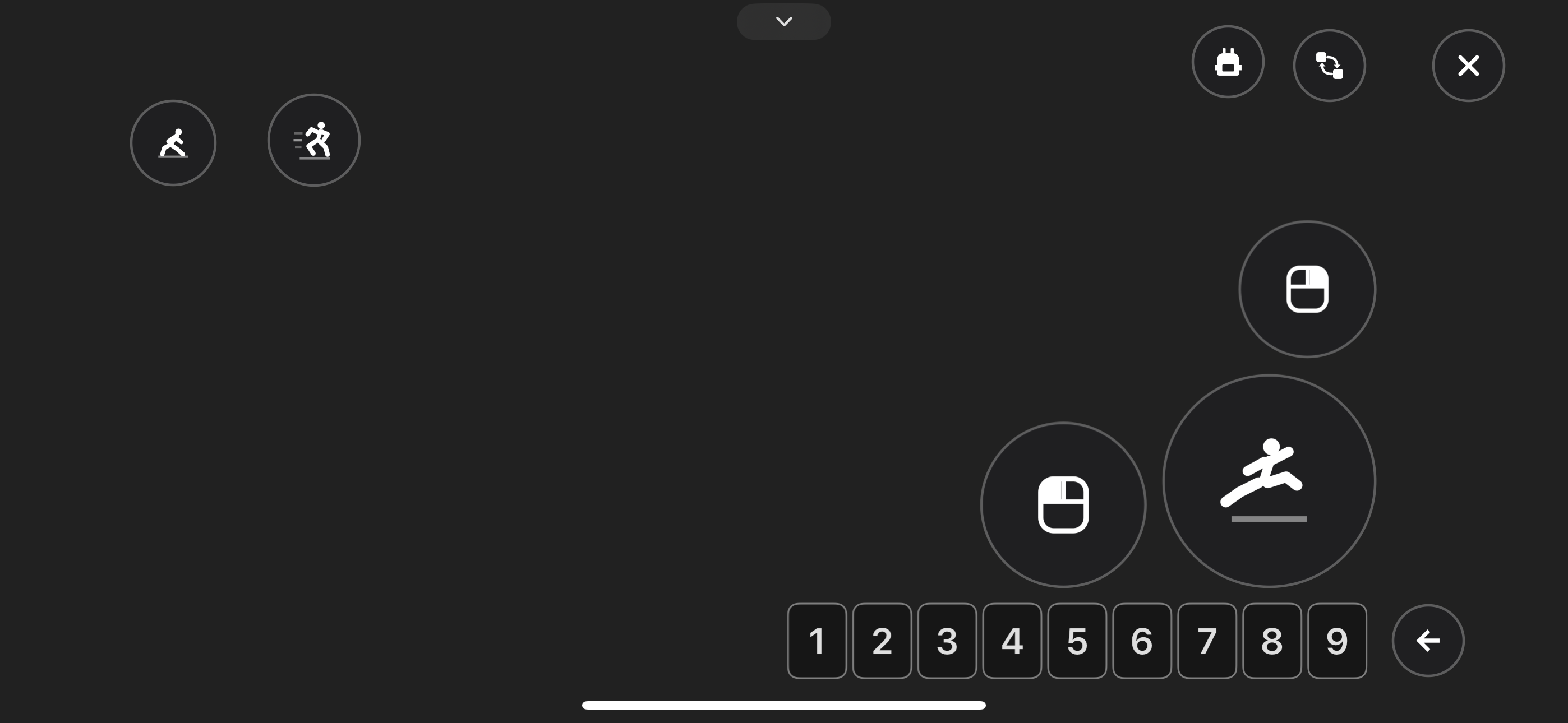
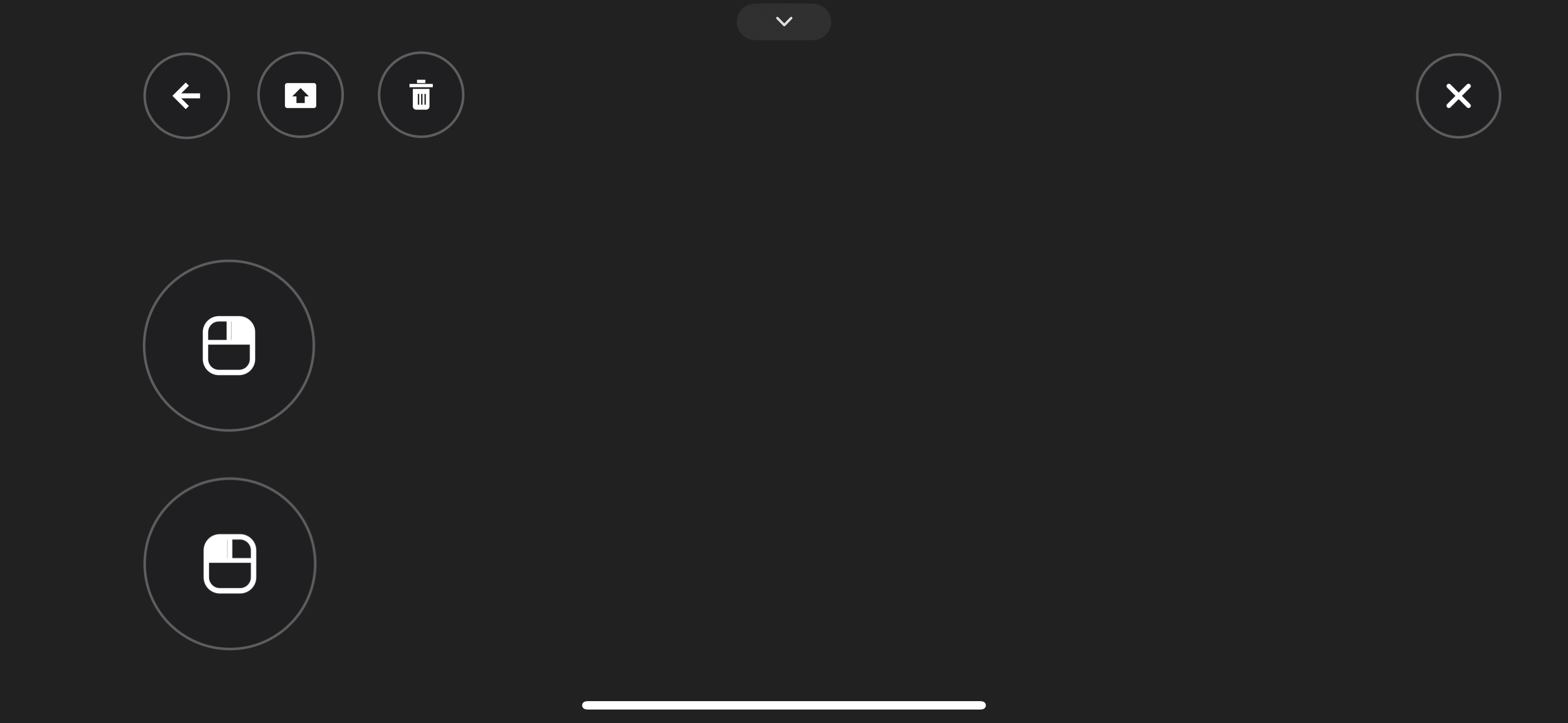
- Android 8.0+ 客户端:Kotlin 原生应用,支持 Wi-Fi / USB、局域网发现、布局编辑器、触摸手势、摇杆、视角板、按钮与快捷栏。
- iOS 16+ 客户端:Swift / SwiftUI + UIKit 客户端,已在 App Store 上架(目前仅 iPhone,未适配 iPad)。
- 无需 Mod:对 Minecraft 来说,所有操作都是普通的键盘和鼠标输入。
- 低延迟输入链路:TCP 负责可靠控制消息,Wi-Fi 下 UDP 负责视角增量;USB 模式通过
adb reverse自动走 TCP fallback。 - 移动端手感:浮动摇杆、LookPad 视角区、快捷栏滑动、长按丢弃、音量键映射鼠标键。
- 智能模式切换:游戏内、UI 交互、防误触三种界面自动切换,模式变化会释放按键,避免卡键。
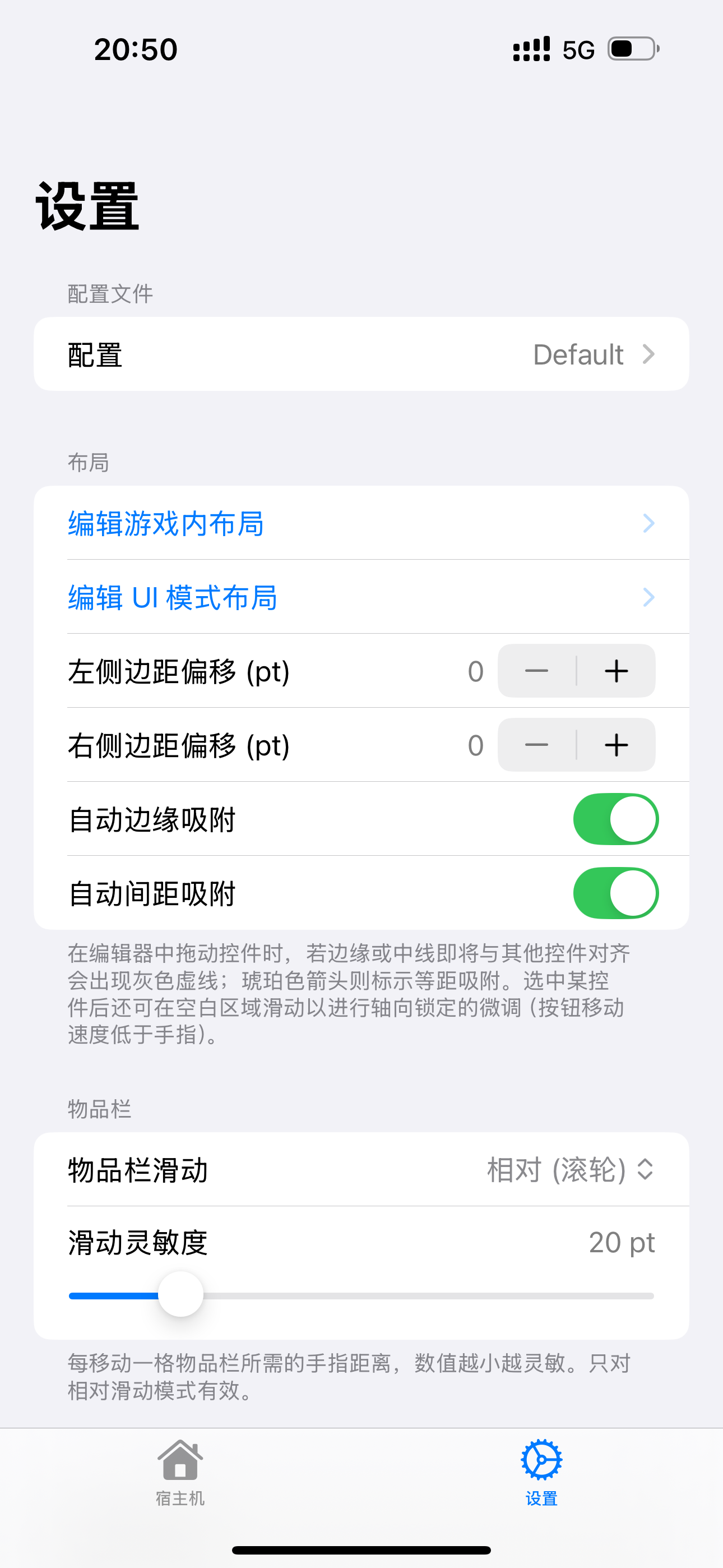
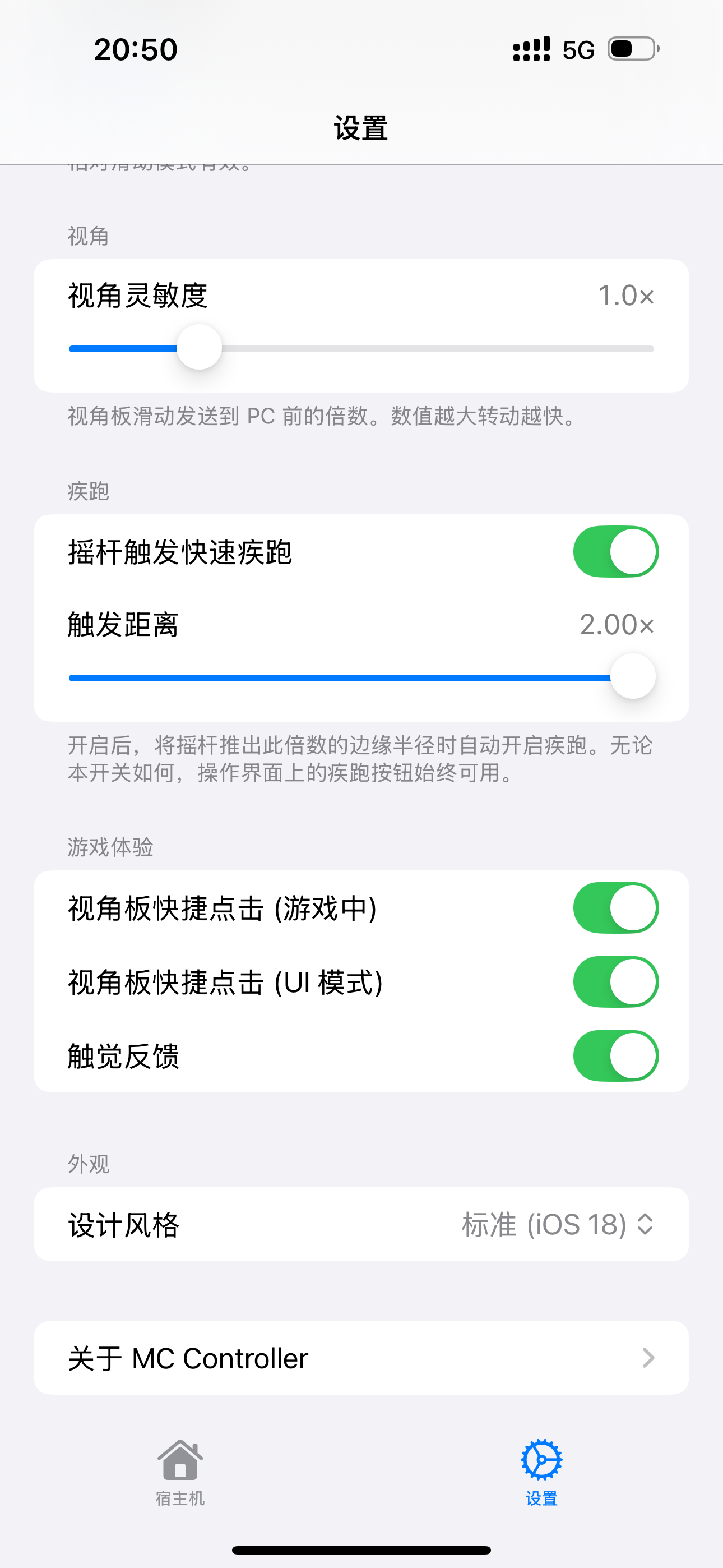
- 可调可编辑:电脑端可调灵敏度、曲线、死区和按键绑定;手机端可编辑控件布局并保存 profile。
- 跨平台协议:Windows、macOS、Android、iOS 都复用同一套二进制协议与局域网发现规则。
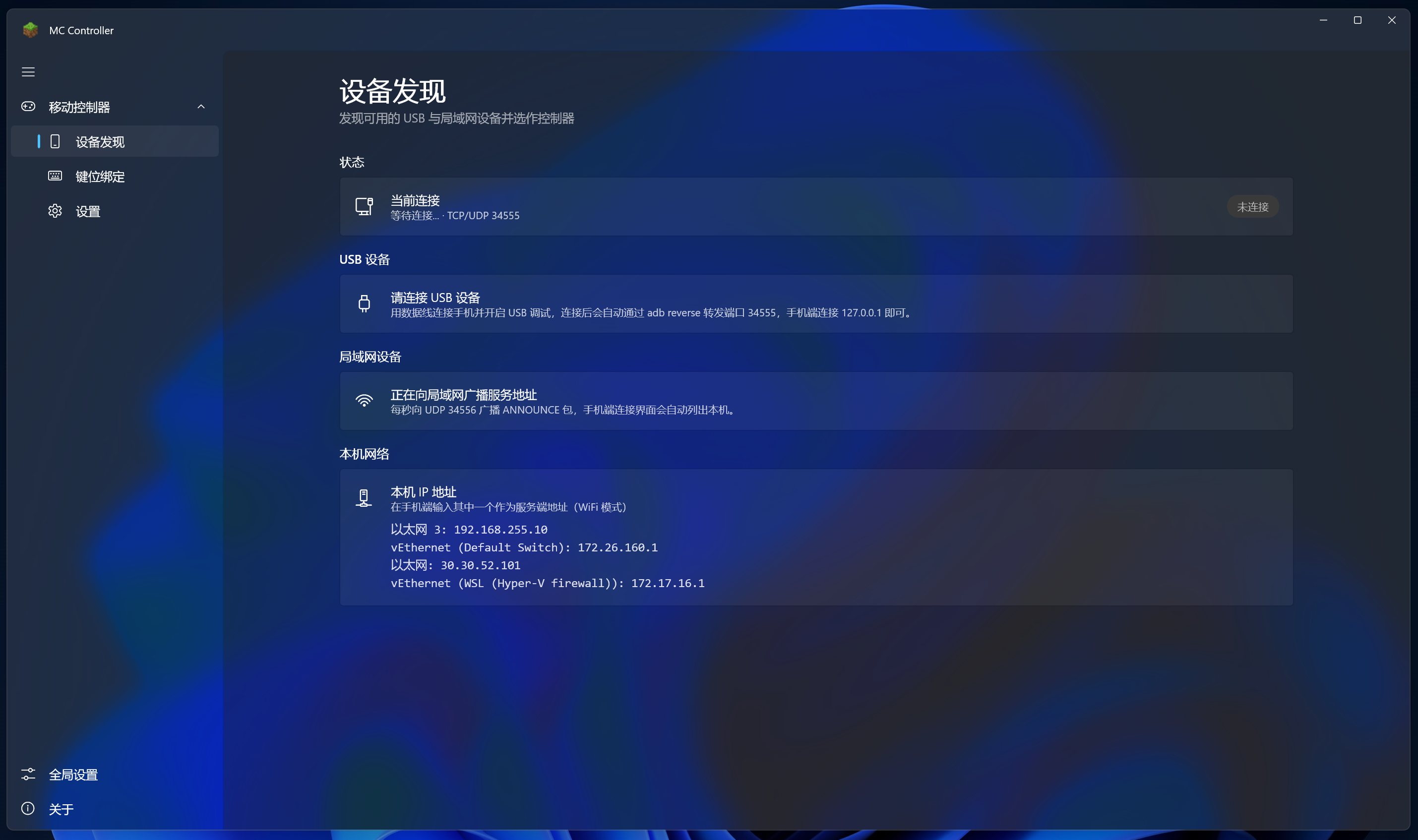 |
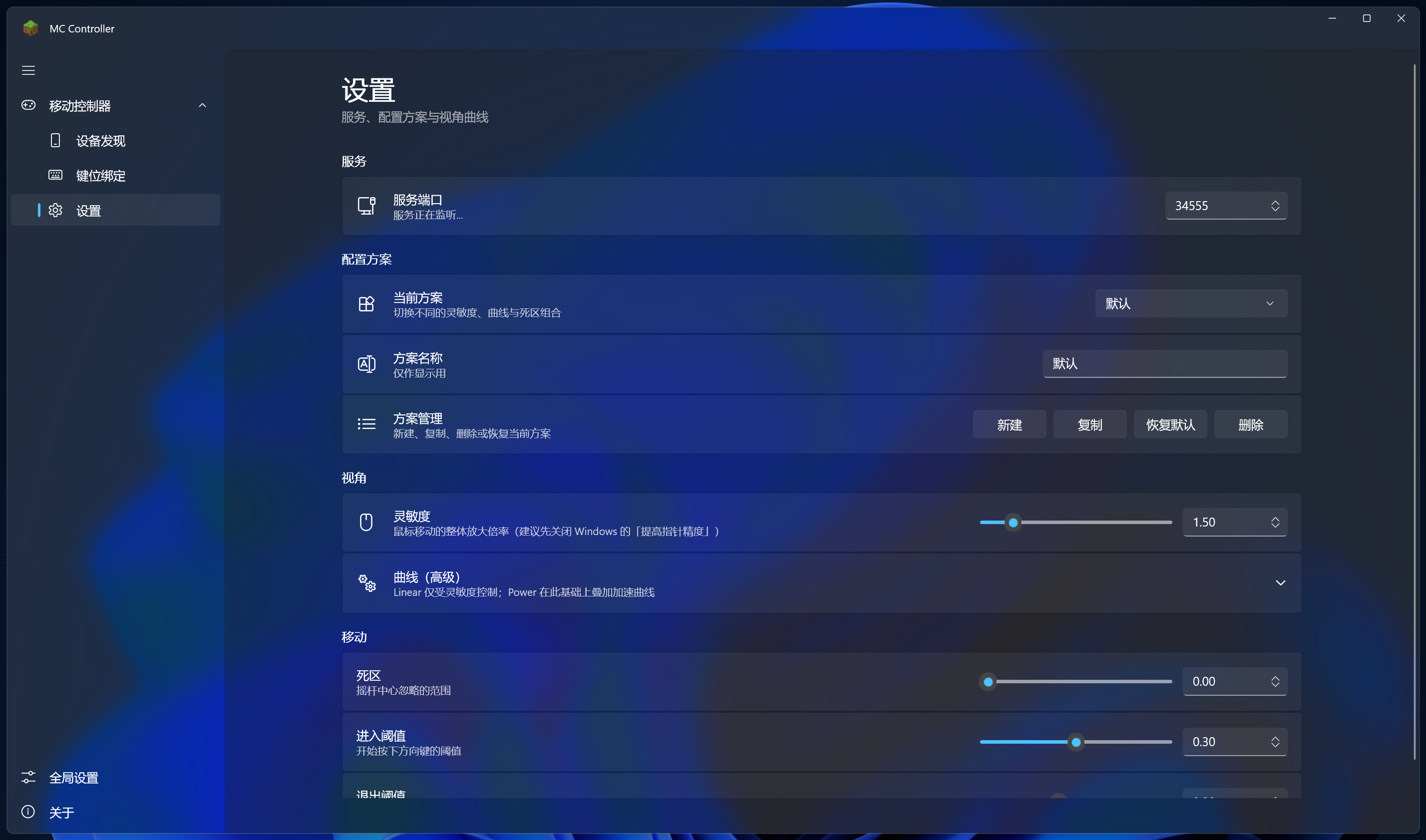 |
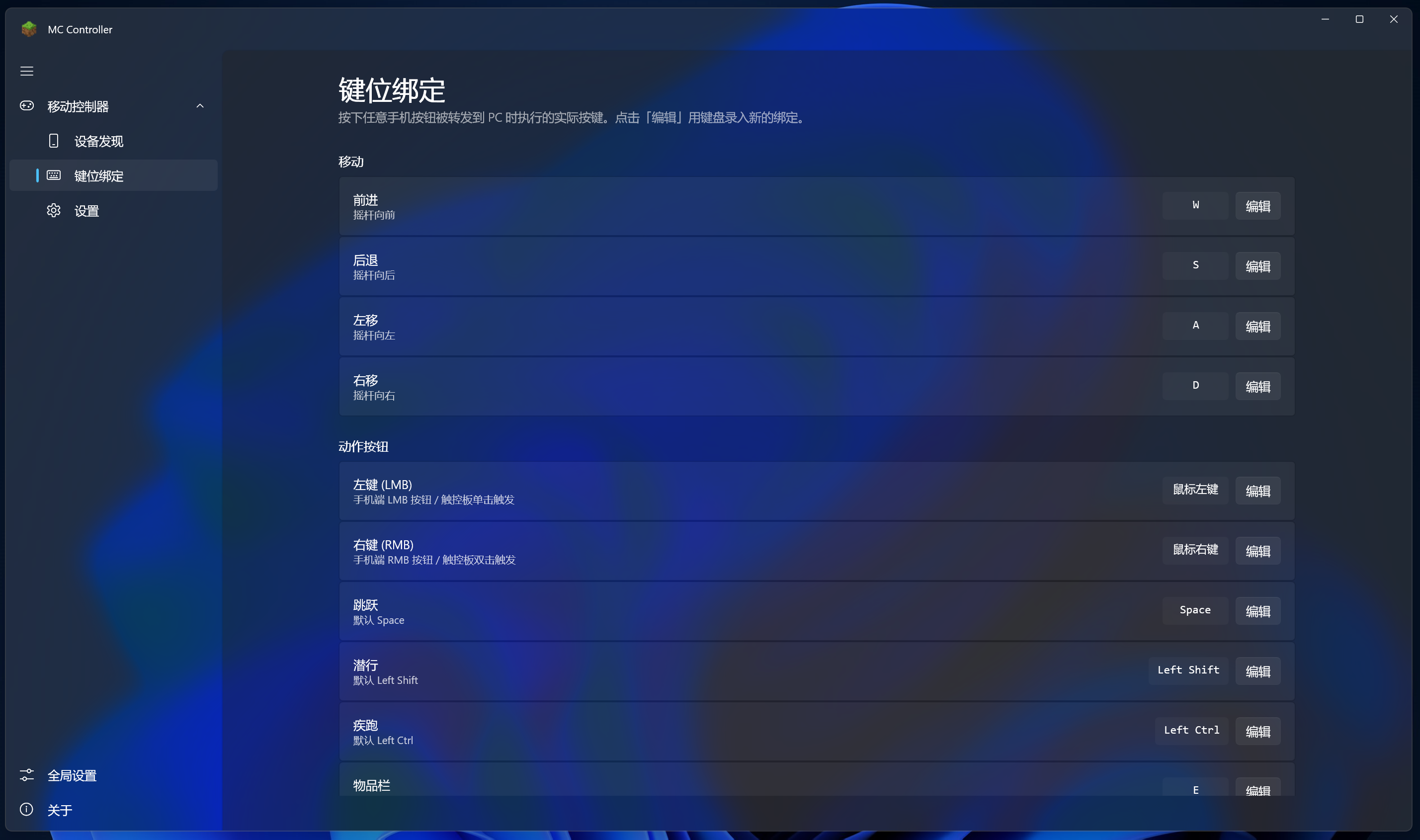 |
| 设备发现 | 控制参数 | 按键绑定 |
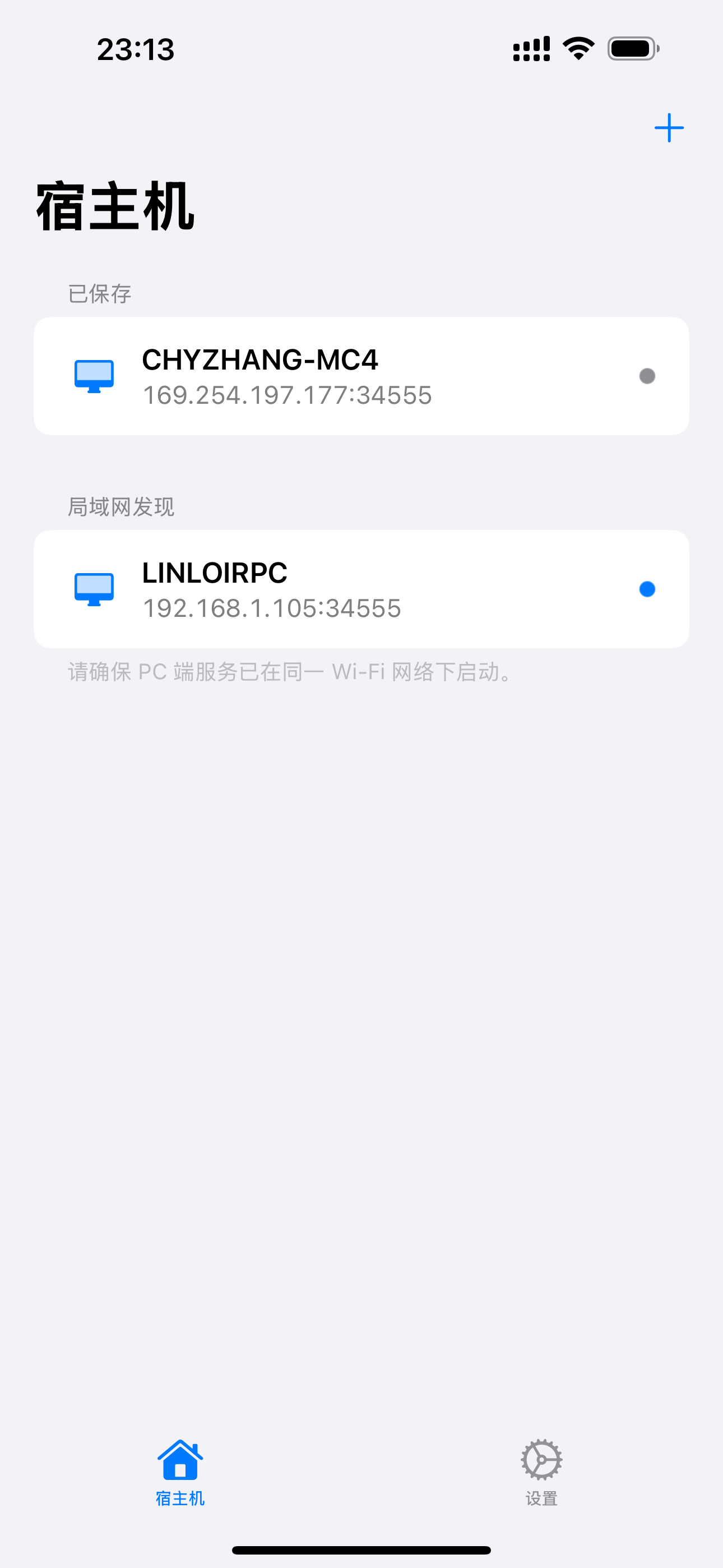 |
 |
 |
 |
 |
| 手机首页 | 布局编辑 | 控件调整 | 手机设置 | 更多设置 |
推荐给普通用户的方式是下载 Release 中的 CouchMC-Setup-<version>.exe。安装包是 per-user 安装,不需要管理员权限,程序会安装到 %LOCALAPPDATA%\Programs\CouchMC,并在开始菜单创建快捷方式。运行时不需要额外安装 .NET 或 Windows App SDK,ADB 也随应用一起打包。
第一次运行未签名安装包时,Windows SmartScreen 可能显示拦截提示,选择 更多信息 → 仍要运行 即可。Wi-Fi 模式第一次连接时,请允许 Windows Firewall 放行 CouchMC 的入站连接。
macOS 服务端已经可从源码构建和运行,但正式签名、notarization 和 DMG 安装包还没完成,因此暂不提供面向普通用户的 DMG 安装方式。
开发者或早期测试用户可以这样安装:
cd mac
bash scripts/fetch-adb.sh
bash scripts/install.sh
首次启动后,到 System Settings → Privacy & Security → Accessibility 为 CouchMC 授权,否则 macOS 不会接收应用发出的键盘和鼠标事件。
普通用户不需要安装 Android Studio,也不需要会用命令行。直接在手机上安装 APK 即可:
- 用手机打开 GitHub Releases。
- 下载最新版本里的
CouchMC-Android-<version>.apk,或名字类似的 Android APK 文件。 - 下载完成后点开 APK。系统如果提示“禁止安装未知应用”,按提示进入设置,允许当前浏览器或文件管理器安装应用。
- 回到安装页面,点击 安装。
- 安装完成后打开 CouchMC,确保手机和电脑连在同一个 Wi-Fi;如果使用 Android USB 模式,再用数据线连接电脑即可。
如果浏览器提示“此文件可能有风险”,这是因为 APK 不是从应用商店下载。确认来源是本仓库 Release 后,选择继续下载。
iOS 客户端已经在 App Store 上架(仅 iPhone,未适配 iPad),直接在 App Store 搜索 "CouchMC" 或点下方按钮安装:
首次连接前请允许 Local Network 权限,否则无法发现电脑端服务。iOS 版本目前以 Wi-Fi 连接为主。
- 在电脑上启动 CouchMC 服务端,并打开 Minecraft Java Edition。
- 在 Windows 上建议关闭鼠标增强:Settings → Bluetooth & devices → Mouse → Additional mouse settings → Pointer Options → 取消 Enhance pointer precision。Minecraft 内鼠标灵敏度建议先设为 100%,再在 CouchMC 中微调。
- 让手机和电脑处于同一局域网,或使用 Android USB 模式。Windows / macOS 服务端会自动对已连接的 Android 设备执行
adb reverse tcp:34555 tcp:34555。 - 打开手机端 CouchMC,选择自动发现的电脑,或在 Android 上点击 USB 连接。
- 进入游戏后使用左侧摇杆移动、右侧 LookPad 控制视角、按钮执行跳跃/潜行/攻击/使用物品等操作。
- 打开背包或菜单时,手机端会自动切换为 UI 模式,LookPad 变成光标控制区;切出 Minecraft 时进入防误触模式。
- 根据手感在电脑端调整曲线、灵敏度、死区、按键绑定,在手机端用 Layout Editor 调整控件位置。
# Core library
dotnet build pc\McController.Core\McController.Core.csproj -c Debug

# Tests
dotnet test pc\McController.Core.Tests\McController.Core.Tests.csproj

# WinUI 3 app: use VS Build Tools MSBuild, not dotnet build
Stop-Process -Name McController.App -Force -ErrorAction SilentlyContinue
& "C:\Program Files (x86)\Microsoft Visual Studio\2022\BuildTools\MSBuild\Current\Bin\MSBuild.exe" `
    pc\McController.App\McController.App.csproj `
    -p:Configuration=Debug -p:Platform=x64 -p:RuntimeIdentifier=win-x64
Start-Process pc\McController.App\bin\x64\Debug\net8.0-windows10.0.19041.0\win-x64\McController.App.exe
打包 Windows 安装器:
& "C:\Program Files (x86)\Microsoft Visual Studio\2022\BuildTools\MSBuild\Current\Bin\MSBuild.exe" `
    pc\McController.App\McController.App.csproj `
    -p:Configuration=Release -p:Platform=x64 -p:RuntimeIdentifier=win-x64 -t:Rebuild

& "C:\Program Files (x86)\Inno Setup 6\ISCC.exe" installer\McController.iss
输出文件位于 installer\out\CouchMC-Setup-<version>.exe。如果构建时报 apphost.exe is being used,说明旧的 CouchMC 仍在运行,先执行 Stop-Process -Name McController.App -Force。
cd mac
bash scripts/fetch-adb.sh       # 可选但推荐,打包 adb 以支持 Android USB 自动配对
bash scripts/build.sh           # 构建到 mac/build/
bash scripts/install.sh         # 构建、复制到 /Applications、重新注册并启动
scripts/build.sh release 可以生成 Release 配置的 .app,但当前仍是 ad-hoc signing,不等同于可分发 DMG。新增或删除 Swift 文件后,构建脚本会自动运行 scripts/gen-xcodeproj.swift。
cd android
gradle :app:assembleDebug --console=plain
adb install -r app/build/outputs/apk/debug/app-debug.apk
adb shell am force-stop cn.linloir.couchmc.android
adb shell am start -n cn.linloir.couchmc.android/com.mccontroller.ui.ConnectActivity
Android USB 模式通常由桌面端自动配置。手动排查时可运行:
adb devices
adb reverse tcp:34555 tcp:34555
adb reverse --listcd ios
xcodegen generate
xcodebuild -project McController.xcodeproj \
-scheme McController \
-configuration Debug \
-destination 'generic/platform=iOS' \
CODE_SIGN_IDENTITY="" CODE_SIGNING_REQUIRED=NO \
build真正部署到 iPhone / iPad 时,请在 Xcode 中设置 Development Team,连接真机后 Run。App Store 上架流程正在准备,签名、权限描述、TestFlight 和商店元数据会在正式发布前补齐。
- 架构说明:设计取舍、模块图、实现状态。
- 开发流程:工具链、构建命令、调试方法、常见错误。
- 协议规范:TCP / UDP 二进制 wire format。
- 发现协议:UDP broadcast、Bonjour、PROBE。
- macOS 说明:SwiftUI 服务端架构、Accessibility、Liquid Glass。
- 安装器说明:Windows Inno Setup 打包与卸载行为。
CouchMC 现在使用 MIT License 开源。
如果 CouchMC 帮你把 Minecraft 搬到了沙发上,欢迎通过 GitHub Sponsors 支持后续开发。
CouchMC started from a very ordinary evening. I had just moved into a new home, bought a big TV, and finally had a comfortable couch. After work, I often wanted to turn off the lights, open Minecraft, and spend a short while inside that relaxed, free world. But there was no comfortable way to do it: I either had to use a mouse and keyboard awkwardly from the couch, or buy a controller and install mods.
I tried both. The mouse-and-keyboard posture broke the immersion almost immediately. A controller sounded better, so I spent a night trying launchers and recommended controller mods, but it still felt like a new task to learn. Camera movement felt like turning an aircraft carrier, the button layout was easy to mix up, and switching hotbar items never became natural.
That is why CouchMC exists: to make couch Minecraft feel familiar for people who already know mobile MOBA or FPS controls. No controller purchase, no mod research, no strange camera feel. Install the desktop app and the phone app, keep both devices on the same LAN, and start playing.
Technically, the phone captures joystick, look-pad, button and hotbar gestures. The desktop server translates those packets into native keyboard and mouse events. No Minecraft mod is required.
The key idea is the three-state mode system. The desktop app detects whether Minecraft is focused and whether its cursor is captured, then tells the phone which UI to show: in-game controller, UI cursor control, or anti-mistouch lock screen. Minecraft still renders all inventory, chest and menu screens itself; CouchMC only drives input.
- Windows 10/11 server: WinUI 3 app with tray support, launch-at-login, global settings, key bindings, transparency preferences and an Inno Setup installer.
- macOS 14+ server: Native Swift / SwiftUI app with menu bar support, Accessibility input injection, Liquid Glass preferences, Bonjour / UDP discovery and bundled adb. A signed DMG is not available yet because signing and notarization are still pending.
- Android 8.0+ client: Native Kotlin app with Wi-Fi / USB connection, LAN discovery, layout editor, touch gestures, joystick, look pad, buttons and hotbar.
- iOS 16+ client: Swift / SwiftUI + UIKit client, live on the App Store (iPhone only; iPad not adapted yet).
- No mod required: Minecraft only sees regular keyboard and mouse input.
- Low-latency transport: TCP for reliable control messages, UDP for Wi-Fi look deltas, and TCP fallback over
adb reversefor Android USB mode. - Mobile-style controls: floating joystick, look pad, hotbar swipe, drop loop, volume-key mouse bindings and custom button gestures.
- Automatic mode switching: in-game, UI-interact and anti-mistouch modes are driven by the desktop server.
- Editable feel: tune sensitivity, curve, dead zone and bindings on desktop; edit the phone layout with saved profiles.
- Cross-platform protocol: Windows, macOS, Android and iOS speak the same binary protocol and LAN discovery spec.
|
|
|
| Device discovery | Controller tuning | Key bindings |
|
|
|
|
|
| Phone home | Layout editor | Widget editing | Phone settings | More settings |
For normal users, download CouchMC-Setup-<version>.exe from Releases. The installer is per-user, does not require admin rights, installs to %LOCALAPPDATA%\Programs\CouchMC, creates Start Menu shortcuts and bundles .NET, Windows App SDK and adb.
The unsigned installer may trigger Windows SmartScreen on first launch. Choose More info → Run anyway. For Wi-Fi mode, allow CouchMC through Windows Firewall when prompted.
The macOS server can already be built from source, but there is no signed DMG yet. Signing, notarization and end-user packaging are still pending.
Developer install:
cd mac
bash scripts/fetch-adb.sh
bash scripts/install.sh
On first launch, grant Accessibility permission in System Settings → Privacy & Security → Accessibility. Without it, macOS drops the injected keyboard and mouse events.
Regular users do not need Android Studio or command-line tools. Install the APK directly on the phone:
- Open GitHub Releases on the phone.
- Download
CouchMC-Android-<version>.apk, or the similarly named Android APK asset from the latest release. - Open the downloaded APK. If Android blocks it, follow the prompt to allow the current browser or file manager to install unknown apps.
- Return to the installer and tap Install.
- Open CouchMC after installation. Put the phone and computer on the same Wi-Fi; for Android USB mode, connect the phone to the computer with a data cable.
If the browser warns that the file may be risky, that is expected for APKs installed outside an app store. Continue only after confirming the file came from this repository's Release page.
The iOS client is live on the App Store (iPhone only; iPad not adapted yet). Search "CouchMC" on the App Store or tap the badge below:
On first launch, allow Local Network permission so the app can discover desktop servers. The current iOS path is Wi-Fi first.
- Start the CouchMC desktop server and launch Minecraft Java Edition.
- On Windows, disable pointer acceleration: Settings → Bluetooth & devices → Mouse → Additional mouse settings → Pointer Options → uncheck Enhance pointer precision. Set Minecraft mouse sensitivity to 100% as a baseline.
- Put the phone and computer on the same LAN, or use Android USB mode. The desktop app auto-runs
adb reverse tcp:34555 tcp:34555for connected Android devices. - Open CouchMC on the phone and choose a discovered desktop server, or tap USB connect on Android.
- Use the left joystick for movement, the right LookPad for camera/cursor control, and buttons for jump, sneak, attack, use item and hotbar actions.
- When inventory or menus open, the phone switches to UI mode. When Minecraft loses focus, the phone switches to anti-mistouch mode.
- Tune curve, sensitivity, dead zone and bindings on desktop; adjust widget positions in the phone layout editor.
dotnet build pc\McController.Core\McController.Core.csproj -c Debug
dotnet test pc\McController.Core.Tests\McController.Core.Tests.csproj

Stop-Process -Name McController.App -Force -ErrorAction SilentlyContinue
& "C:\Program Files (x86)\Microsoft Visual Studio\2022\BuildTools\MSBuild\Current\Bin\MSBuild.exe" `
    pc\McController.App\McController.App.csproj `
    -p:Configuration=Debug -p:Platform=x64 -p:RuntimeIdentifier=win-x64
Start-Process pc\McController.App\bin\x64\Debug\net8.0-windows10.0.19041.0\win-x64\McController.App.exe
Package the Windows installer:
& "C:\Program Files (x86)\Microsoft Visual Studio\2022\BuildTools\MSBuild\Current\Bin\MSBuild.exe" `
    pc\McController.App\McController.App.csproj `
    -p:Configuration=Release -p:Platform=x64 -p:RuntimeIdentifier=win-x64 -t:Rebuild

& "C:\Program Files (x86)\Inno Setup 6\ISCC.exe" installer\McController.iss
The output is installer\out\CouchMC-Setup-<version>.exe.
cd mac
bash scripts/fetch-adb.sh
bash scripts/build.sh
bash scripts/install.sh
scripts/build.sh release creates a Release .app, but it is still ad-hoc signed and not a distributable DMG.
cd android
gradle :app:assembleDebug --console=plain
adb install -r app/build/outputs/apk/debug/app-debug.apk
adb shell am force-stop cn.linloir.couchmc.android
adb shell am start -n cn.linloir.couchmc.android/com.mccontroller.ui.ConnectActivity
Manual USB diagnostics:
adb devices
adb reverse tcp:34555 tcp:34555
adb reverse --listcd ios
xcodegen generate
xcodebuild -project McController.xcodeproj \
-scheme McController \
-configuration Debug \
-destination 'generic/platform=iOS' \
CODE_SIGN_IDENTITY="" CODE_SIGNING_REQUIRED=NO \
buildFor device deployment, open the generated Xcode project, configure signing and run on a connected iPhone or iPad.
- Architecture: design rationale, module map and implementation status.
- Development: toolchain, build commands, debugging and common pitfalls.
- Protocol: TCP / UDP binary wire format.
- Discovery: UDP broadcast, Bonjour and PROBE.
- macOS: SwiftUI server architecture, Accessibility and Liquid Glass.
- Installer: Windows Inno Setup packaging and uninstall behavior.
CouchMC is open-sourced under the MIT License.
If CouchMC helps you play Minecraft from the couch, you can support development through GitHub Sponsors.