This is an Obsidian plugin that provides real-time preview for Pandoc citations and cross-references. It is specifically optimized for Academic Writing workflows involving Pandoc and CJK (Chinese/Japanese/Korean) layouts.
v2.0.0 Ultimate Update: Now features Bidirectional Audit, Visual Customization, Precise Layout Control, and PicGo Integration!
- Real-time Rendering: Instantly turns
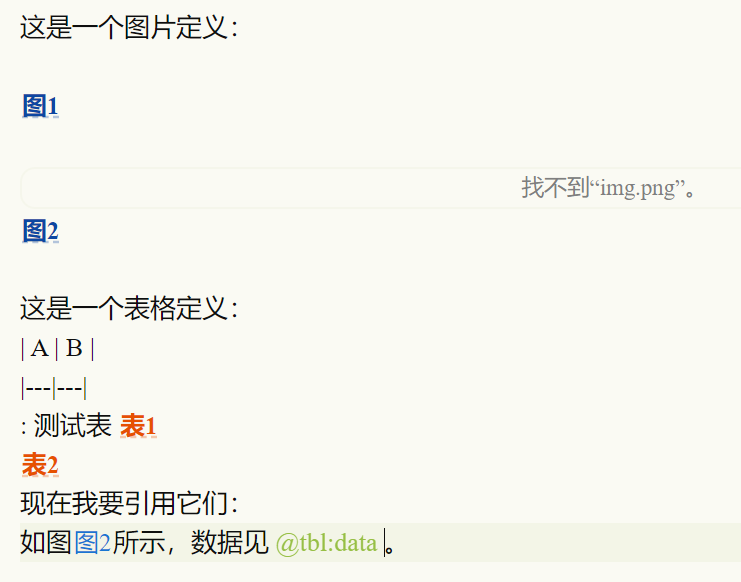
@fig:idinto readable labels like 图1 (Figure 1) or 表1 (Table 1) in Live Preview mode. - 🔍 Bidirectional Audit & Management (New!):
- Sidebar View: A dedicated panel to list all figures and tables. Click the Ribbon icon or use the command to open.
- Error Detection:
- ⛔ Broken References: Highlights references (
@fig:xxx) in RED if the ID is missing. ⚠️ Unused Definitions: Highlights captions in ORANGE if they are defined but never referenced.- ❌ Undefined Images: Lists images missing
{#fig:xxx}tags in the sidebar.
- ⛔ Broken References: Highlights references (
- 🖼️ Auto Image Upload (PicGo):
- Paste an image, and it automatically uploads to your PicGo server.
- Automatically appends a unique ID:
{#fig:2025...}. - Option to delete the local file after successful upload to keep your vault clean.
- 🎨 Visual Mastery:
- Customize Everything: Set colors, bolding, and alignment (Center/Left) for both captions and citations.
- Positioning Sliders: Fine-tune the vertical position of captions with dual sliders (Top Offset / Bottom Spacing) to perfectly fit any Obsidian theme.
- 📐 Smart Layout & Gap Control:
- Pandoc Compatible: Automatically adds necessary newlines (
\n\n) around images for correct Pandoc export. - Visually Compact: Forcefully hides these extra newlines in Obsidian preview to prevent ugly large gaps.
- Pandoc Compatible: Automatically adds necessary newlines (
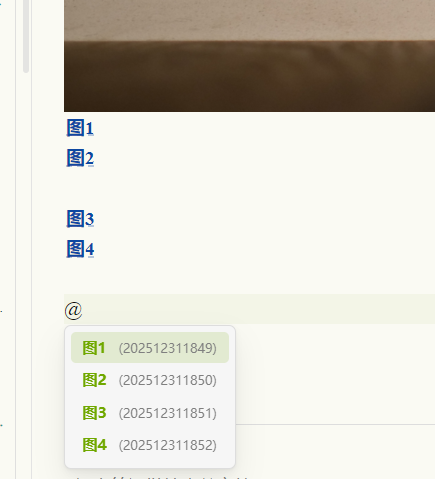
- ⚡ Smart Autocomplete: Type
@to trigger a suggestion menu. Supports( @fig:id )format with correct spacing. - Interactive Editing: Click on the rendered label (e.g.,
图1) to edit the source code.
- Install the BRAT plugin from the Obsidian Community Plugins.
- Add this repository URL:
https://github.com/wanxinhao/pandoc-live-preview - The plugin will be automatically installed and updated.
- Download
main.js,manifest.json, andstyles.cssfrom the Releases page. - Create a folder named
pandoc-live-previewin your vault's.obsidian/plugins/directory. - Move the downloaded files into that folder.
- Reload Obsidian and enable the plugin.
Go to Settings -> Pandoc Live Preview to configure:
- PicGo Server URL: Default is
http://127.0.0.1:36677/upload. - Auto Upload: Enable/Disable auto-upload on paste.
- Gap Control (Pandoc): Adds newlines around images (Recommended for Pandoc export).
- Hide Gap (Visual): Highly Recommended. Visually hides the extra newlines created above to keep the preview compact.
- Caption Style: Customize Color, Bold, and Center Alignment.
- Vertical Sliders:
- Top Offset: Move the caption up/down relative to the image (negative values pull it closer).
- Bottom Spacing: Adjust the space between the caption and the following text.
- Reference Style: Customize Color and Bold for in-text citations (e.g.,
(Fig. 1)).
- Click to Jump: Click a reference to scroll to the figure.
- Auto Parentheses: Autocomplete inserts
( @fig:id )with proper spacing.
⚠️ Conflict Warning: If you are using Image Auto Upload Plugin, please DISABLE it to prevent conflicts. This plugin handles the upload logic natively.
1. Define a Figure:
- Paste Image: Auto-uploads and adds
{#fig:timestamp}. - Manual:
{#fig:name}-> Renders as 图1 Caption (Styled & Positioned). - Check Sidebar: Open the Pandoc Manager sidebar to see if any image is missing an ID.
2. Reference it:
Type @ -> Select Figure -> Inserts ( @fig:id ) -> Renders as (图1).
Audit: If you reference a non-existent ID, it will show as a Red Warning (
⛔ @fig:xxx).
To get the full academic writing preview experience, we highly recommend using this plugin alongside:
这是一个专为 Obsidian 学术写作设计的插件,主要用于解决 Pandoc 交叉引用(Cross-ref)在 Obsidian 实时预览模式下无法直观显示的问题。
v2.0.0 终极更新:集成了双向审计与管理、视觉全自定义、双向位置微调、智能空行消除以及 PicGo 自动上传!
- 实时渲染:将
@fig:xxx渲染为 图1,支持子图后缀(如图1a)。 -
- 🔍 双向审计与管理 (New!):
- 侧边栏视图:提供了一个全新的管理面板(点击左侧 Ribbon 图标打开),列出文中所有图表。
- 查错神器:
- ⛔ 失效引用:如果在文中引用了不存在的 ID,预览会显示红底白字的警告,侧边栏也会列出错误。
⚠️ 未使用定义:如果定义了图表但没引用,图名会显示橙色波浪线。- ❌ 漏网之鱼:侧边栏会自动检测未打
{#fig:}标签的图片,防止导出时格式错误。
- 🖼️ 剪切板自动上传 (PicGo):
- 粘贴图片 -> 自动上传 -> 生成 ID -> 删除本地文件。
- 🎨 视觉与排版掌控:
- 全样式自定义:自定义图名和引用的颜色、加粗状态、对齐方式(居中/左对齐)。
- 双向位置滑动条:提供两个滑动条,分别控制图名与上方图片的距离(支持负数上提)以及与下方正文的间距。完美适配任何 Obsidian 主题,拒绝重叠或间距过大。
- 📐 智能空行控制:
- Pandoc 兼容:自动在图片前后添加空行(
\n\n),确保 Pandoc 导出无误。 - 视觉紧凑:在 Obsidian 预览时强力隐藏这些多余空行,保持笔记紧凑美观。
- Pandoc 兼容:自动在图片前后添加空行(
- ⚡ 智能补全:输入
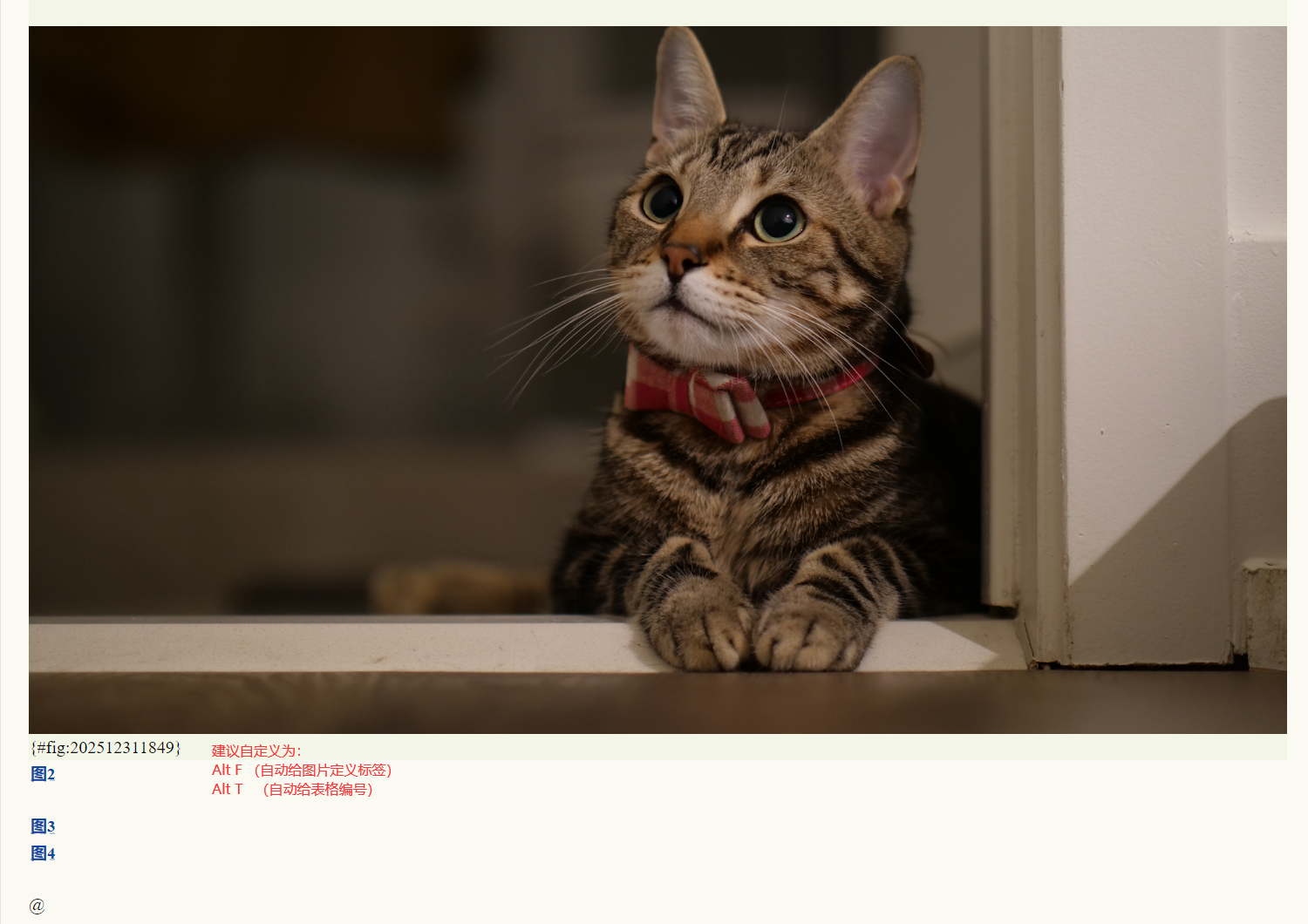
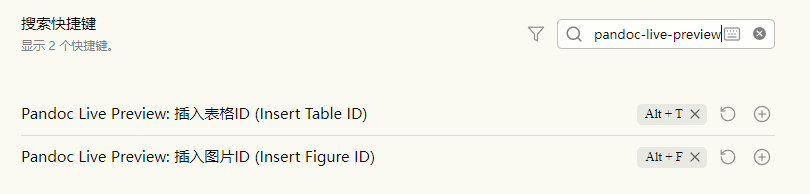
@弹出建议,支持插入( @fig:id )格式(带空格,符合规范)。 - ⚡ 一键生成 ID:快捷命令插入基于时间戳的唯一 ID。
-
-
- 快捷键设置建议:
- 快捷键设置建议:
- 在 Obsidian 社区插件市场搜索并安装 BRAT。
- 添加本仓库地址:
https://github.com/EdgerHao/pandoc-live-preview。 - 点击添加,插件即可自动安装。
- 前往右侧的 Releases 页面下载最新版本的附件(包含
main.js,manifest.json,styles.css)。 - 在你的 Obsidian 库的
.obsidian/plugins/目录下新建文件夹pandoc-live-preview。 - 将下载的三个文件放入该文件夹。
- 重启 Obsidian 并启用插件。
请在 Obsidian 设置面板中找到 Pandoc Live Preview 进行配置:
- PicGo 上传接口:默认为
http://127.0.0.1:36677/upload。 - 图片前后增加空行:开启以兼容 Pandoc 导出格式。
- 预览时隐藏图片空行:强烈推荐开启。开启后将消除上述选项带来的视觉大空隙,保持界面紧凑。
- 图表名样式:
- 颜色/加粗:自定义图注的外观。
- 居中显示:关闭后可左对齐(适合长图注)。
- 位置微调 (Sliders):
- 上方间距 (Top Offset):左右拖动滑块,让图名靠近或远离图片。
- 下方间距 (Bottom Spacing):控制图名与正文的距离。
- 引用处样式:自定义文中
(图1)的颜色和加粗。
- 启用单击跳转:点击文中的
(图1)可跳转到图片位置。 - 引用自动加括号:补全时自动生成
( @fig:xxx )。
⚠️ 冲突警告:如果您正在使用 Image Auto Upload Plugin,请务必关闭或禁用它,否则会产生冲突。本插件已内置完整的上传逻辑。
1. 定义图表
- 粘贴:Ctrl+V -> 自动上传 -> 生成标准 Pandoc 格式。
- 手动:
{#fig:id}-> 渲染为 图1 图名(样式由您的设置决定)。 - 检查:点击左侧边栏的 "Pandoc 图表管理" 图标,查看是否有红色警告。
2. 引用图表
输入 @ -> 选择图片 -> 自动插入 ( @fig:id ) -> 渲染为 (图1)(全蓝色/加粗)。
为了获得完整的学术写作预览体验,强烈推荐配合以下插件使用:
- Pandoc Reference List
- Obsidian-PaperBell
- PaperBell 是使用 Obsidian 管理你学术生涯的终极方案。
MIT License