
Minimal Blue is a dark, minimalist theme for Visual Studio Code, designed to provide a minimal, distraction-free UI 🔧 as its core USP, with a sleek aesthetic. This theme removes unnecessary UI elements, applies curated settings for a minimal UI 🔧, and features a clean line highlight to keep you focused on your code. It also includes a custom welcome page for a personalized touch. ✨
Version 2.0.0 Update: Now featuring Minimal Blue (Super Dark) as the default theme! The ultra-dark variant and all minimal settings are automatically applied the moment you install the extension. You can still manually switch back to the classic Minimal Blue variant if you prefer.
Now featuring two variants:
- Minimal Blue: The original dark, neon-inspired theme.
- Minimal Blue (Super Dark): An even deeper, ultra-dark version for maximum focus.
| 📌 QUICK LINKS: 📷 SCREENSHOTS • 🎥 LIVE PREVIEW • 🚀 INSTALLATION • 🌟 FEATURES • ⌨️ SHORTCUTS |
|---|


- A detailed view of the interface, including the code preview within the extension.
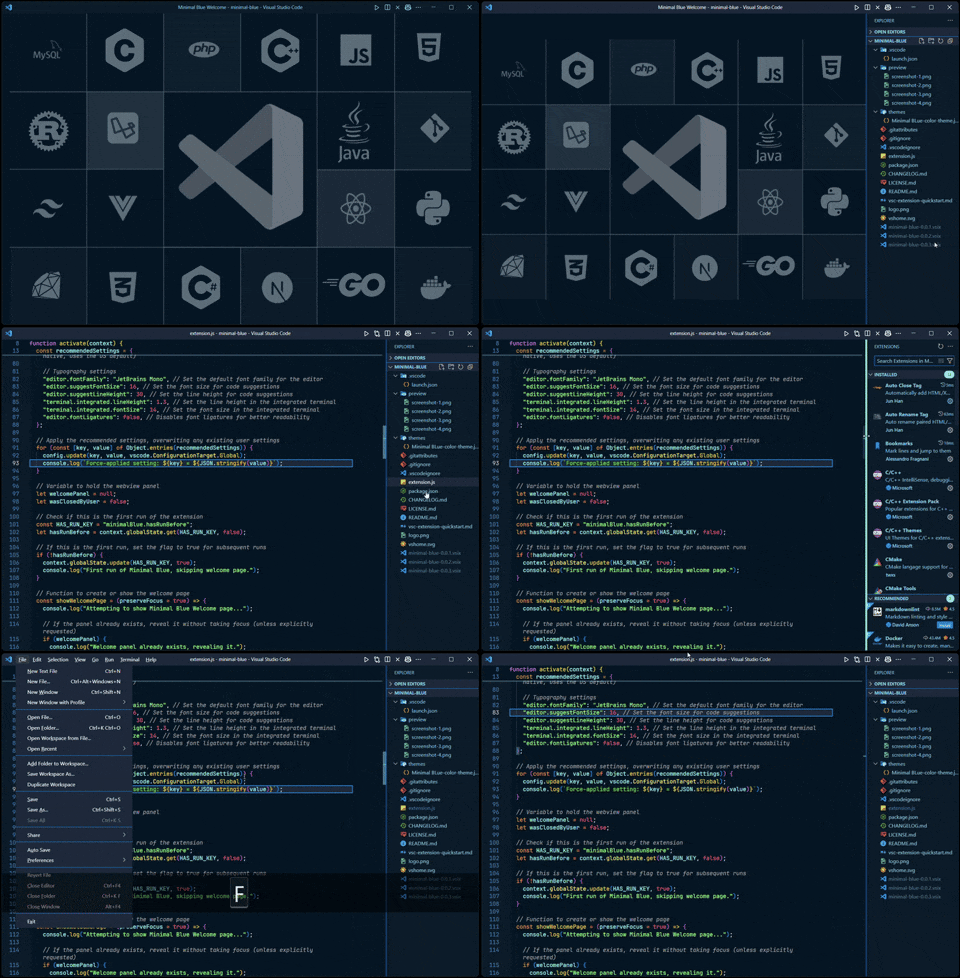
- Experience the extension in action with its clean, minimal interface.
- Open VS Code.
- Go to the Extensions view:
- Press
Ctrl+Shift+X(Windows/Linux) orCmd+Shift+X(macOS).
- Press
- Search for Minimal Blue in the search bar.
- Click Install.
- Done! The extension will automatically apply the theme and all recommended minimal UI settings.
- Open VS Code.
- Go to the Extensions view:
- Press
Ctrl+Shift+X(Windows/Linux) orCmd+Shift+X(macOS).
- Press
- Click the
...(menu button) in the top-right corner of the Extensions view. - Select Install from VSIX....
- Locate and select the
minimal-blue-2.x.x.vsixfile downloaded from the GitHub Releases page. - Restart VS Code if necessary.
- Download the
.vsixfile from the GitHub Releases page. - Open your terminal.
- Run the following command: [ Within command update the version of .vsix file downloaded ]
code --install-extension minimal-blue-2.x.x.vsix
- Restart VS Code if necessary.
- 🖥️ Two Dark Variants: Choose between the classic Minimal Blue or the new ultra-dark Minimal Blue (Super Dark).
- 🖥️ Minimal, Distraction-Free UI 🔧: The core USP of Minimal Blue—hides unnecessary UI elements like the Activity Bar, Status Bar, and breadcrumbs for a clean, focused coding environment.
- ✨ Shiny Line Highlight: Features a highlight on the current line to keep your focus on the active code.
- 🎨 Dark Minimal Theme: A beautiful dark theme with a minimalist color palette.
- 📄 Custom Adaptive Welcome Page: Displays a welcome page (using
vshome.svg) that automatically matches your theme variant. It appears when no editors are open, enhancing the minimal UI 🔧 experience. - ⚙️ Instant Recommended Settings: Automatically applies settings for a minimal UI 🔧, now organized into categories and applied instantly on installation.
- 📦 Extension Recommendations: Suggests Material Icon Theme and Prettier for a complete setup.
- The welcome page appears automatically when no editors are open and a "Minimal Blue" variant is active, complementing the minimal UI 🔧 design.
- To show it manually:
- Open the Command Palette (
Ctrl+Shift+PorCmd+Shift+Pon macOS). - Run Minimal Blue: Show Welcome Page.
- Open the Command Palette (
The extension applies recommended settings to achieve a minimal UI 🔧 only under two conditions:
- First installation of the extension.
- Manual selection of a "Minimal Blue" theme variant from the Color Theme menu.
Your personal customizations are respected. Once the settings are applied, the extension will not override your changes upon VS Code restarts. You are free to personalize your setup further (e.g., moving the sidebar or toggling the status bar).
If you wish to change any setting applied by the extension (e.g., moving the Sidebar back to the left):
- Open the Command Palette:
Ctrl+Shift+P(Win/Linux) orCmd+Shift+P(macOS). - Search and select: Preferences: Open User Settings (JSON).
- Modify or delete any setting in your
settings.jsonfile.
✨ Persistence & Reset Tip: Your manual changes are permanent and will not be overridden when you restart VS Code. If you ever want to restore the recommended minimal UI 🔧 settings, simply re-select either Minimal Blue or Minimal Blue (Super Dark) from the Color Theme menu.
- Sets the theme to "Minimal Blue (Super Dark)" (can be manually changed to "Minimal Blue").
- Uses Material Icon Theme for icons.
- Moves the Activity Bar to the bottom to support a minimal UI 🔧.
- Hides the Status Bar to reduce visual clutter 🔧.
- Moves the Sidebar to the right.
- Hides editor tabs, showing only the active file for a cleaner look.
- Hides the default VS Code welcome page and Command Center to reduce clutter.
- Hides the custom title bar for a distraction-free look.
- Automatically resizes the centered layout to fit content.
- Toggles the menu bar (shows on Alt key press) for a minimal UI 🔧.
- Disables minimap character rendering and enables autohide to keep the editor clean.
- Sets Prettier as the default formatter with format-on-save enabled.
- Disables accessibility support for performance.
- Enables word wrap so long lines automatically break to fit the editor width.
- Shiny Line Highlight: Enhances the active line highlight for better focus.
- Auto-hides horizontal and vertical scrollbars (appears only when scrolling).
- Sets scrollbar thickness to 8 pixels for a comfortable and visible experience.
- Prevents clicking the scrollbar from scrolling a full page.
- Shows full folder structure in the Explorer.
- Disables delete confirmation prompts and badges to reduce distractions.
- Trims trailing whitespace and ensures final newlines in files.
- Sorts files by type (e.g.,
.jsbefore.json) for better organization.
- Sets the editor font to JetBrains Mono for a minimalist look. (If not installed, download and install from JetBrains Mono.)
- Disables font ligatures for better readability.
- Configures code suggestion font size to 16 and line height to 30 for better readability.
- Sets the terminal font size to 14 and line height to 1.3 for a comfortable experience.
- Disables breadcrumbs, Git decorations, and sticky scroll in the File Explorer to maintain a minimal UI 🔧.
- Enables word wrapping in the diff and chat editors.
⚠️ ATTENTION: Since Minimal Blue hides most UI buttons to give you maximum focus, keyboard shortcuts are essential for navigation.
⌨️ [ CLICK TO REVEAL ] Essential Keyboard Shortcuts
| Function | Windows/Linux | macOS |
|---|---|---|
| Toggle Menu Bar (Reveals Menu Bar) | Alt |
- |
| Quick Open File | Ctrl+P |
Cmd(⌘)+P |
| Open Command Palette | Ctrl+Shift+P |
Cmd(⌘)+Shift+P |
| Open Explorer | Ctrl+Shift+E |
Cmd(⌘)+Shift+E |
| Open Extensions View | Ctrl+Shift+X |
Cmd(⌘)+Shift+X |
| Search in Workspace | Ctrl+Shift+F |
Cmd(⌘)+Shift+F |
| Find in File | Ctrl+F |
Cmd(⌘)+F |
| Toggle Sidebar | Ctrl+B |
Cmd(⌘)+B |
| Close Active Editor | Ctrl+W |
Cmd(⌘)+W |
| Close All Editors | Ctrl+K W |
Cmd(⌘)+K W |
| Split Editor | Ctrl+\ |
Cmd(⌘)+\ |
| Toggle Terminal | Ctrl+` |
Cmd(⌘)+` |
| Focus Editor Group 1 | Ctrl+1 |
Cmd(⌘)+1 |
| Focus Editor Group 2 | Ctrl+2 |
Cmd(⌘)+2 |
| Start Debugging | F5 |
F5 |
| Stop Debugging | Shift+F5 |
Shift+F5 |
- 🖼️ Material Icon Theme (
PKief.material-icon-theme): Enhances file and folder icons. - ✍️ Prettier (
esbenp.prettier-vscode): Formats code automatically.
- 📌 GitHub Repository: AzamAliCodes/minimal-blue-vscode-theme
- 📌 Check out other projects on GitHub: AzamAliCodes
 Minimal Blue Theme
This extension is licensed under the MIT License. 📄

