



$ sudo apt-get install -y docker.io
$ sudo apt-get install -y docker-compose-v2

$ service docker status

# add user
$ sudo usermod -aG docker `whoami`

# upgrade
curl -fsSL https://get.docker.com -o get-docker.sh
sudo sh get-docker.sh$ docker version
Client:
Version: 20.10.12
API version: 1.41
Go version: go1.16.2
Git commit: 20.10.12-0ubuntu2~20.04.1
Built: Wed Apr 6 02:14:38 2022
OS/Arch: linux/amd64
Context: default
Experimental: true
Server:
Engine:
Version: 20.10.12
API version: 1.41 (minimum version 1.12)
Go version: go1.16.2
Git commit: 20.10.12-0ubuntu2~20.04.1
Built: Thu Feb 10 15:03:35 2022
OS/Arch: linux/amd64
Experimental: false
containerd:
Version: 1.5.9-0ubuntu1~20.04.4
GitCommit:
runc:
Version: 1.1.0-0ubuntu1~20.04.1
GitCommit:
docker-init:
Version: 0.19.0
GitCommit:
2. Docker Containers/Images - DOCKER OFFICIAL IMAGE
flowchart LR
	subgraph Host[Host - Ubuntu 20.04.4 LTS]
		subgraph Container[Container - Ubuntu ??.?? LTS]

		end
	end
# Search the Docker Hub for images
$ docker search ubuntu
# Pull an image or a repository from a registry
$ docker pull ubuntu:latest
$ docker pull ubuntu:22.04
$ docker pull ubuntu:20.04
# List images
$ docker images
REPOSITORY   TAG       IMAGE ID       CREATED      SIZE
ubuntu       22.04     df5de72bdb3b   6 days ago   77.8MB
ubuntu       latest    df5de72bdb3b   6 days ago   77.8MB
# Search the Docker Hub for images
$ docker search
# Pull an image or a repository from a registry
# 目前沒有該image# List images
$ docker images
flowchart LR
	subgraph Host[Host - Ubuntu 20.04.4 LTS]
		subgraph Container[Container - Ubuntu 22.04.1 LTS]

		end
	end
# Run a command in a new container
# -t, --tty=true|false
#    Allocate a pseudo-TTY. The default is false.
# -i, --interactive=true|false
#    Keep STDIN open even if not attached. The default is false.
$ docker run -t -i ubuntu:22.04 /bin/bash
$ docker run -t -i df5de72bdb3b /bin/bash# List all Docker containers regardless of status, -a or --all to show every container
$ docker ps -a
CONTAINER ID IMAGE COMMAND CREATED STATUS PORTS NAMES
2d3acbdedf80 ubuntu:22.04 "/bin/bash" 2 hours ago Exited (0) 13 minutes ago distracted_shtern
ae96128535e6 df5de72bdb3b "/bin/bash" 2 hours ago Exited (127) 2 hours ago keen_wright
661547b99e14 df5de72bdb3b "/bin/bash" 2 hours ago Exited (127) 2 hours ago musing_antonelli
0e78d531b441 df5de72bdb3b "/bin/bash" 2 hours ago Exited (0) 2 hours ago youthful_payne
flowchart LR
	ImageA[Image A]
	ContainerA([ContainerA])
	ImageB[Image B]

	ImageA --> |run|ContainerA --> |commit|ImageB
# Run a command in a new container and update

apt-get update
#apt-get upgrade
apt-get install -y lsb-release
apt-get clean all

lsb_release -a

cd /bin && rm sh; ln -s bash sh# Create a new image from a container's changes
$ docker commit 2d3acbdedf80 ubuntu:22.04v2
$ docker images
REPOSITORY TAG IMAGE ID CREATED SIZE
ubuntu 22.04v2 3d3a3d4d3fe0 14 minutes ago 497MB
ubuntu 22.04 df5de72bdb3b 6 days ago 77.8MB
flowchart LR
	Dockerfile[Dockerfile]
	Image[Image]
	Dockerfile-->|build|Image
$ tree -L 1 Docker-demo/
Docker-demo/
├── dbusX.conf
├── docker-compose.yml
├── Dockerfile
└── supervisord.conf

0 directories, 4 files# Build an image from a Dockerfile
$ cd Docker-demo
$ export DOCKER_REPOSITORY="lanka520"
#$ export DOCKER_TAG="00.01"
$ docker build \
-t="$DOCKER_REPOSITORY" \
.
$ docker images
REPOSITORY TAG IMAGE ID CREATED SIZE
lanka520 latest ad3fec3ee0b5 2 seconds ago 285MB
# HOST port: 9981
# Container port: 80
$ docker run \
-d \
--name hello-lanka520 \
-p 9981:80 \
demo
$ docker ps
CONTAINER ID IMAGE COMMAND CREATED STATUS PORTS NAMES
60011bc64401 lanka520 "/usr/bin/supervisor…" 54 seconds ago Up 53 seconds 0.0.0.0:9981->80/tcp, :::9981->80/tcp hello-lanka520讀取 docker-compose.yml 裏設定的參數後建立 image 並且 run
$ cd Docker-demo
$ cat docker-compose.yml

services:
  demo:
    image: lanka520
    build: .
    container_name: hello-demo
    ports:
      - "9981:80"

$ docker compose up -d --buildflowchart LR
TAR[ubuntu-$DOCKER_REPOSITORY-$DOCKER_TAG.tar]
Image[Image]
Image-->|save|TAR
TAR-->|load|Image
# Save one or more images to a tar archive (streamed to STDOUT by default)
$ docker save -o ubuntu-$DOCKER_REPOSITORY-$DOCKER_TAG.tar "$DOCKER_REPOSITORY:$DOCKER_TAG"

$ ll
-rw------- 1 lanka lanka 3611464704  八   8 14:52 ubuntu-ubuntu:22.04v1.tar
$ docker rmi d41a1bf4ee25
$ docker images
REPOSITORY   TAG       IMAGE ID       CREATED      SIZE
ubuntu       22.04     df5de72bdb3b   6 days ago   77.8MB
# Load an image from a tar archive or STDIN
$ docker load -i ubuntu-$DOCKER_REPOSITORY-$DOCKER_TAG.tar

$ docker images
REPOSITORY   TAG       IMAGE ID       CREATED          SIZE
ubuntu       22.04v1   d41a1bf4ee25   11 minutes ago   3.57GB
ubuntu 22.04 df5de72bdb3b 6 days ago 77.8MB# Remove one or more images
$ docker rmi df5de72bdb3b
$ docker rmi $(docker images --filter "dangling=true" -q --no-trunc)$ docker image tag ubuntu:20.04 ubuntu-cpy:20.04Attach local standard input, output, and error streams to a running container
Run Image -> Leave Container -> Return Container (attach)
$ docker ps -a
CONTAINER ID   IMAGE              COMMAND       CREATED          STATUS         PORTS              NAMES
89356a72e018   ecr-ubuntu:20.04   "/bin/bash"   19 minutes ago   Up 6 minutes   80/tcp, 9981/tcp   nostalgic_dirac

$ docker attach 89356a72e018Create a new image from a container's changes
將目前 container 另存成 image
$ docker commit 2ea0d23f30cf ubuntu:22.04v2Copy files/folders between a container and the local filesystem
$ docker cp -a README.md ac52ddefee1f:/work
$ docker cp -a helloworld ac52ddefee1f:/workExecute a command in a running container
$ docker exec -ti 2ea0d23f30cf ls -al /Export a container's filesystem as a tar archive
$ docker export ae96128535e6 > ubuntu.tarImport the contents from a tarball to create a filesystem image
$ docker import ubuntu.tar - ubuntu:22.04v1Return low-level information on Docker objects
$ docker inspect 2ea0d23f30cfRemove one or more containers
$ docker rm ae96128535e6
$ docker rm 661547b99e14
$ docker rm 0e78d531b441

# Remove exited containers
$ docker rm $(docker ps --filter status=exited -q)$ docker container prune
WARNING! This will remove all stopped containers.
Are you sure you want to continue? [y/N] y$ docker system prune
WARNING! This will remove:
- all stopped containers
- all networks not used by at least one container
- all dangling images
- all dangling build cache
Are you sure you want to continue? [y/N] yStart one or more stopped containers
$ docker start ae96128535e6Stop one or more running containers
$ docker stop ae96128535e6Restart one or more containers
$ docker restart ae96128535e6$ docker network ls
NETWORK ID NAME DRIVER SCOPE
79d12e5c8b19 bridge bridge local
4306d8f51bc3 compose_default bridge local
bc0b0e7cc59b host host local
d2cea0e32a15 none null local$ docker network rm 4306d8f51bc3查看 volume
$ docker volume ls
DRIVER    VOLUME NAME
local     3043254d5d977059218cccf029346e531143d235c9da3cca3f527526a4c2f730
local     gitlab-runner-config
local scm-home刪除 volume
$ docker volume rm scm-home清掉沒用的 volume
$ docker volume prune
WARNING! This will remove anonymous local volumes not used by at least one container.
Are you sure you want to continue? [y/N] Y
Total reclaimed space: 0BCtrl + P 然後 Ctrl + Q
[ChatGPT] Docker 和 Virtual Machine 的差別
Docker 和虛擬機(Virtual Machine,VM)是兩種不同的虛擬化技術,它們在虛擬化層面和實現方式上有著顯著的差異。
- 容器化技術: Docker 是一種容器化平台,基於容器技術。它使用容器來封裝應用程序及其所有依賴項,提供了隔離的運行環境。多個 Docker 容器可以在相同的操作系統內核上運行。
- 輕量級: Docker 容器非常輕量級,因為它們共享主機的操作系統內核,並且容器之間共享資源,包括文件系統和內存。
- 資源效率: 由於共享操作系統內核,Docker 容器在資源利用方面更為高效,能夠更快速地啟動和占用更少的系統資源。
- 虛擬化技術: 虛擬機(VM)是通過在物理硬件上模擬整個計算機系統,包括虛擬化的 CPU、內存、磁盤和網絡接口,來運行不同的操作系統。每個虛擬機都有自己的操作系統內核。
- 較重量級: 虛擬機需要額外的資源來運行自己的操作系統,因此更為笨重。每個虛擬機都包含完整的操作系統和應用程序所需的所有庫和依賴項。
- 隔離性: 虛擬機提供了較高的隔離性,每個虛擬機都運行在自己的獨立空間中,與其他虛擬機相互隔離。
- Docker 是更輕量級的容器化技術,它共享操作系統內核並提供了更高的資源利用率。
- 虛擬機提供更高級別的隔離,每個虛擬機包含獨立的操作系統和資源。
選擇使用 Docker 還是虛擬機取決於應用場景。Docker 適合於構建和部署輕量級的、面向微服務的應用程序,而虛擬機更適合於需要完全隔離和多個操作系統運行的場景。
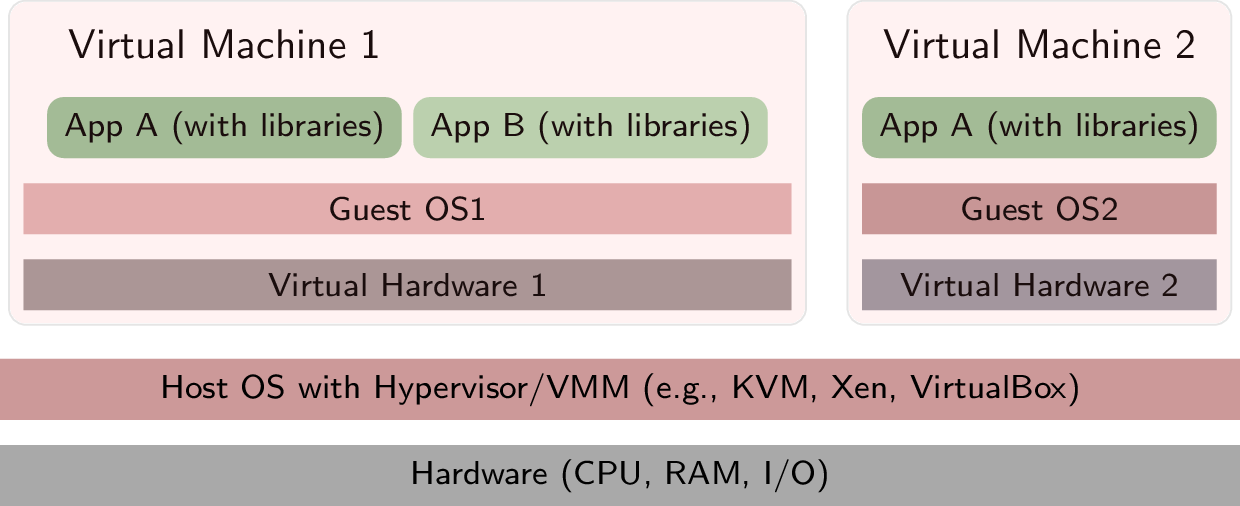
image from oer.gitlab.io
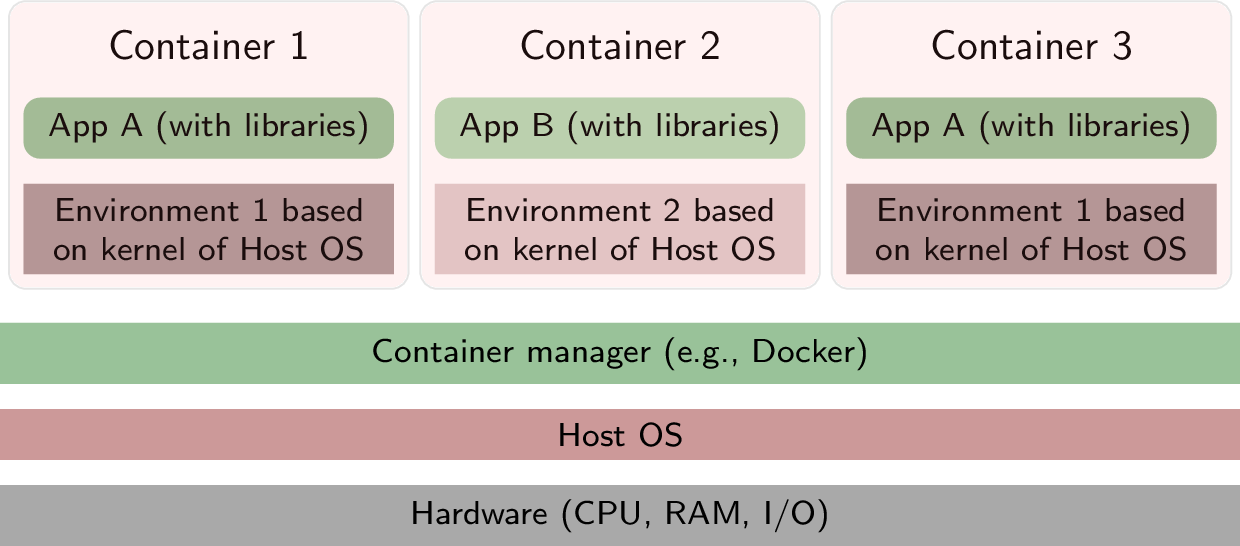
image from oer.gitlab.io
Docker 其實很多限制,因為 container 預設只跑一個主程序,如果有多個 services,建議使用 supervisord
FROM ubuntu:20.04

ENV DEBIAN_FRONTEND=noninteractive

RUN apt-get update
RUN apt-get install \
            supervisor \
            apache2 \
            rsyslog \
            dbus
            -y

RUN apt-get clean
RUN apt-get autoclean
RUN apt-get autoremove --purge

# dash -> bash
RUN cd /bin && rm sh; ln -s bash sh

WORKDIR /work

# dbus
RUN mkdir -p /run/dbus \
    && dbus-uuidgen > /etc/machine-id
COPY umt.conf /etc/dbus-1/system.d

# apache2
# CMD ["apachectl", "-D", "FOREGROUND"]
EXPOSE 80

# supervisord
RUN mkdir -p /var/log/supervisor
COPY supervisord.conf /etc/supervisor/conf.d/supervisord.conf

CMD ["/usr/bin/supervisord", "-n"][supervisord]
nodaemon=true
logfile=/var/log/supervisord.log
[program:apache2]
command=/usr/sbin/apache2ctl -D FOREGROUND
autorestart=true
[program:rsyslog]
command=/usr/sbin/rsyslogd -n
autorestart=true
[program:dbus]
command=/usr/bin/dbus-daemon --system --nofork --nopidfile
autorestart=true
I.1. Docker CLI (docker)
I.2. Docker 基礎教學與介紹 101
$ vi Dockerfile
# add
ENV DEBIAN_FRONTEND=noninteractive
RUN apt-get update && \
    apt-get install -y tzdata && \
    ln -fs /usr/share/zoneinfo/Asia/Taipei /etc/localtime && \
dpkg-reconfigure -f noninteractive tzdataUsage: docker [OPTIONS] COMMAND
A self-sufficient runtime for containers
Options:
--config string Location of client config files (default "/home/lanka/.docker")
-c, --context string Name of the context to use to connect to the daemon (overrides DOCKER_HOST env var and default
context set with "docker context use")
-D, --debug Enable debug mode
-H, --host list Daemon socket(s) to connect to
-l, --log-level string Set the logging level ("debug"|"info"|"warn"|"error"|"fatal") (default "info")
--tls Use TLS; implied by --tlsverify
--tlscacert string Trust certs signed only by this CA (default "/home/lanka/.docker/ca.pem")
--tlscert string Path to TLS certificate file (default "/home/lanka/.docker/cert.pem")
--tlskey string Path to TLS key file (default "/home/lanka/.docker/key.pem")
--tlsverify Use TLS and verify the remote
-v, --version Print version information and quit
Management Commands:
builder Manage builds
config Manage Docker configs
container Manage containers
context Manage contexts
image Manage images
manifest Manage Docker image manifests and manifest lists
network Manage networks
node Manage Swarm nodes
plugin Manage plugins
secret Manage Docker secrets
service Manage services
stack Manage Docker stacks
swarm Manage Swarm
system Manage Docker
trust Manage trust on Docker images
volume Manage volumes
Commands:
attach Attach local standard input, output, and error streams to a running container
build Build an image from a Dockerfile
commit Create a new image from a container's changes
cp Copy files/folders between a container and the local filesystem
create Create a new container
diff Inspect changes to files or directories on a container's filesystem
events Get real time events from the server
exec Run a command in a running container
export Export a container's filesystem as a tar archive
history Show the history of an image
images List images
import Import the contents from a tarball to create a filesystem image
info Display system-wide information
inspect Return low-level information on Docker objects
kill Kill one or more running containers
load Load an image from a tar archive or STDIN
login Log in to a Docker registry
logout Log out from a Docker registry
logs Fetch the logs of a container
pause Pause all processes within one or more containers
port List port mappings or a specific mapping for the container
ps List containers
pull Pull an image or a repository from a registry
push Push an image or a repository to a registry
rename Rename a container
restart Restart one or more containers
rm Remove one or more containers
rmi Remove one or more images
run Run a command in a new container
save Save one or more images to a tar archive (streamed to STDOUT by default)
search Search the Docker Hub for images
start Start one or more stopped containers
stats Display a live stream of container(s) resource usage statistics
stop Stop one or more running containers
tag Create a tag TARGET_IMAGE that refers to SOURCE_IMAGE
top Display the running processes of a container
unpause Unpause all processes within one or more containers
update Update configuration of one or more containers
version Show the Docker version information
wait Block until one or more containers stop, then print their exit codes
Run 'docker COMMAND --help' for more information on a command.
To get more help with docker, check out our guides at https://docs.docker.com/go/guides/
alias docker-images="docker images "
alias docker-run="docker run -ti "
alias docker-ps="docker ps -a "
alias docker-rmimage="docker rmi "
alias docker-rmcontainer="docker rm "
alias docker-attach="docker attach "

alias docker-prunesystem="docker system prune "
alias docker-prunecontainer="docker container prune "

function docker-rmexited()
{
	docker rm $(docker ps --filter status=exited -q)
}

function docker-run()
{
	IMAGE_ID="$1"
	SHELL_MODE="/bin/bash"

	docker run -t -i $IMAGE_ID $SHELL_MODE
}
# ubuntu 20.04
FROM ubuntu:20.04

RUN apt-get update
RUN apt-get install \
						lsb-release \
						-y

RUN apt-get clean
RUN apt-get autoclean
RUN apt-get autoremove --purge
# docker build -t="ubuntu:20.04v1" .
# ubuntu 20.04
FROM ubuntu:20.04

RUN apt-get update
RUN apt-get install \
						lsb-release \
						-y

RUN apt-get clean
RUN apt-get autoclean
RUN apt-get autoremove --purge

# dash -> bash
RUN cd /bin && rm sh; ln -s bash sh

# mkdir /work; cd /work
WORKDIR /work
# cp -avr * /work
ADD . /work

#CMD ls -al

# open port:9981
EXPOSE 9981Created and designed by Lanka Hsu.
HelperX is available under the BSD-3-Clause license. See the LICENSE file for more info.