Are you using a Video Game Library Manager like Playnite or LaunchBox? Are you tired of closing the launchers (Steam, Origin, Epic Games, ...) manually, which just don't have an option to close itself after you've finished playing? Then this little tool is just right for you.
This tool terminates processes and is still in the test phase. I am not responsible for any damage to your system.
- VERY IMPORTANT! if you don't want to remove the remaining icons yourself, open all launchers manually and make them always visible in the SystemTray.
Before:
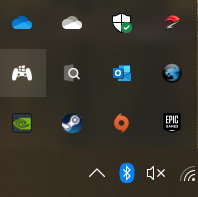
After:

2. Move the files to a folder of your choice.
3. Open "LauncherKiller.exe", press "+" and add your launcher.
There are two ways to use this tool.
You can use the script section in e.g. Playnite or LaunchBox to close all launchers in the list after done playing.
Batch:
Start C:\LauncherKiller\LauncherKiller.exe --lite