- Introduce the day/syllabus
- class website:
- SWC Code of Conduct
- Explain post-its
- Introduce Etherpad
Intro to Software Carpentry: http://swcarpentry.github.io/slideshows/introducing-software-carpentry/index.html#slide-0
You need to download some files to follow this lesson:
- Download shell-novice-data.zip and move the file to your Desktop.
- Unzip/extract the file (ask your instructor if you need help with this step). You should end up with a new folder called data-shell on your Desktop.
- Create a new folder on your desktop called SIO-SWC
- Move the data-shell folder into the sio-swc folder .
- Open a terminal and type:
cdcheck to make sure data files have been installed to \workshop\data-shell\
Introducing the shell
-
The shell is a command line interface.
-
The Shell uses text commands instead of a graphical interface.
-
The heart of a CLI is a read-evaluate-print loop, or REPL :
-
when the user types a command and then presses the enter (or return) key, the computer reads it, executes it, and prints its output. The user then types another command, and so on until the user logs off.
-
Commands are used in a program called a command shell. What your type goes into the shell, which then figures out what commands to run and orders the computer to execute them. Note, the shell is called the shell because it encloses the operating system in order to hide some of its complexity and make it simpler to interact with.
-
Importance of knowing how to use the Unix command shell the command line is often the easiest way to interact with remote machines and supercomputers. Familiarity with the shell is near essential to run a variety of specialised tools and resources including high-performance computing systems. As clusters and cloud computing systems become more popular for scientific data crunching, being able to interact with them is becoming a necessary skill.
-
Introduce Researcher Data: Nelle’s pipeline, Researcher data set and files used
Introduce Researcher Data: Nelle’s pipeline Researcher data set and files used
Nelle Nemo, a marine biologist, has just returned from a six-month survey of the North Pacific Gyre, where she has been sampling gelatinous marine life in the Great Pacific Garbage Patch. She has 300 samples in all, and now needs to:
- Run each sample through an assay machine that will measure the relative abundance of 300 different proteins. The machine’s output for a single sample is a file with one line for each protein.
- Calculate statistics for each of the proteins separately using a program her supervisor wrote called goostat.
- Compare the statistics for each protein with corresponding statistics for each other protein using a program one of the other graduate students wrote called goodiff.
- Write up results. Her supervisor would really like her to do this by the end of the month so that her paper can appear in an upcoming special issue of Aquatic Goo Letters.
It takes about half an hour for the assay machine to process each sample. The good news is that it only takes two minutes to set each one up. Since her lab has eight assay machines that she can use in parallel, this step will “only” take about two weeks.
The bad news is that if she has to run goostat and goodiff by hand, she’ll have to enter filenames and click “OK” 45,150 times (300 runs ofgoostat, plus 300*299/2 (half of 300 times 299) runs of goodiff). At 30 seconds each, that will take more than two weeks. Not only would she miss her paper deadline, the chances of her typing all of those commands right are practically zero.
The next few lessons will explore what she should do instead. More specifically, they explain how she can use a command shell to automate the repetitive steps in her processing pipeline so that her computer can work 24 hours a day while she writes her paper. As a bonus, once she has put a processing pipeline together, she will be able to use it again whenever she collects more data.
pwd/Users/rotsuji
- Explain the similarities and differences between a file and a directory.
- Translate an absolute path into a relative path and vice versa.
- Construct absolute and relative paths that identify specific files and directories.
- Explain the steps in the shell’s read-run-print cycle.
- Identify the actual command, flags, and filenames in a command-line call.
- Demonstrate the use of tab completion, and explain its advantages.
-
The part of the operating system responsible for managing files and directories is called the file system.
-
FS organizes our data into files, which hold information, and directories (also called “folders”), which hold files or other directories.
-
There are several commands are frequently used to create, inspect, rename, and delete files and directories.
-
let’s take a look at the shell window and start exploring:
Fist looking at the shell: ** $ **
- the dollar sign is a ** prompt **. All shell commands are typed after the prompt.
Let’s start by typing:
whoamirotsuji
the Output is the ID of the current user, shows us who the shell thinks we are.
what’s happening:
- finds a program called ** whoami **,
- runs that program,
- displays that program’s output, then
- displays a new prompt to tell us that it’s ready for more commands.
Next, let’s find out where we are by running a command called:
pwd/Users/rotsuji
Or “print working directory” which shows your current working directory.
The output you see is your home directory.
Note: The directory path will look different on Windows ** Git Bash type example /c/Users/Reid or C:\documents and settings\Reid **
To understand what a “home directory” is, let’s have a look at how the file system as a whole is organized.
- show file system image http://swcarpentry.github.io/shell-novice/fig/filesystem.svg
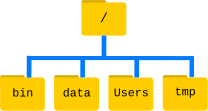
At the top is the root directory that holds everything else. We refer to it using a slash character / on its own; this is the leading slash in/Users/nelle.
After this illustration, you’ll be learning commands to explore your own filesystem, which will be constructed in a similar way, but not be exactly identical.
Inside that directory are several other directories: bin (which is where some built-in programs are stored), data (for miscellaneous data files), Users (where users’ personal directories are located), tmp (for temporary files that don’t need to be stored long-term), and so on.
We know that our current working directory /Users/nelle is stored inside /Users because /Users is the first part of its name. Similarly, we know that /Users is stored inside the root directory / because its name begins with /.
Typically, when you open a new command prompt you will be in your home directory to start.
Now let’s learn the command that will let us see the contents of our own filesystem. We can see what’s in our home directory by running ls, which stands for “listing”:
lsAdlm anaconda
Applications backup-rstudio-desktop
Applications (Parallels) data
Conferencing data-carpentry
Creative Cloud Files git_test
Desktop libswc
Documents my_project
Downloads myprojects
Google Drive pebble-dev
Google Drive MBPRO planets
LibCarp-lesson-two.docx planets-test
Library sd-workshop
Movies sio-swc
Music stickies 5_2016.txt
My_R_projects swCarpentry-shell-data
Pictures swc_files
Public to-do stickie.txt
README.md todo - stickies .txt
USERNAME.github.com vagrant_getting_started
VirtualBox VMs vagrant_vms
ls prints the names of the files and directories in the current directory in alphabetical order, arranged neatly into columns.
We can make its output more comprehensible by using the flag -F, which tells ls to add a trailing / to the names of directories:
ls -FAdlm/ anaconda/
Applications/ backup-rstudio-desktop/
Applications (Parallels)/ data/
Conferencing/ data-carpentry/
Creative Cloud Files/ git_test/
Desktop/ libswc/
Documents/ my_project/
Downloads/ myprojects/
Google Drive/ pebble-dev/
Google Drive MBPRO/ planets/
LibCarp-lesson-two.docx planets-test/
Library/ sd-workshop/
Movies/ sio-swc/
Music/ stickies 5_2016.txt
My_R_projects/ swCarpentry-shell-data/
Pictures/ swc_files/
Public/ to-do stickie.txt
README.md todo - stickies .txt
USERNAME.github.com/ vagrant_getting_started/
VirtualBox VMs/ vagrant_vms/
The forward slash after file names show directories that contain sub-directories
We can also use ls to see the contents of a different directory.
Let’s take a look at our Desktop directory by running ls -F Desktop, i.e., the command ls with the arguments -F and Desktop. The second argument — the one without a leading dash — tells ls that we want a listing of something other than our current working directory:
ls has lots of other options. To find out what they are, we can type:
ls --helpls: illegal option -- -
usage: ls [-ABCFGHLOPRSTUWabcdefghiklmnopqrstuwx1] [file ...]
Introduce man help pages.
Note: Windows Gitbash does not support man. use web search for information.
To navigate through the man pages, you may use the up and down arrow keys to move line-by-line, or try the “b” and spacebar keys to skip up and down by full page.
Quit the man pages by typing “q”.
ls -F DesktopANSM presentation FINAL Copies/
ConnectingtoLibraryserversinOSX.pdf
DSC_1742.JPG*
DSC_7135.JPG*
GoogleRefineCheatSheets.pdf
Introduction-to-OpenRefine-handout-CC-BY.pdf
LC-data/
Launcher.app@
MSFTFreeEbooks.txt
MyPDF.PDF
OpoenRefinetutorial.pdf
ParallelsDesktop-12.0.0-41273.dmg
Screen Shot 2016-09-07 at 2.15.01 PM.png
Screen Shot 2016-09-07 at 2.16.48 PM.png
Screen Shot 2016-09-07 at 2.25.50 PM.png
Screen Shot 2016-09-07 at 2.27.50 PM.png
Software carpentry stuff/
Travel Funding Request Form Calc_Rev2014.02.21.pdf
Ubuntu Linux 14.04 Desktop@
Unix Shell Lesson Images/
blender tutorial/
desktop items for review/
desktop stuff 5-2016/
libcarp-data-notes/
libcarp-data-notes - clean/
lifecycle__intestinal_parasites_1.png
lifecycle__intestinal_parasites_2.png
otsuji_reid.pdf
remy_on_trike.jpg
sio-swc/
slice.avi
workshop/
workshop_old/
Your output should be a list of all the files and sub-directories on your Desktop, including the workshop/data-shell directory you setup before the lesson. Take a look at your Desktop to confirm that your output is accurate.
As you may now see, using a bash shell is strongly dependent on the idea that your files are organized in an hierarchical file system.
Now that we know the data-shell directory is located on our Desktop in the workshop folder, we can do two things. First, we can look at its contents, using the same strategy as before, passing a directory name to ls:
pwd/Users/rotsuji
ls -F Desktop/sio-swc/data-shellDesktop/ molecules/ pizza.cfg
creatures/ north-pacific-gyre/ solar.pdf
data/ notes.txt writing/
we can actually change our location to a different directory, so we are no longer located in our home directory.
The command to change locations is cd followed by a directory name to change our working directory. cd stands for “change directory”, which is a bit misleading: the command doesn’t change the directory, it changes the shell’s idea of what directory we are in.
Let’s say we want to move to the data directory we saw above. We can use the following series of commands to get there:
To start over from my home directory, you can use the command:
cd pwd/Users/rotsuji
cd desktopcd sio-swccd data-shellThese commands will move us from our home directory onto our Desktop, then into the workshop directory then into data-shell directory, then into the data directory. cd doesn’t print anything, but if we run pwd after it, we can see that we are now in /desktop/sio-swc/data-shell/
to check type:
pwd/Users/rotsuji/Desktop/sio-swc/data-shell
ls -FDesktop/ molecules/ pizza.cfg
creatures/ north-pacific-gyre/ solar.pdf
data/ notes.txt writing/
Now We now know how to go down the directory tree: how do we go up? We might try the following:
cd data-shellbash: cd: data-shell: No such file or directory
Error! cd can only see sub-directories inside your current directory Windows - no such file or directory cd
There is a shortcut in the shell to move up one directory level that looks like this:
cd .... is a special directory name meaning “the directory containing this one”, or more succinctly, the parent of the current directory. Sure enough, if we run pwd after running cd ..
pwd/Users/rotsuji/Desktop/sio-swc
The special or hidden directory .. doesn’t usually show up when we run ls. If we want to display it, we can give ls the -a flag:
ls -F -a./ .DS_Store README.md
../ .git/ data-shell/
-a stands for “show all”; it forces ls to show us file and directory names that begin with ., such as .. As you can see, it also displays another special directory that’s just called., which means “the current working directory”. It may seem redundant to have a name for it, but we’ll see some uses for it soon.
These then, are the basic commands for navigating the filesystem on your computer: pwd, ls and cd. Let’s explore some variations on those commands.
What happens if you type cd on its own, without giving a directory?
cdHow can you check what happened? pwd gives us the answer!
pwd/Users/rotsuji
It turns out that cd without an argument will return you to your home directory, which is great if you’ve gotten lost in your own filesystem.
Let’s try returning to the data directory from before. Last time, we used three commands, but we can actually string together the list of directories to move to data in one step:
cd desktop/sio-swc/data-shellCheck that we’ve moved to the right place by running pwd and ls -F.
pwd/Users/rotsuji/desktop/sio-swc/data-shell
ls -FDesktop/ molecules/ pizza.cfg
creatures/ north-pacific-gyre/ solar.pdf
data/ notes.txt writing/
ensure that we’re in the directory we expect
shortcuts: The shell interprets the character ~ (tilde) at the start of a path to mean “the current user’s home directory”. e.g. /c/Users/Reid Another shortcut is the - (dash) character. cd will translate - into the previous directory I was in, which is faster than having to remember, then type, the full path.
The difference between cd .. and cd - is that the former brings you up, while the later brings you back.
lets look at the researcher's files:
First, she creates a directory called north-pacific-gyre (to remind herself where the data came from). Inside that, she creates a directory called 2012-07-03, which is the date she started processing the samples. She used to use names like conference-paper and revised-results, but she found them hard to understand after a couple of years. (The final straw was when she found herself creating a directory called revised-revised-results-3.)
Each of her physical samples is labelled according to her lab’s convention with a unique ten-character ID, such as “NENE01729A”.
This is what she used in her collection log to record the location, time, depth, and other characteristics of the sample, so she decides to use it as part of each data file’s name.
Since the assay machine’s output is plain text, she will call her files NENE01729A.txt, NENE01812A.txt, and so on. All 1520 files will go into the same directory.
Introduce tab completion while looking at Nelle's files:
pwd/Users/rotsuji/desktop/sio-swc/data-shell
ls north-pacific-gyre/2012-07-03NENE01729A.txt NENE01751B.txt NENE01971Z.txt NENE02040A.txt NENE02043B.txt
NENE01729B.txt NENE01812A.txt NENE01978A.txt NENE02040B.txt goodiff
NENE01736A.txt NENE01843A.txt NENE01978B.txt NENE02040Z.txt goostats
NENE01751A.txt NENE01843B.txt NENE02018B.txt NENE02043A.txt
This is a lot to type, but we can let the shell do most of the work through what is called tab completion. If we types:
$ ls nor [TAB]
and then presses tab (the tab key on her keyboard), the shell automatically completes the directory name for us: $ ls north-pacific-gyre/
$ [Tab]
If we presses tab again, Bash will add 2012-07-03/ to the command, since it’s the only possible completion. $ ls north-pacific-gyre/2012-07-03/
pwd/Users/rotsuji/desktop/sio-swc/data-shell/north-pacific-gyre/2012-07-03
http://swcarpentry.github.io/shell-novice/02-filedir/#absolute-vs-relative-paths
- Create a directory hierarchy that matches a given diagram.
- Create files in that hierarchy using an editor or by copying and renaming existing files.
- Display the contents of a directory using the command line.
- Delete specified files and/or directories.
We now know how to explore files and directories, but how do we create them in the first place? Let’s go back to our data-shell directory
If you are not at your data-shell directory use the cd command:
pwd/Users/rotsuji/desktop/sio-swc/data-shell/north-pacific-gyre
cd ..now let’s check that we are in our data-shell directory and see what it contains:
pwd/Users/rotsuji/desktop/sio-swc/data-shell
ls -FDesktop/ molecules/ pizza.cfg
creatures/ north-pacific-gyre/ solar.pdf
data/ notes.txt writing/
Let’s create a new directory called thesis using the command mkdir thesis (which has no output):
mkdir thesisAs you might (or might not) guess from its name, mkdir means “make directory”. Since thesis is a relative path (i.e., doesn’t have a leading slash),
ls -FDesktop/ north-pacific-gyre/ thesis/
creatures/ notes.txt writing/
data/ pizza.cfg
molecules/ solar.pdf
the new directory is created in the current working directory However, there’s nothing in it yet:
Complicated names of files and directories can make your life very painful when working on the command line. Here we provide a few useful tips for the names of your files from now on.
- Don’t use whitespaces.
White spaces can make a name more meaningful but since whitespace is used to break arguments on the command line is better to avoid them on name of files and directories. You can use - or _ instead of whitespace.
- Don’t begin the name with -.
Commands treat names starting with - as options.
- Stay with letters, numbers, ., - and _.
May of the others characters have an special meaning on the command line that we will learn during this lesson. Some will only make your command not work at all but for some of them you can even lose some data.
If you need to refer to names of files or directories that have whitespace or another non-alphanumeric character you should put quotes around the name.
ls -F thesisshows no list because the directory is empty.
Let’s create and add a file. Let’s change our working directory to thesis using cd, then run a text editor called Nano to create a file called draft.txt:
cd thesispwd/Users/rotsuji/desktop/sio-swc/data-shell/thesis
Run nano draft.txt to create draft.txt file
$ nano draft.txt
Windows users can run:notepad draft.txt or nano in gitbash
It’s not “publish or perish” anymore, it’s “share and thrive”.
Let’s type in a few lines of text, mac users: use Control-O to write our data to disk: (Windows users save the txt file directly to the \workshop\data-shell\thesis\ folder)
Once our file is saved, we can use Control-X to quit the nano editor and return to the shell. (Unix documentation often uses the shorthand ^A to mean “control-A”.) nano doesn’t leave any output on the screen after it exits,
lsdraft.txt
ls now shows that we have created a file called draft.txt:
now, Let’s tidy up by running rm draft.txt:
rm draft.txtThis command removes files (“rm” is short for “remove”). If we run ls again, its output is empty once more, which tells us that our file is gone:
lsthe thesis directory is now empty.
Deletion note: The Unix shell doesn’t have a trash bin that we can recover deleted files from (though most graphical interfaces to Unix do). Instead, when we delete files, they are unhooked from the file system so that their storage space on disk can be recycled. Tools for finding and recovering deleted files do exist, but there’s no guarantee they’ll work in any particular situation, since the computer may recycle the file’s disk space right away.
- deleting is forever
keep this in mind when deleting files in the Shell
pwd/Users/rotsuji/desktop/sio-swc/data-shell/thesis
next, we are going to re-create that file in thesis folder again and then move up one directory to using cd ..:
recreate file by typing
$ nano draft.txt or notepad draft.txt
type something in the txt file. double check the file has been created by typing ls
lsdraft.txt
pwd/Users/rotsuji/desktop/sio-swc/data-shell/thesis
move up one directory by typing cd .. cd .
cd ..pwd/Users/rotsuji/desktop/sio-swc/data-shell
If we try to remove the entire thesis directory using rm thesis, we get an error message:
rm thesisrm: thesis: is a directory
rm: cannot remove `thesis': Is a directory
This happens because rm only works on files, not directories.
The right command is rmdir, which is short for “remove directory”.
It doesn’t wrmdirpwdork yet either, though, because the directory we’re trying to remove isn’t empty:
rmdir thesisrmdir: thesis: Directory not empty
rmdir: failed to remove `thesis': Directory not empty
This little safety feature can save you a lot of grief, particularly if you are a bad typist.
To really get rid of thesis we must first delete the file draft.txt:
rm thesis/draft.txtThe directory is now empty, so rmdir can delete it:
rmdir thesisthe directory should now be deleted, we can double check by running
ls -FDesktop/ molecules/ pizza.cfg
creatures/ north-pacific-gyre/ solar.pdf
data/ notes.txt writing/
TIP: if you are sure you want to delete a directory and all it’s content you can use
$rm - r [directory name]
This removes everything in the directory, then the directory itself. If the directory contains sub-directories, rm -r does the same thing to them, and so on. It’s very handy, but can do a lot of damage if used without care.
once more, Let’s create that directory and file one more time.
(Note that this time we’re running nano with the path thesis/draft.txt, rather than going into the thesis directory and running nano on draft.txt there.)
pwd/Users/rotsuji/desktop/sio-swc/data-shell
mkdir thesis$ nano (or notepad) thesis/draft.txt
ls thesisdraft.txt
Since draft.txt isn’t a particularly informative name, we are going to change the file’s name using mv, which is short for “move”
$ mv thesis/draft.txt thesis/quotes.txt
when we run the move command, the first parameter tells mv what we’re “moving”, while the second is where it’s to go.
In this case, we’re moving thesis/draft.txt to thesis/quotes.txt, which has the same effect as renaming the file.
let’s check to make sure the file was renamed.
ls thesisquotes.txt
Sure enough, ls shows us that thesis now contains one file called quotes.txt:
Caution: One has to be careful when specifying the target file name, since mv will silently overwrite any existing file with the same name, which could lead to data loss. An additional flag, mv -i (or mv --interactive), can be used to make mv ask the user for confirmation before overwriting.
Now let’s say we want to move the quotes.txt file into the current working directory. We use mv once again, but this time we’ll just use the name of a directory as the second parameter to tell mv that we want to keep the filename, but put the file somewhere new. (This is why the command is called “move”.) In this case, the directory name we use is the special directory name . that we mentioned earlier..
mv thesis/quotes.txt .The effect is to move the file from the directory it was in to the current working directory. ls now shows us that thesis is empty:
ls thesisFurther, ls with a filename or directory name as a parameter only lists that file or directory. We can use this to see that quotes.txt is still in our current directory:
ls quotes.txtquotes.txt
For the last part of this lesson we’ll be using the command cp to make a copy of a file.
The cp command works very much like mv, except it copies a file instead of moving it.
cp quotes.txt thesis/quotations.txtWe can check that it did the right thing using ls with two paths as parameters
ls quotes.txt thesis/quotations.txtquotes.txt thesis/quotations.txt
To prove that we made a copy, let’s delete the quotes.txt file in the current directory and then run that same ls again.
rm quotes.txtls quotes.txt thesis/quotations.txtls: quotes.txt: No such file or directory
thesis/quotations.txt
Error: ls: cannot access quotes.txt: No such file or directory thesis/quotations.txt
This time it tells us that it can’t find quotes.txt in the current directory, but it does find the copy in thesis that we didn’t delete.
http://swcarpentry.github.io/shell-novice/03-create/#renaming-files
- Redirect a command’s output to a file.
- Process a file instead of keyboard input using redirection.
- Construct command pipelines with two or more stages.
- Explain what usually happens if a program or pipeline isn’t given any input to process.
- Explain Unix’s “small pieces, loosely joined” philosophy.
Now that we know a few basic commands, let’s take a look at the shell’s most powerful feature: the ease with which it lets us combine existing programs in new ways.
We’ll start with a directory called molecules that contains six files describing some simple organic molecules. The .pdb extension indicates that these files are in Protein Data Bank format, a simple text format that specifies the type and position of each atom in the molecule.
To get started,
Make sure you are in the data-shell folder. if not navigate to the folder in the shell.
You can check by typing:
pwd/Users/rotsuji/desktop/sio-swc/data-shell
ls -FDesktop/ north-pacific-gyre/ thesis/
creatures/ notes.txt writing/
data/ pizza.cfg
molecules/ solar.pdf
Change to the molecules directory.
cd moleculesLet’s go into that directory with cd and run the command wc *.pdb.
wc is the “word count” command: it counts the number of lines, words, and characters in files.
wc *.pdb 20 156 1158 cubane.pdb
12 84 622 ethane.pdb
9 57 422 methane.pdb
30 246 1828 octane.pdb
21 165 1226 pentane.pdb
15 111 825 propane.pdb
107 819 6081 total
The * in *.pdb matches zero or more characters, so the shell turns*.pdb into a complete list of .pdb files:
now, If we run wc -l instead of just wc, the output shows only the number of lines per file:
wc -l *.pdb 20 cubane.pdb
12 ethane.pdb
9 methane.pdb
30 octane.pdb
21 pentane.pdb
15 propane.pdb
107 total
Which of these files is shortest?
methane.pdb
It’s an easy question to answer when there are only six files, but what if there were 6000?
Our first step toward a solution is to run the command:
wc -l *.pdb > lengths.txtThe greater than symbol, >, tells the shell to redirect the command’s output to a file instead of printing it to the screen. (This is why there is no screen output: everything that wc would have printed has gone into the file lengths.txt instead.)
The shell will create the file if it doesn’t exist. If the file exists, it will be silently overwritten, which may lead to data loss and thus requires some caution.
to confirm the file exists type:
ls lengths.txtlengths.txt
We can now send the content of lengths.txt to the screen using cat lengths.txt.
cat stands for “concatenate”: it prints the contents of files one after another.
There’s only one file in this case, so cat just shows us what it contains:
cat lengths.txt 20 cubane.pdb
12 ethane.pdb
9 methane.pdb
30 octane.pdb
21 pentane.pdb
15 propane.pdb
107 total
Now let’s use the sort command to sort its contents.
We will also use the -n flag to specify that the sort is numerical instead of alphabetical.
This does not change the file; instead, it sends the sorted result to the screen:
sort -n lengths.txt 9 methane.pdb
12 ethane.pdb
15 propane.pdb
20 cubane.pdb
21 pentane.pdb
30 octane.pdb
107 total
We can put the sorted list of lines in another temporary file called sorted-lengths.txt by putting > sorted-lengths.txt after the command, just as we used > lengths.txt to put the output of wc into lengths.txt.
sort -n lengths.txt > sorted-lengths.txtls sorted-lengths.txtsorted-lengths.txt
Once we’ve done that, we can run another command called head to get the first few lines in sorted-lengths.txt:
head -1 sorted-lengths.txt 9 methane.pdb
Using the parameter -1 with head tells it that we only want the first line of the file; -20 would get the first 20, and so on.
Since sorted-lengths.txt contains the lengths of our files ordered from least to greatest, the output of head must be the file with the fewest lines.
This may be a little confusing to understand what’s going on.
We can make it easier to understand by running sort and head together:
sort -n lengths.txt | head -1 9 methane.pdb
Here we used the vertical bar between the two commands which is called a pipe. It tells the shell that we want to use the output of the command on the left as the input to the command on the right.
Nothing prevents us from chaining pipes consecutively.
for example send the output of wc directly tosort, and then the resulting output to head. Thus we first use a pipe to send the output of wc to sort:
wc -l *.pdb | sort -n 9 methane.pdb
12 ethane.pdb
15 propane.pdb
20 cubane.pdb
21 pentane.pdb
30 octane.pdb
107 total
And now we send the output to this pipe, through another pipe, to head, so that the full pipeline becomes:
wc -l *.pdb | sort -n | head -1 9 methane.pdb
** read explanation and review if necessary. use diagram from SWC lesson.
Here’s what actually happens behind the scenes when we create a pipe.
When a computer runs a program — any program — it creates a process in memory to hold the program’s software and its current state.
Every process has an input channel called standard input.
Every process also has a default output channel called standard output (or “stdout”).
The shell is actually just another program.
whatever we type on the keyboard is sent to the shell on its standard input, and whatever it produces on standard output is displayed on our screen.
When we tell the shell to run a program, it creates a new process and temporarily sends whatever we type on our keyboard to that process’s standard input, and whatever the process sends to standard output to the screen.
Here’s what happens when we run wc -l *.pdb > lengths.txt. The shell starts by telling the computer to create a new process to run the wc program. Since we’ve provided some filenames as parameters, wc reads from them instead of from standard input. And since we’ve used > to redirect output to a file, the shell connects the process’s standard output to that file.
If we run wc -l *.pdb | sort -n instead, the shell creates two processes (one for each process in the pipe) so that wc and sort run simultaneously.
The standard output of wc is fed directly to the standard input of sort; since there’s no redirection with >, sort’s output goes to the screen.
And if we run wc -l *.pdb | sort -n | head -n 1, we get three processes with data flowing from the files, through wc to sort, and from sort through head to the screen.
Remember wc and sort are filters.
Now, if we want help our researcher Nelle to check the sample files in the north-pacific-gyre/2012-07-03 directory described earlier for odd files. we’ll start from our home directory,
check your current directory:
cd north-pacific-gyre/2012-07-03navigate to north-pacific-gyre/2012-07-03
pwd/Users/rotsuji/desktop/sio-swc/data-shell/north-pacific-gyre/2012-07-03
wc -l *.txt 300 NENE01729A.txt
300 NENE01729B.txt
300 NENE01736A.txt
300 NENE01751A.txt
300 NENE01751B.txt
300 NENE01812A.txt
300 NENE01843A.txt
300 NENE01843B.txt
300 NENE01971Z.txt
300 NENE01978A.txt
300 NENE01978B.txt
240 NENE02018B.txt
300 NENE02040A.txt
     300 NENE02040B.txt
     300 NENE02040Z.txt
     300 NENE02043A.txt
     300 NENE02043B.txt
    5040 total
wc -l *.txt | sort -n | head -5 240 NENE02018B.txt
300 NENE01729A.txt
300 NENE01729B.txt
300 NENE01736A.txt
300 NENE01751A.txt
Whoops: one of the files is 60 lines shorter than the others. When she goes back and checks it, she sees that she did that assay at 8:00 on a Monday morning — someone was probably in using the machine on the weekend, and she forgot to reset it. Before re-running that sample, she checks to see if any files have too much data:
wc -l *.txt | sort -n | tail -5 300 NENE02040B.txt
300 NENE02040Z.txt
300 NENE02043A.txt
300 NENE02043B.txt
5040 total
Those numbers look good — but what’s that ‘Z’ doing there in the third-to-last line? All of her samples should be marked ‘A’ or ‘B’; by convention, her lab uses ‘Z’ to indicate samples with missing information. To find others like it, she does this:
ls *Z.txtNENE01971Z.txt NENE02040Z.txt
Sure enough, when she checks the log on her laptop, there’s no depth recorded for either of those samples. Since it’s too late to get the information any other way, she must exclude those two files from her analysis.
- Write a loop that applies one or more commands separately to each file in a set of files.
- Trace the values taken on by a loop variable cpduring execution of the loop.
- Explain the difference between a variable’s name and its value.
- Explain why spaces and some punctuation characters shouldn’t be used in file names.
- Demonstrate how to see what commands have recently been executed.
- Re-run recently executed commands without retyping them.
Loops are key to productivity improvements through automation as they allow us to execute commands repetitively.
Similar to wildcards and tab completion, using loops also reduces the amount of typing (and typing mistakes).
For the next example, we are going to use the creatures directory which only has two example files (basilisk.dat and unicorn.dat), but keep in mind, the principles can be applied to several files at once.
pwd/Users/rotsuji/desktop/sio-swc/data-shell
cd creaturesNavigate to creatures directory
pwd/Users/rotsuji/desktop/sio-swc/data-shell/creatures
What we are going to do now is modify these 2 files, but also save a version of the original files, then naming the copies (original-basilisk.dat and original-unicorn.dat).
As an example of what we can’t do to make a copy and rename is:
cp *.dat original-*.datusage: cp [-R [-H | -L | -P]] [-fi | -n] [-apvX] source_file target_file
cp [-R [-H | -L | -P]] [-fi | -n] [-apvX] source_file ... target_directory
$ cp *.dat original-*.dat This expands to:
$ cp basilisk.dat unicorn.dat original-*.dat
This command is a problem because it wouldn’t backup our files, instead we get an error:
cp: target `original-*.dat' is not a directory
This problem arises when cp receives more than two inputs.
When this happens, it expects the last input to be a directory where it can copy all the files it was passed.
Since there is no directory named original-*.dat in the creatures directory we get an error.
cp basilisk.dat unicorn.dat original-*.datusage: cp [-R [-H | -L | -P]] [-fi | -n] [-apvX] source_file target_file
cp [-R [-H | -L | -P]] [-fi | -n] [-apvX] source_file ... target_directory
What we can do is use a Loop to run an operation once for each item in a list to copy the files.
Here is a simple example of a loop that displays the first 3 lines of each file in turn:
for filename in basilisk.dat unicorn.dat
do
head -n 3 $filename
done
COMMON NAME: basilisk
CLASSIFICATION: basiliscus vulgaris
UPDATED: 1745-05-02
COMMON NAME: unicorn
CLASSIFICATION: equus monoceros
UPDATED: 1738-11-24
Before I explain what the loop is doing, I want to point out the change in the shell prompt from $ to > and back again as we were typing the loop.
The second prompt >, is there to remind us that the command is not complete yet. A semicolon, can be used to separate two commands written on a single line.
Also, to exit an incomplete loop command use control - c to return to the prompt.
Now, let me explain what the shell is doing.
When this loop is executed, the shell sees the keyword for, it knows it is supposed to repeat a command (or group of commands) once for each of the 2 items in the creatures folder in a list.
Each time through the loop, the name of the thing currently being operated on is assigned to the variable called filename. Inside the loop, we get the variable’s value by putting $ in front of it: $filename is basilisk.dat the first time through the loop, unicorn.dat the second, and so on.
using the dollar sign we are telling the shell interpreter to treat filename as a variable name and substitute its value on its place, but not as some text or external command. When using variables it is also possible to put the names into curly braces to clearly delimit the variable name:
Finally, the command that’s actually being run is our old friend head, so this loop prints out the first three lines of each data file in turn.
Looking at the loop again, we have called the variable in this loop filename in order to make its purpose clearer to human readers. The shell itself doesn’t care what the variable is called; if we wrote this loop as:
for x in basilisk.dat unicorn.dat do
or
for temperature in basilisk.dat unicorn.dat do head -n 3 $temperature done
These examples would work the same, but now that I have shown you an example, do not do this. Other people need to understand the variables.
In this example, meaningless names (like x) or misleading names (like temperature) increase the odds that the program won’t do what its readers think it does.
Let's write a more coplicated loop
For filename in *.dat
do
echo $filename
head -n 100 $filename | tail -n 20
CGGTACCGAA
AAGGGTCGCG
CAAGTGTTCC
CGGGACAATA
GTTCTGCTAA
GATAAGTATG
TGCCGACTTA
CCCGACCGTC
TAGGTTATAA
GGCACAACCG
CTTCACTGTA
GAGGTGTACA
AGGATCCGTT
GCGCGGGCGG
CAGTCTATGT
TTTTCGACAC
TGGACTGCTT
CCCTTTGAGG
GTGGATTTTT
CGTAACGGGT
The shell starts by expanding *.dat to create the list of files it will process.
The loop body then executes two commands for each of those files.
The first, echo, just prints its command-line parameters to standard output. For example if we typed:
echo hello therehello there
The Shell will print: hello there
In this case, since the shell expands $filename to be the name of a file, echo $filename just prints the name of the file.
Note that we can’t write this as:
for filename in *.dat do $filename head -n 100 $filename | tail -n 20 Done
because then the first time through the loop, when $filename expanded to basilisk.dat, the shell would try to run basilisk.dat as a program.
Finally, the head and tail combination selects lines 81-100 from whatever file is being processed
Explain why spaces should not be used in filenames.
E.g. red dramgon.dat
for filename in *.dat
do
head -n 100 $filename | tail -n 20
done
then the shell will expand *.dat to create:
basilisk.dat red dragon.dat unicorn.dat
With older versions of Bash, or most other shells, filename will then be assigned the following values in turn: the space will split the file name.
basilisk.dat
red
dragon.dat
unicorn.dat
That’s a problem: head can’t read files called red and dragon.dat because they don’t exist, and won’t be asked to read the file red dragon.dat.
We can make our script a little bit more robust by quoting our use of the variable:
but it’s simpler just to avoid using spaces (or other special characters) in filenames
Going back to our original file copying problem, we can solve it using this loop:
for filename in *.dat
do
cp $filename original-$filename
done
ls -Fbasilisk.dat original-unicorn.dat
original-basilisk.dat unicorn.dat
This loop runs the cp command once for each filename.
The first time, when $filename expands to basilisk.dat, the shell executes:
cp basilisk.dat original-basilisk.dat
The second time, the command is:
cp unicorn.dat original-unicorn.dat
Loop flow chart example: http://swcarpentry.github.io/shell-novice/fig/shell_script_for_loop_flow_chart.svg
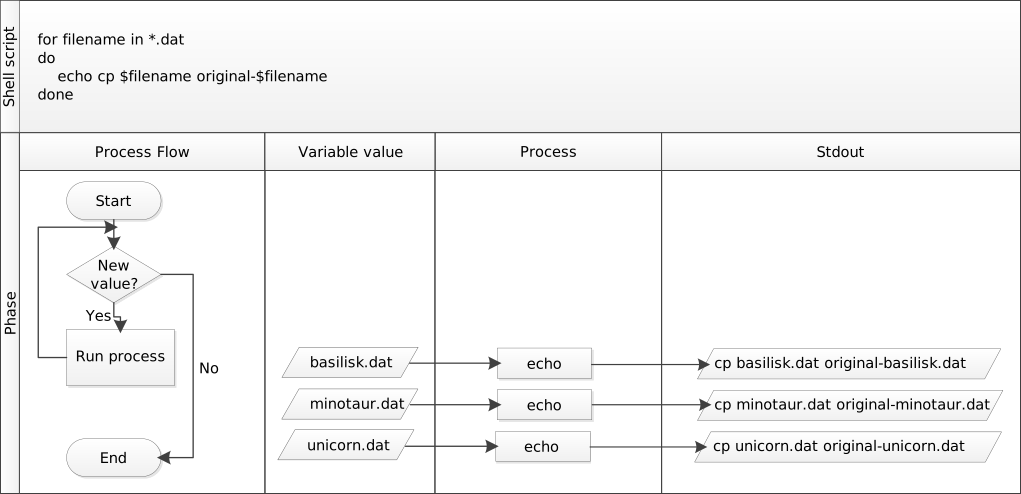
Let’s now think about our researcher, Nelle’s, Pipeline for processing files
Since she’s still learning how to use the shell, she decides to build up the required commands in stages. Her first step is to make sure that she can select the right files — remember, these are ones whose names end in ‘A’ or ‘B’, rather than ‘Z’.
Starting from her home directory, Nelle types:
pwd/Users/rotsuji/desktop/sio-swc/data-shell/creatures
cd ..cd north-pacific-gyre/2012-07-03pwd/Users/rotsuji/desktop/sio-swc/data-shell/north-pacific-gyre/2012-07-03
for datafile in *[AB].txt
do
echo $datafile
done
NENE01729A.txt
NENE01729B.txt
NENE01736A.txt
NENE01751A.txt
NENE01751B.txt
NENE01812A.txt
NENE01843A.txt
NENE01843B.txt
NENE01978A.txt
NENE01978B.txt
NENE02018B.txt
NENE02040A.txt
NENE02040B.txt
NENE02043A.txt
NENE02043B.txt
Running this loop she now sees the output:
NENE01729A.txt
NENE01729B.txt
NENE01736A.txt
...
NENE02043A.txt
NENE02043B.txt
Her next step is to decide what to call the files that the goostats analysis program will create.
Prefixing each input file’s name with “stats” seems simple, so she modifies her loop to do that:
for datafile in *[AB].txt
do
echo $datafile stats-$datafile
done
NENE01729A.txt stats-NENE01729A.txt
NENE01729B.txt stats-NENE01729B.txt
NENE01736A.txt stats-NENE01736A.txt
NENE01751A.txt stats-NENE01751A.txt
NENE01751B.txt stats-NENE01751B.txt
NENE01812A.txt stats-NENE01812A.txt
NENE01843A.txt stats-NENE01843A.txt
NENE01843B.txt stats-NENE01843B.txt
NENE01978A.txt stats-NENE01978A.txt
NENE01978B.txt stats-NENE01978B.txt
NENE02018B.txt stats-NENE02018B.txt
NENE02040A.txt stats-NENE02040A.txt
NENE02040B.txt stats-NENE02040B.txt
NENE02043A.txt stats-NENE02043A.txt
NENE02043B.txt stats-NENE02043B.txt
The loop produces the output:
NENE01729A.txt stats-NENE01729A.txt
NENE01729B.txt stats-NENE01729B.txt
NENE01736A.txt stats-NENE01736A.txt
...
NENE02043A.txt stats-NENE02043A.txt
NENE02043B.txt stats-NENE02043B.txt
She hasn’t actually run goostats yet, but now she’s sure she can select the right files and generate the right output filenames.
Typing in commands over and over again is becoming tedious, though, and Nelle is worried about making mistakes, so instead of re-entering her loop, she presses the up arrow.
In response, the shell redisplays the whole loop on one line (using semi-colons to separate the pieces):
for datafile in *[AB].txt; do echo $datafile stats-$datafile; doneNENE01729A.txt stats-NENE01729A.txt
NENE01729B.txt stats-NENE01729B.txt
NENE01736A.txt stats-NENE01736A.txt
NENE01751A.txt stats-NENE01751A.txt
NENE01751B.txt stats-NENE01751B.txt
NENE01812A.txt stats-NENE01812A.txt
NENE01843A.txt stats-NENE01843A.txt
NENE01843B.txt stats-NENE01843B.txt
NENE01978A.txt stats-NENE01978A.txt
NENE01978B.txt stats-NENE01978B.txt
NENE02018B.txt stats-NENE02018B.txt
NENE02040A.txt stats-NENE02040A.txt
NENE02040B.txt stats-NENE02040B.txt
NENE02043A.txt stats-NENE02043A.txt
NENE02043B.txt stats-NENE02043B.txt
Using the left arrow key, Nelle backs up and changes the command echo to bash goostats:
for datafile in *[AB].txt; do bash goostats $datafile stats-$datafile; done
When she presses Enter, the shell runs the modified command. However, nothing appears to happen — there is no output.
After a moment, Nelle realizes that since her script doesn’t print anything to the screen any longer, she has no idea whether it is running, much less how quickly.
She kills the running command by typing Ctrl-C, uses up-arrow to repeat the command, and edits it to read:
for datafile in *[AB].txt;
do echo $datafile; bash goostats $datafile stats-$datafile; done
When she runs her program now, it produces one line of output every five seconds or so:
NENE01729A.txt
NENE01729B.txt
NENE01736A.txt
…
1518 times 5 seconds, divided by 60, tells her that her script will take about two hours to run.
As a final check, she opens another terminal window, goes into north-pacific-gyre/2012-07-03, and uses cat stats-NENE01729B.txt to examine one of the output files.
It looks good, so she decides to get some coffee and catch up on her reading.
cat stats-NENE01729B.txt0.529201331561
0.646620295293
1.03149902331
History command Another way to repeat previous work is to use the history command to get a list of the last few hundred commands that have been executed, and then to use !123 (where “123” is replaced by the command number) to repeat one of those commands. For example, if Nelle types this:
history | tail -n 5 906 for datafile in *[AB].txt; do echo $datafile; bash goostats $datafile stats-$datafile; done
907 for datafile in *[AB].txt; do echo $datafile; bash goostats $datafile stats-$datafile; done
908 $ history | tail -n 5
909 echo $?
910 history | tail -n 5
You are working with files in the same directory, what is the effect of this loop?
for sugar in *.dat
do
    echo $sugar
    cat $sugar > xylose.dat
done-
Prints fructose.dat, glucose.dat, and sucrose.dat, and the text from sucrose.dat will be saved to a file called xylose.dat.
-
Prints fructose.dat, glucose.dat, and sucrose.dat, and the text from all three files would be concatenated and saved to a file called xylose.dat.
-
Prints fructose.dat, glucose.dat, sucrose.dat, and xylose.dat, and the text from sucrose.dat will be saved to a file called xylose.dat.
-
None of the above.
- Write a shell script that runs a command or series of commands for a fixed set of files.
- Run a shell script from the command line.
- Write a shell script that operates on a set of files defined by the user on the command line.
- Create pipelines that include shell scripts you, and others, have written.
We are finally ready to see what makes the shell such a powerful programming environment.
We are going to take the commands we repeat frequently and save them in files so that we can re-run all those operations again later by typing a single command.
For historical reasons, a bunch of commands saved in a file is usually called a shell script, but make no mistake: these are actually small programs.
Let’s start by going back to molecules/ and putting the following line in the script file middle.sh we are going to create.
start by typing pwd to see our current working directory
pwd/Users/rotsuji/desktop/sio-swc/data-shell
Navigate to the workshop/data-shell/molecules folder
cd moleculespwd/Users/rotsuji/desktop/sio-swc/data-shell/molecules
let’s create the script file called middle.sh by using a text editor:
$ nano (or notepad) middle.sh
The command nano middle.sh opens the file middle.sh within the text editor “nano” (which runs within the shell).
If the file does not exist, it will be created.
We can use the text editor to directly edit the file.
note that Shell script files end in .sh
In the script file type the line:
head -15 octane.pdb | tail -5
This is a variation on the pipe we constructed earlier: it selects lines 11-15 of the file octane.pdb.
Remember, we are not running it as a command just yet: we are putting the commands in a file.
now save the middle.sh file.
in nano save the file (using CTRL-O), and exit the text editor (using CTRL-X)
Once we have saved the file, we can ask the shell to execute the commands it contains. Our shell is called bash, so we run the following command:
$ bash middle.shThe script’s output is exactly what we would get if we ran that pipeline directly
Now, What if we want to select lines from an arbitrary file?
We could edit middle.sh each time to change the filename, but that would probably take longer than just retyping the command.
Instead, let’s edit middle.sh and replace octane.pdb with a special variable called $1:
*** to edit the script file type: ***
$ nano (or notepad) middle.sh
In the script file lets replace octane.pdb with the special variable $1
head -15 "$1" | tail -5
Inside a shell script, $1 basically means “the first filename (or other parameter) on the command line”.
We put the $1 inside of double-quotes in case the filename happens to contain any spaces.
as we know from the data management lecture best practices, do not use spaces in filenames.
We can now run our script like this:
$ bash middle.sh octane.pdbor on another file by typing:
$ bash middle.sh pentane.pdbTo enhance our script: We still need to edit middle.sh each time we want to adjust the range of lines, though. Let’s fix that by using the special variables ** $2 and $3:**
$ nano (or notepad) middle.sh edit the file by replacing -15 with “$2” and -5 with “$3”
modify the line to read: head "$2" "$1" | tail "$3"
run the script by typing:
$ bash middle.sh pentane.pdb -20 -5Our script works, but it may take the next person who reads middle.sh a moment to figure out what it does.
it is good practice to add some comments at the top of the script:
open the script file again in the editor.
$ nano (or notepad) middle.sh ** A comment starts with a # character and runs to the end of the line. **
type in the comment:
** # Select lines from the middle of a file.**
**# Usage: middle.sh filename -end_line -num_lines **
The computer ignores comments, but they’re invaluable for helping people understand and use scripts.
save the file.
What if we want to process many files in a single pipeline?
For example, if we want to sort our .pdb files by length, we would type:
check to make sure you are still in the molecules folder:
pwd/Users/rotsuji/desktop/sio-swc/data-shell/molecules
wc -l *.pdb | sort -n 9 methane.pdb
12 ethane.pdb
15 propane.pdb
20 cubane.pdb
21 pentane.pdb
30 octane.pdb
107 total
because wc -l lists the number of lines in the files (recall that wc stands for ‘word count’, adding the -l flag means ‘count lines’ instead) and sort -n sorts things numerically.
We could put this in a file, but then it would only ever sort a list of**.pdb** files in the current directory.
If we want to be able to get a sorted list of other kinds of files, we need a way to get all those names into the script. We can’t use $1, $2, and so on because we don’t know how many files there are.
Instead, we use the special variable $@, which means, “All of the command-line parameters to the shell script.” We also should put $@ inside double-quotes to handle the case of parameters containing spaces ("$@" is equivalent to "$1" "$2" …)
create the script file sorted.sh
$ nano sorted.shadd the line:
wc -l "$@" | sort -n
Save the file.
run the script:
$ bash sorted.sh *.pdb ../creatures/*.datWe have two more things to do before we’re finished with our simple shell scripts. If you look at a script like the one we just created:
$ cat sorted.shcat will show:
** wc -l "$@" | sort -n **
you can probably figure out what it does. On the other hand, if you look at this script with comments it makes more sense.
Let’s add a comment to the script:
open sorted.sh in nano:
$ nano sorted.shType the comment:
# List files sorted by number of lines.
run cat one more time:
$ cat sorted.shNow if you shared the scripted or can’t remember what it does, you don’t have to figure it out — the comment at the top tells you what it does.
A line or two of documentation like this make it much easier for other people (including your future self) to re-use your work.
The only caveat is that each time you modify the script, you should check that the comment is still accurate: an explanation that sends the reader in the wrong direction is worse than none at all.
Suppose we have just run a series of commands that did something useful — for example, that created a graph we’d like to use in a paper. We’d like to be able to re-create the graph later if we need to, so we want to save the commands in a file. Instead of typing them in again (and potentially getting them wrong) we can do this:
history | tail -n 5 > redo-figure-3.shThe file redo-figure-3.sh now contains the last several commands we used:
cat redo-figure-3.sh 945 pwd
946 echo $?
947 $ history | tail -n 5 > redo-figure-3.sh
948 echo $?
949 history | tail -n 5 > redo-figure-3.sh
In practice, most people develop shell scripts by running commands at the shell prompt a few times to make sure they’re doing the right thing, then saving them in a file for re-use.
This style of work allows people to recycle what they discover about their data and their workflow with one call to history and a bit of editing to clean up the output and save it as a shell script.
An off-hand comment from her supervisor has made Nelle realize that she should have provided a couple of extra parameters to goostats when she processed her files. This might have been a disaster if she had done all the analysis by hand, but thanks to for loops, it will only take a couple of hours to re-do.
But experience has taught her that if something needs to be done twice, it will probably need to be done a third or fourth time as well. She runs the editor and writes the following:
# Calculate reduced stats for data files at J = 100 c/bp.
for datafile in "$@"
do
    echo $datafile
    bash goostats -J 100 -r $datafile stats-$datafile
done
(The parameters -J 100 and -r are the ones her supervisor said she should have used.) She saves this in a file called do-stats.sh so that she can now re-do the first stage of her analysis by typing:
$ bash do-stats.sh *[AB].txtShe can also do this:
$ bash do-stats.sh *[AB].txt | wc -lso that the output is just the number of files processed rather than the names of the files that were processed.
One thing to note about Nelle’s script is that it lets the person running it decide what files to process. She could have written it as:
# Calculate reduced stats for  A and Site B data files at J = 100 c/bp.
for datafile in *[AB].txt
do
    echo $datafile
    bash goostats -J 100 -r $datafile stats-$datafile
done
The advantage is that this always selects the right files: she doesn’t have to remember to exclude the ‘Z’ files. The disadvantage is that it always selects just those files — she can’t run it on all files (including the ‘Z’ files), or on the ‘G’ or ‘H’ files her colleagues in Antarctica are producing, without editing the script. If she wanted to be more adventurous, she could modify her script to check for command-line parameters, and use *[AB].txt if none were provided. Of course, this introduces another tradeoff between flexibility and complexity.
- Use grep to select lines from text files that match simple patterns.
- Use find to find files whose names match simple patterns.
- Use the output of one command as the command-line parameters to another command.
- Explain what is meant by “text” and “binary” files, and why many common tools don’t handle the latter well.
In the same way that many of us now use “Google” as a verb meaning “to find”, Unix programmers often use the word “grep”.
“grep” is a contraction of “global/regular expression/print”, a common sequence of operations in early Unix text editors. It is also the name of a very useful command-line program.
grep finds and prints lines in files that match a pattern.
For our examples, we will use a file that contains three haikus taken from a 1998 competition in Salon magazine.
For this set of examples, we’re going to be working in the writing subdirectory:
pwd/Users/rotsuji/desktop/sio-swc/data-shell/molecules
cd ..pwd/Users/rotsuji/desktop/sio-swc/data-shell
cd writingpwd/Users/rotsuji/desktop/sio-swc/data-shell/writing
cat haiku.txtThe Tao that is seen
Is not the true Tao, until
You bring fresh toner.
With searching comes loss
and the presence of absence:
"My Thesis" not found.
Yesterday it worked
Today it is not working
Software is like that.
Let’s find lines that contain the word “not”:
grep not haiku.txtIs not the true Tao, until
"My Thesis" not found.
Today it is not working
The word not is the pattern we’re searching for.
It’s pretty simple: every alphanumeric character matches against itself.
After the pattern comes the name or names of the files we’re searching in.
The output is the three lines in the file that contain the letters “not”.
Now, Let’s try a different pattern: “day”.
grep day haiku.txtYesterday it worked
Today it is not working
This time, two lines that include the letters “day” are outputted.
However, these letters are contained within larger words. “Yesterday” and “today”
To restrict matches to lines containing the word “day” on its own, we can give grep with the -w flag.
This will limit matches to word boundaries.
grep -w day haiku.txtIn this case, there aren’t any, so grep’s output is empty.
Sometimes we don’t want to search for a single word, but a phrase.
This is also easy to do with grep by putting the phrase in quotes.
grep -w "is not" haiku.txtToday it is not working
We’ve now seen that you don’t have to have quotes around single words, but it is useful to use quotes when searching for multiple words.
It also helps to make it easier to distinguish between the search term or phrase and the file being searched.
For the next remaining examples we will use quotes.
Another useful option is -n, which numbers the lines that match:
grep -n "it" haiku.txt5:With searching comes loss
9:Yesterday it worked
10:Today it is not working
can run clear command to clear the terminal, and using “history” will return the last commands if necessary
Here, we can see that lines 5, 9, and 10 contain the letters “it”.
We can combine options (i.e. flags) as we do with other Unix commands.
For example, let’s find the lines that contain the word “the”.
We can combine the option -w (limited word bourndaries) to find the lines that contain the word “the” and -n to number the lines that match:
grep -n -w "the" haiku.txt2:Is not the true Tao, until
6:and the presence of absence:
Now we want to use the option -i to make our search **case-insensitive:
grep -n -w -i "the" haiku.txt1:The Tao that is seen
2:Is not the true Tao, until
6:and the presence of absence:
Now, we want to use the option -v to invert our search, i.e., we want to output the lines that do not contain the word “the”.
grep -n -w -v "the" haiku.txt1:The Tao that is seen
3:You bring fresh toner.
4:
5:With searching comes loss
7:"My Thesis" not found.
8:
9:Yesterday it worked
10:Today it is not working
11:Software is like that.
grep has lots of other options.
To find out what they are, we can type man grep.
man is the Unix “manual” command: it prints a description of a command and its options, and (if you’re lucky) provides a few examples of how to use it.
To navigate through the man pages, you may use the up and down arrow keys to move line-by-line, or try the “b” and spacebar keys to skip up and down by full page.
Quit the man pages by typing “q”.
$ man grepor
$ grep --helpgrep‘s real power doesn’t come from its options, though; it comes from the fact that patterns can include wildcards. (The technical name for these is regular expressions, which is what the “re” in “grep” stands for.)
grep -E '^.o' haiku.txtYou bring fresh toner.
Today it is not working
Software is like that.
We use the -E flag and put the pattern in quotes to prevent the shell from trying to interpret it. (If the pattern contained a *, for example, the shell would try to expand it before running grep.) The ^ in the pattern anchors the match to the start of the line. The . matches a single character (just like ? in the shell), while the 'o' matches an actual ‘o’.
While grep finds lines in files, the find command finds files themselves.
Again, it has a lot of options; to show how the simplest ones work, we’ll use the directory tree shown below.
Link to directory structure image: http://swcarpentry.github.io/shell-novice/fig/find-file-tree.svg

Nelle’s writing directory contains one file called haiku.txt and four subdirectories: thesis (which contains a sadly empty file, empty-draft.md), data (which contains two files one.txt and two.txt), a tools directory that contains the programs format and stats, and a subdirectory called old, with a file oldtool.
For our first command, let’s run **find . **
find ..
./.DS_Store
./data
./data/one.txt
./data/two.txt
./haiku.txt
./old
./old/.gitkeep
./thesis
./thesis/empty-draft.md
./tools
./tools/format
./tools/old
./tools/old/oldtool
./tools/stats
next, let’s run **find . -type d **
find . -type d.
./data
./old
./thesis
./tools
./tools/old
As always, the . on its own means the current working directory, which is where we want our search to start; -type d means “things that are directories”. Sure enough,find’s output is the names of the five directories in our little tree (including .):
If we change -type d to -type f, we get a listing of all the files instead:
find . -type f./.DS_Store
./data/one.txt
./data/two.txt
./haiku.txt
./old/.gitkeep
./thesis/empty-draft.md
./tools/format
./tools/old/oldtool
./tools/stats
find automatically goes into subdirectories, their subdirectories, and so on to find everything that matches the pattern we’ve given it.
Now let's try matching by name:
find . -name *.txt./haiku.txt
We expected it to find all the text files, but it only prints out ./haiku.txt. The problem is that the shell expands wildcard characters like * before commands run.
Since *.txt in the current directory expands to haiku.txt, the command we actually ran was:
find . -name haiku.txt./haiku.txt
find did what we asked; we just asked for the wrong thing.
To get what we want, let’s do what we did with *grep: put .txt in single quotes to prevent the shell from expanding the * wildcard. This way, find actually gets the pattern *.txt, not the expanded filename haiku.txt:
find . -name '*.txt'./data/one.txt
./data/two.txt
./haiku.txt
As we said earlier, the command line’s power lies in combining tools.
We’ve seen how to do that with pipes; let’s look at another technique.
As we just saw, find . -name '*.txt' gives us a list of all text files in or below the current directory.
How can we combine that with wc -l to count the lines in all those files?
The simplest way is to put the find command inside $():
wc -l $(find . -name '*.txt') 70 ./data/one.txt
300 ./data/two.txt
11 ./haiku.txt
381 total
When the shell executes this command, the first thing it does is run whatever is inside the $().
It then replaces the $() expression with that command’s output.
Since the output of find is the three filenames ./data/one.txt, ./data/two.txt, and ./haiku.txt, the shell constructs the command:
wc -l ./data/one.txt ./data/two.txt ./haiku.txt 70 ./data/one.txt
300 ./data/two.txt
11 ./haiku.txt
381 total
which is what we wanted.
This expansion is exactly what the shell does when it expands wildcards like * and ?, but lets us use any command we want as our own “wildcard”.
It’s very common to use find and grep together.
The first finds files that match a pattern; the second looks for lines inside those files that match another pattern. Here, for example, we can find PDB files that contain iron atoms by looking for the string “FE” in all the .pdb files above the current directory:
grep "FE" $(find .. -name '*.pdb')../data/pdb/heme.pdb:ATOM 25 FE 1 -0.924 0.535 -0.518
We have focused exclusively on finding things in text files. What if your data is stored as images, in databases, or in some other format? One option would be to extend tools like grep to handle those formats. This hasn’t happened, and probably won’t, because there are too many formats to support.
The second option is to convert the data to text, or extract the text-ish bits from the data. This is probably the most common approach, since it only requires people to build one tool per data format (to extract information). On the one hand, it makes simple things easy to do. On the negative side, complex things are usually impossible. For example, it’s easy enough to write a program that will extract X and Y dimensions from image files for grep to play with, but how would you write something to find values in a spreadsheet whose cells contained formulas?
The third choice is to recognize that the shell and text processing have their limits, and to use a programming language such as Python instead. When the time comes to do this, don’t be too hard on the shell: many modern programming languages, Python included, have borrowed a lot of ideas from it, and imitation is also the sincerest form of praise.
The Unix shell is older than most of the people who use it.
It has survived so long because it is one of the most productive programming environments ever created — maybe even the most productive.
Its syntax may be cryptic, but people who have mastered it can experiment with different commands interactively, then use what they have learned to automate their work.
Graphical user interfaces may be better at the first, but the shell is still unbeaten at the second.
And as Alfred North Whitehead wrote in 1911, “Civilization advances by extending the number of important operations which we can perform without thinking about them.”